You create a new user account by defining it in your IAM organization and inviting the user to enroll. You need to specify the user's email address and the product-specific roles to be assigned to the user. User accounts can be assigned roles for more than one product type, and they typically are. A user can be assigned multiple roles for accessing the Trellix Web UI or Helix Web UI. For access to Trellix appliances, a user is typically assigned a role for each product type in the IAM organization.
Until the user enrolls, the account has a Status value of Invited. After the user completes the enrollment process, the account has a Status value of Active. For details about the user account enrollment process, see the instructions in Enrolling your new IAM user account. Also see Viewing the lists of user accounts and Viewing the roles assigned to a user account.
To create a new user account, start at the Users page. The main view of the Users page lists internal users and external users separately. After the user account is created, it appears in the Internal Users panel.
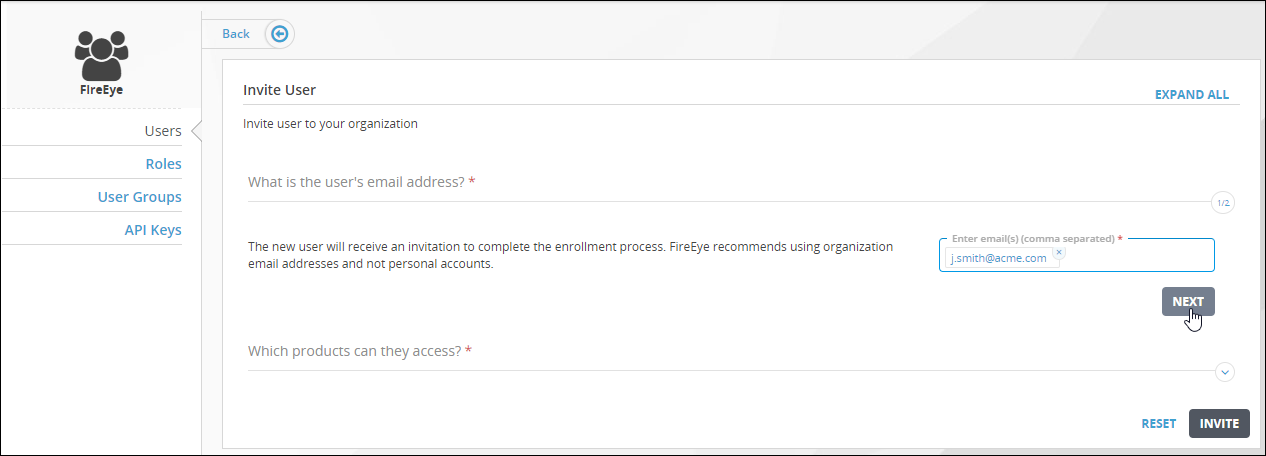
The invite user view
IAM Admin access to the Trellix IAM Web UI.
The email address by which the user will be enrolled in the organization.
To create a user account:
Log in to the IAM Web UI.
Select Organization Settings > Users.
The Users page lists all IAM user accounts known to your IAM organization.
The Internal Users panel lists user accounts that are defined in the organization. The External Users panel lists user accounts that are defined in other organizations but which the organization administrator has added and assigned roles.
Click Invite in the Internal Users panel.
Enter the user's email address and then click Next.
Note
Later, during the self-enrollment process, the user can create a password and specify a nickname, phone number, and other information.
Find the product type in the Available Products list and click Grant.
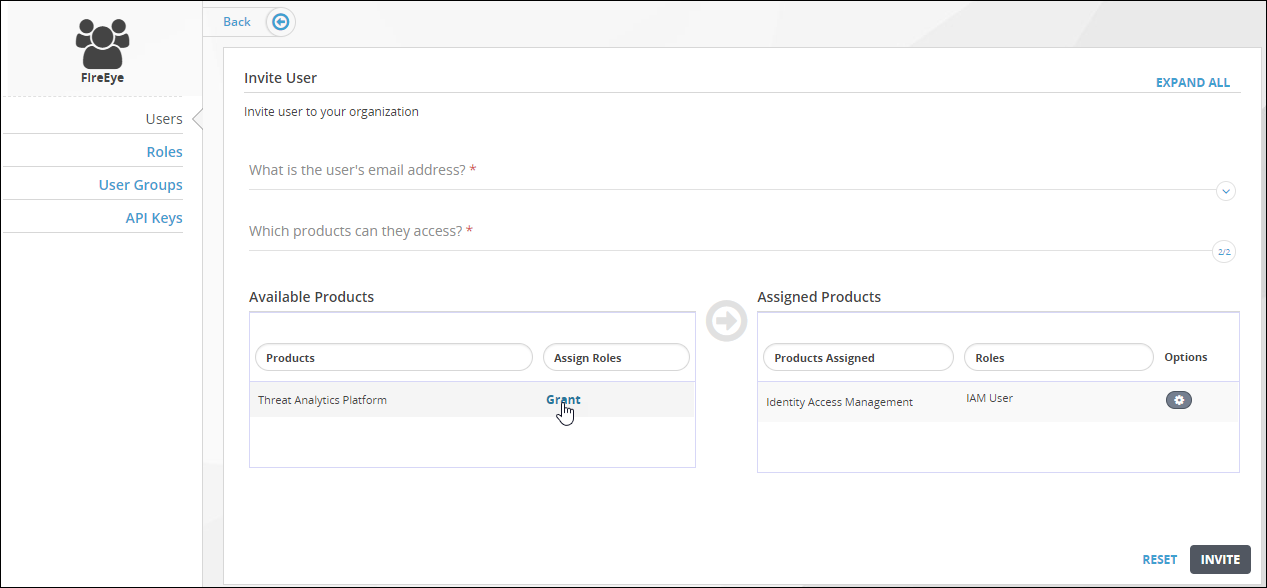
In the Roles tab, select checkboxes for the roles you want to assign the user.
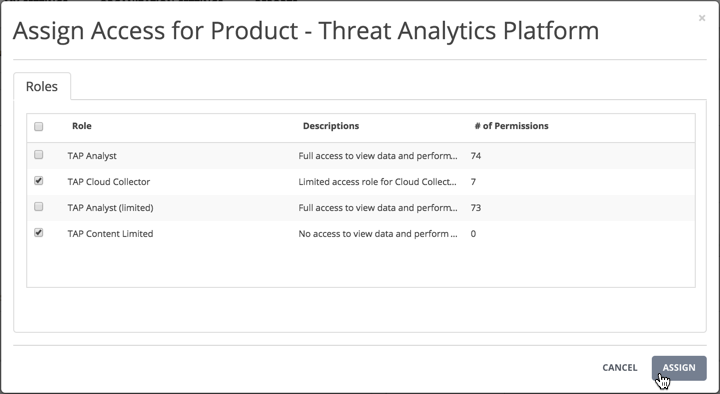
Click Assign.
To assign the user roles for another product type, repeat steps 5 through 7.
After all roles have been assigned, click Invite. The user is sent a link to the Trellix IAM enrollment portal.
The user account appears in Internal Users panel of the Users main view. The Status value Invited. After the user completes the self-enrollment process, the Status value changes to Active.