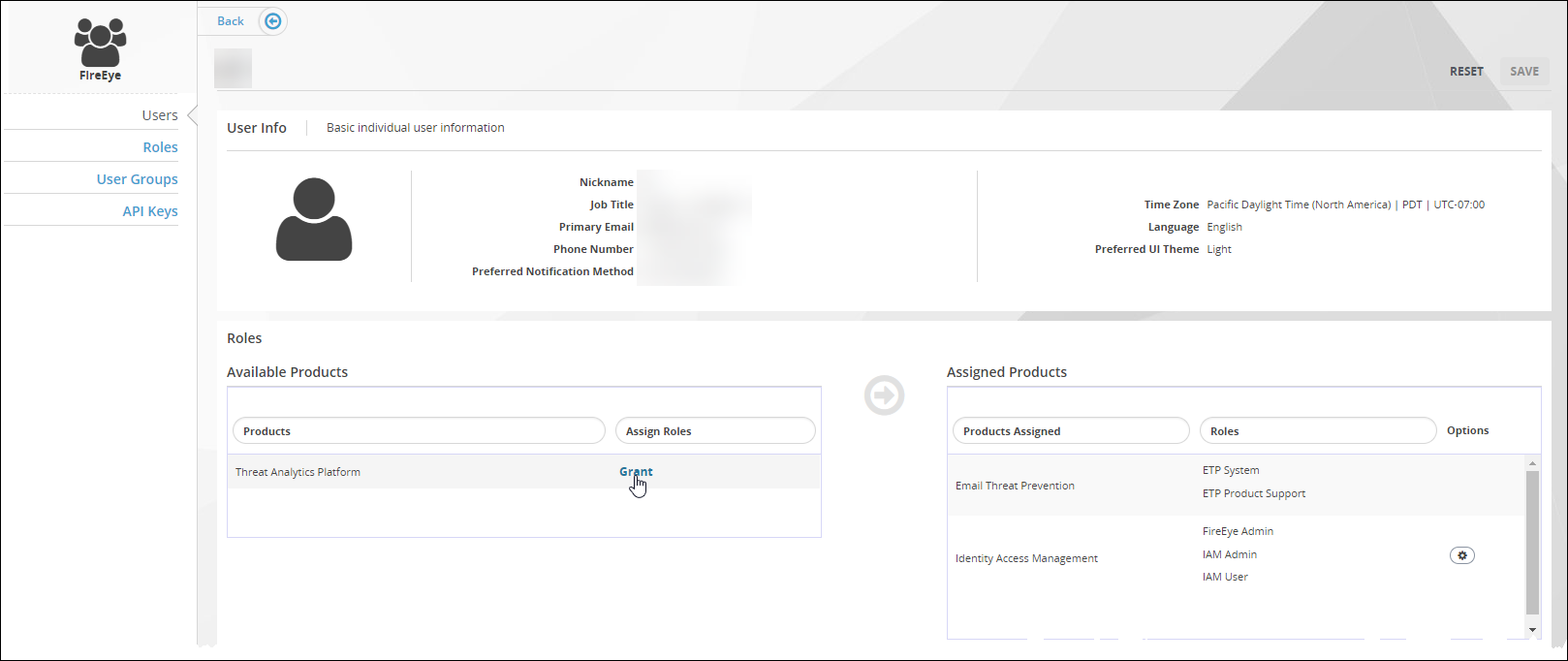
To view the roles assigned to a Trellix IAM user account, use the Edit User view of the Users page.
IAM Admin access to the Trellix IAM Web UI.
To view the roles assigned to a user account:
Log in to the IAM Web UI.
Select Organization Settings > Users.
The Users page lists all Trellix IAM user accounts known to your IAM organization.
The Internal Users panel lists user accounts that are defined in your organization. The External Users panel lists user accounts that are defined in other organizations but which the organization administrator has added and assigned roles.
Select the user account you want to view.
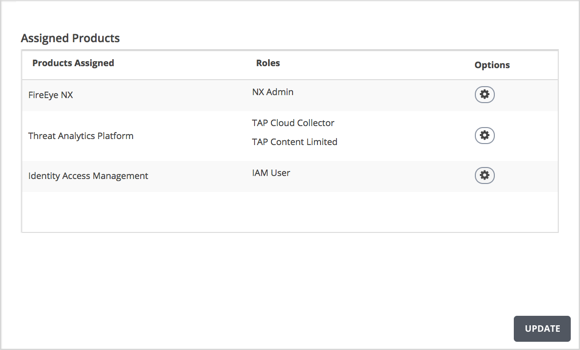
The Assigned Products panel lists the product-specific roles assigned directly to the user. It does not show roles assigned to the account indirectly through membership in a Trellix IAM user group.
In the following example, the user is assigned four roles from three products.