Note
The stream is color-coded to indicate the direction of the data. You can filter the stream by direction and view the data in hex or ASCII format.
Click
 and from CONFIGURATION, select Search.
Enter a query in the Query bar and click the search icon to perform a search.
From the Event Table, click the checkbox next to one or more events you want to reconstruct.
Click the Reconstruct button at the top of the Event Table. The NDR pivot engine processes the events and displays the results on the Packets tab.
From the Packets tab, select an event from the Connections list to view all the packets associated with that event.
Click the Stream Follow link that is associated with the event you selected to view the connection stream.
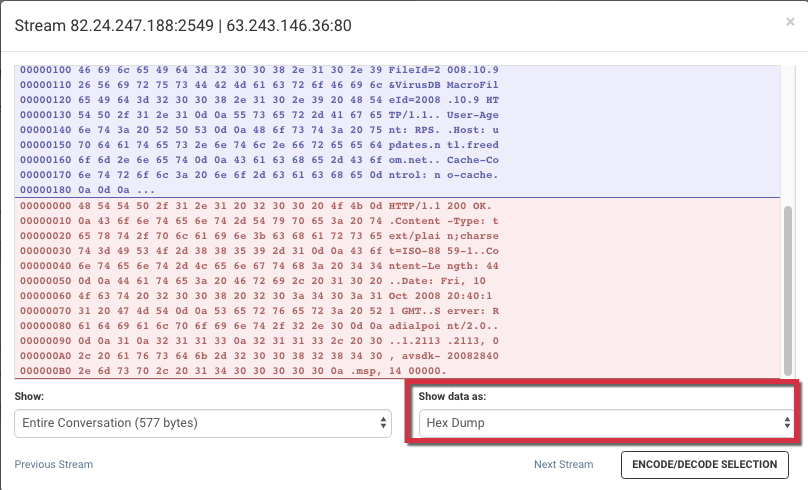
From the Show data as menu, select Hex Dump.
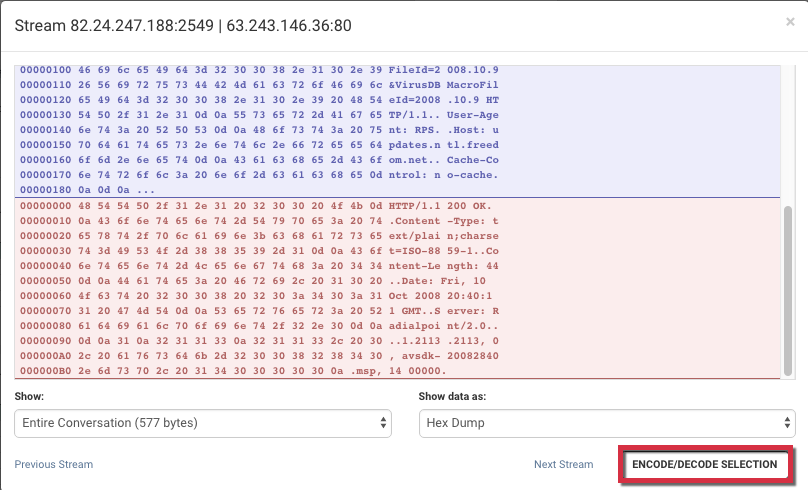
Click ENCODE/DECODE SELECTION to open the connection stream in the Payload Encode/Decode window Input section.
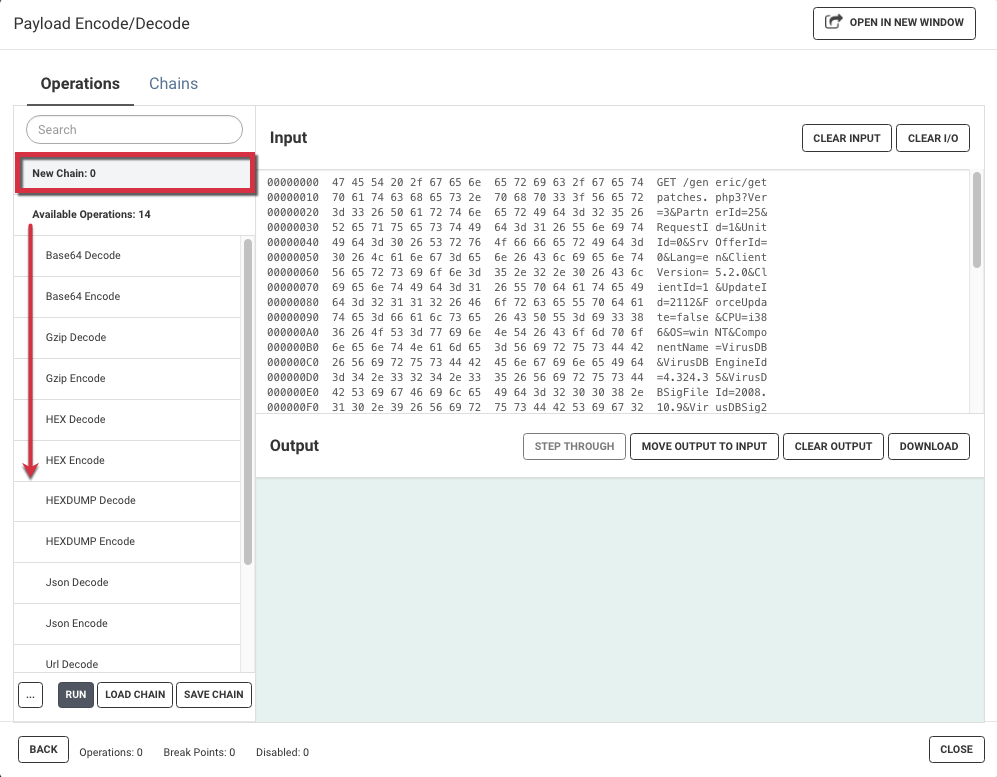
Create a new chain by dragging and dropping the operations you want to run in the New Chain window.
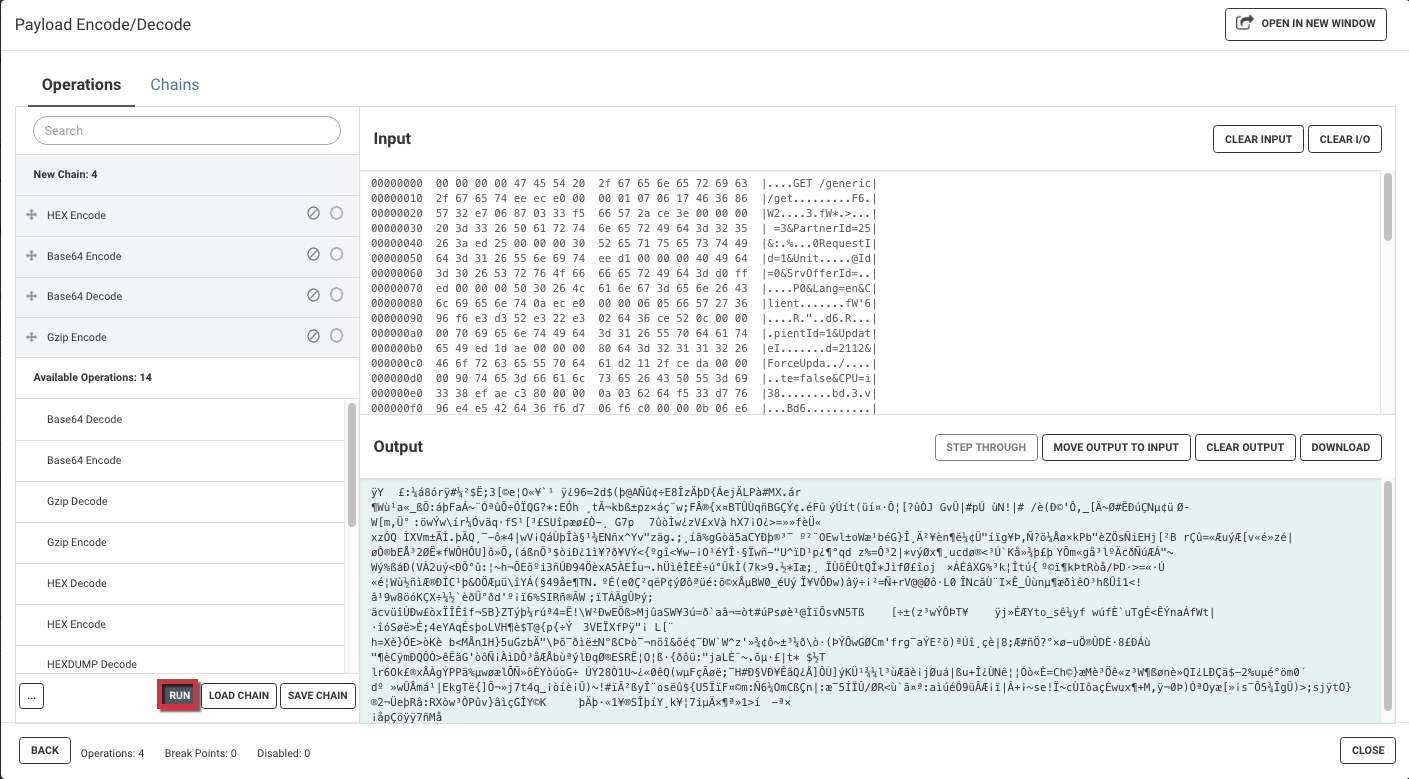
Click RUN to start the new chain and apply it to the entire connection stream. You can run the new chain against the entire connection stream or highlight a section of the connection stream you want to run the new chain against.