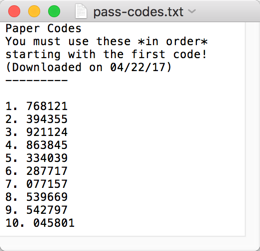
If 2FA was enabled when you enrolled your user account, the enrollment process prompted you to generate a set of ten verification codes as a backup measure. In case you do not have your mobile device with you when you need to access your IAM account, you can authenticate by using one of the backup verification codes.
This procedure describes how to generate another set of verification codes.
Restrictions for two-factor authentication backup codes
Each code can be used only once.
The codes must be used in the order listed
Generating a new set of backup codes invalidates any backup codes you downloaded previously but have not used.
To generate a new set of two-factor authentication backup codes:
Log in to the Trellix IAM Web UI.
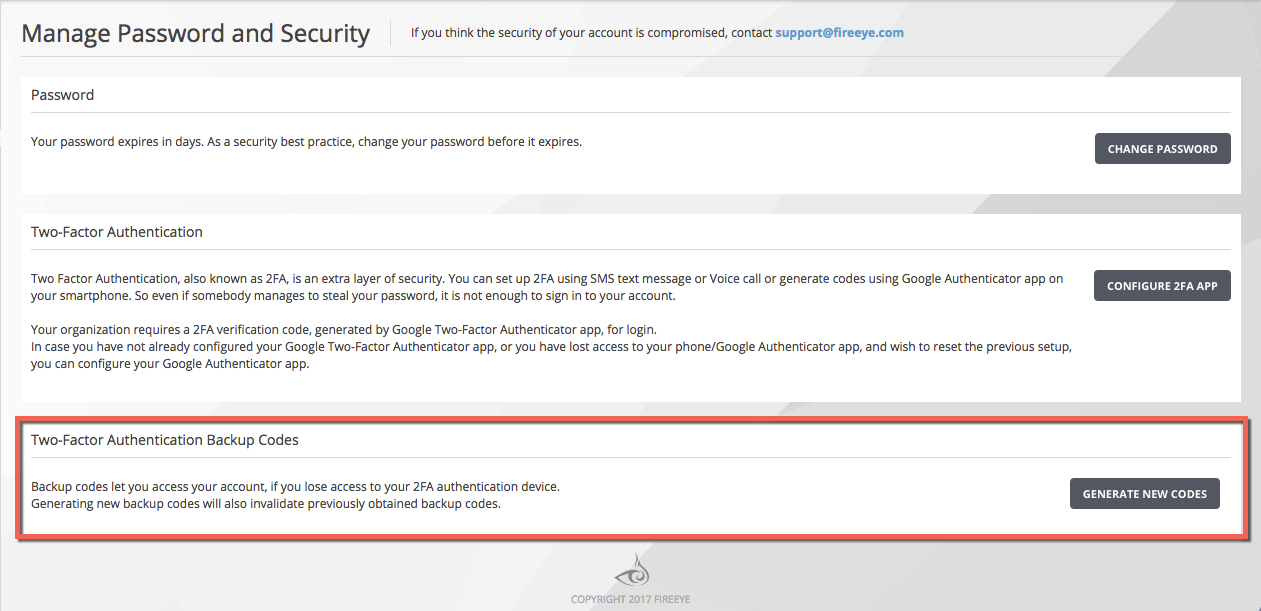
Select My Settings > Password & Security.
In the Two-Factor Authentication panel, click Generate New Codes.
Enter the password for your Trellix IAM account.
Click Generate Backup Codes. Each code will allow you log in to your Trellix IAM account one time.
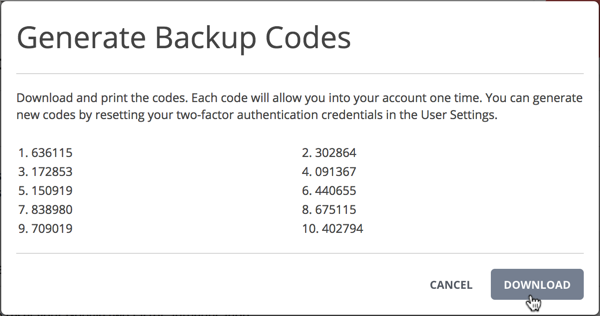
Click Download and save the file, or print a copy.