This procedure describes how to reset the configuration of your smartphone as a two-factor authentication device and configure the Google Authenticator mobile app. on your device.
A supported mobile device. Refer to the Trellix IAM Release Notes.
To reset two-factor authentication on your smartphone:
Log in to the Trellix IAM Web UI.
Select My Settings > Password & Security.
In the Two‑Factor Verification panel, click Configure 2FA App.
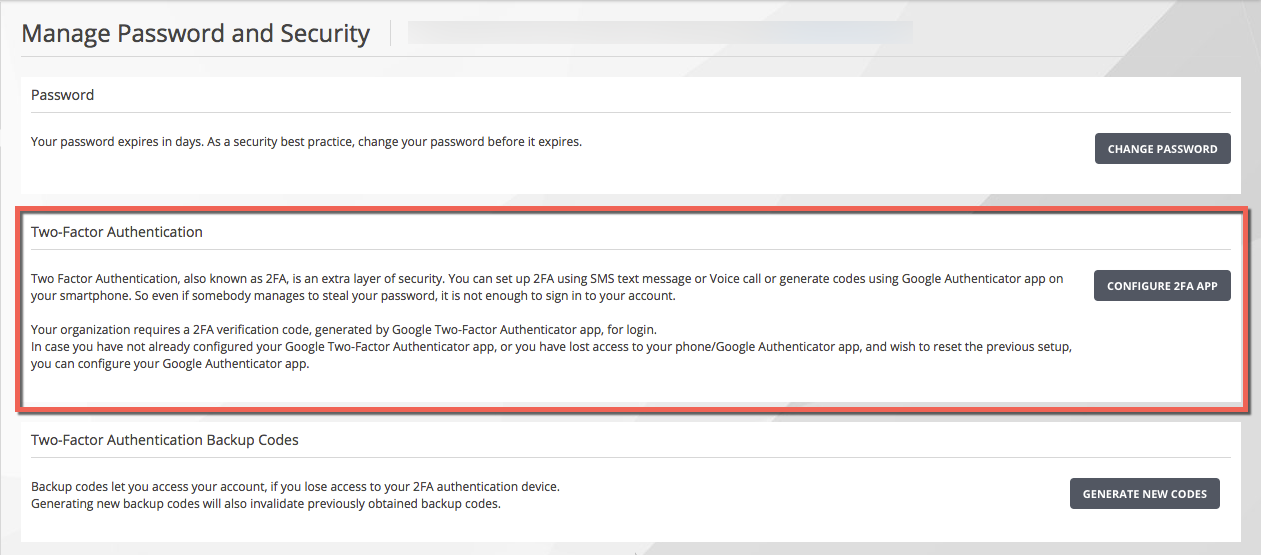
Enter your Trellix IAM user account password in the Google Two‑Factor Authentication dialog box.
Select your mobile device operating system.
Click Reset.
Scan the QR code into your smartphone, and then click Next.
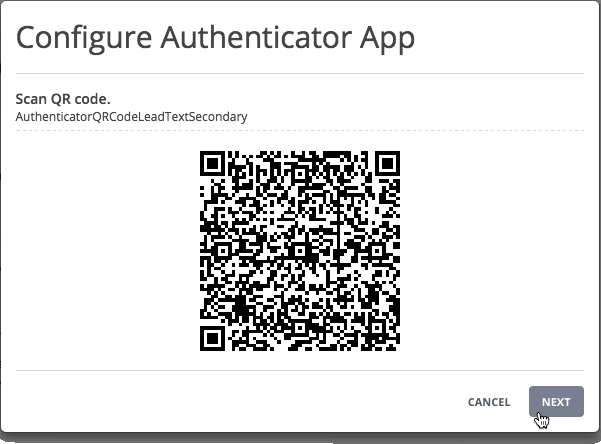
Verify your setup.
Click Enter code from your smartphone. A verification code is sent to the phone number configured for your account.
When you are prompted, enter the verification code that was sent to your phone, and then click Verify.