If the Trellix IAM user accounts in your organization are secured using two-factor authentication, you need a mobile device on which to receive SMS text messages and voice calls from Google 2‑Step Verification. If 2FA was enabled when you enrolled your user account, the enrollment process prompted you to verify the phone number configured for your account by sending a test verification code to that number.
To configure a supported smartphone as a two-factor authentication device, install the Google Authenticator app on it. The app generates verification codes even if your smartphone has no phone or data connectivity.
A supported mobile device. Refer to the Trellix IAM Release Notes.
A Google account.
To set up a smartphone as a two-factor authentication device:
Log in to the Trellix IAM Web UI.
Select My Settings > Password & Security.
In the Two‑Factor Authentication panel, click Configure 2FA App.
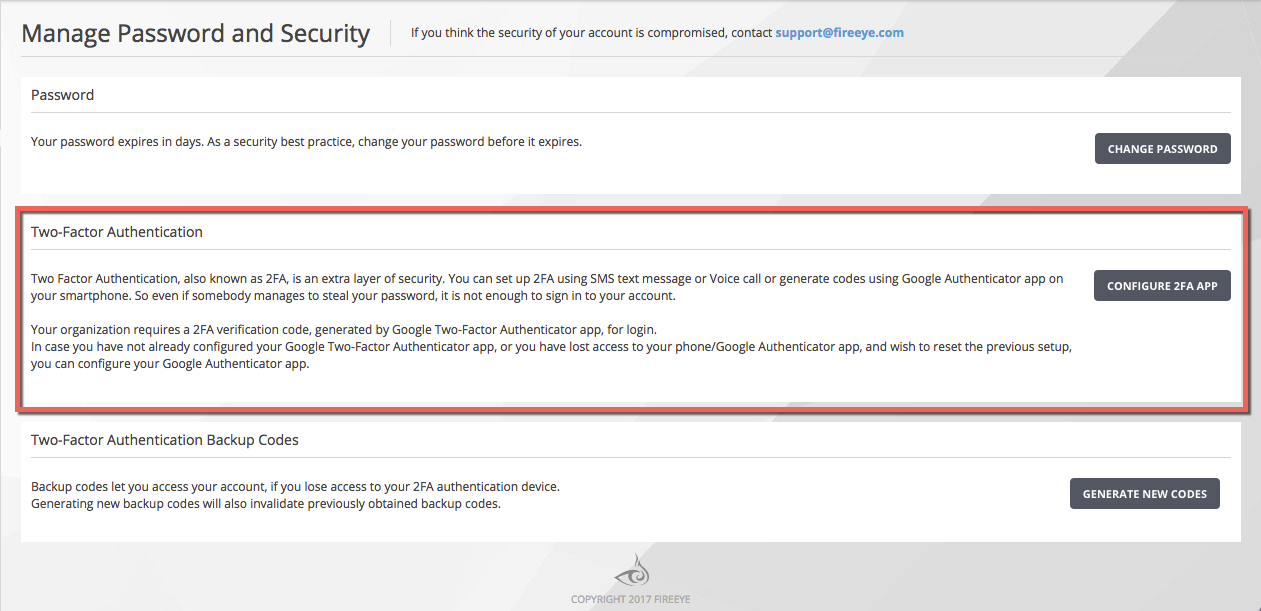
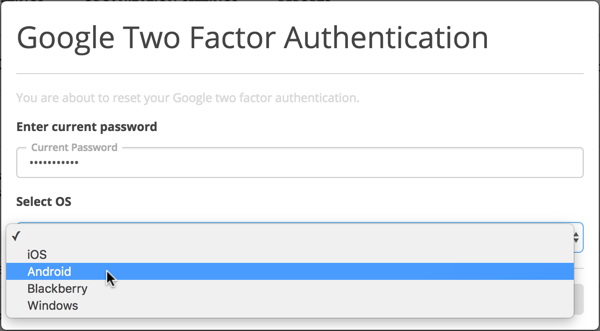
Enter the password for your Trellix IAM account.
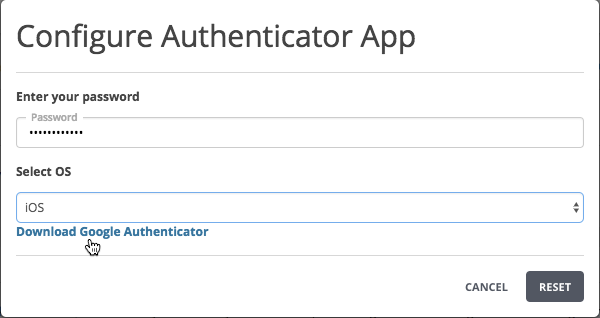
Select your smartphone operating system.
Click Download Google Authenticator.
Follow the instructions in the Google Account Help page "Install Google Authenticator" for installing and configuring the Google Authenticator app on your device.