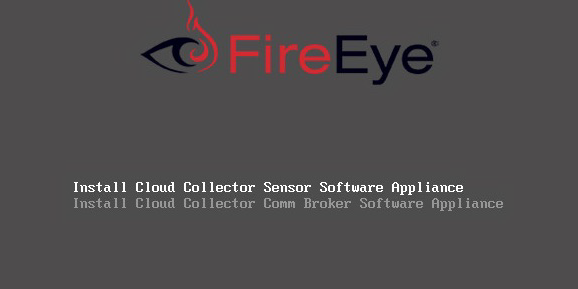
From the Boot menu, use the arrow and Enter keys to select Install Cloud Collector Sensor Software Appliance, and then press Enter.
If you are installing the Cloud Collector Sensor Software Appliance and have provisioned your hardware with additional hard drives to provide more storage for network PCAPs, you will be prompted to select the drive on which you would like to install the operating system. Enter the drive label and press Enter.

You will then be asked if you would like to use the same device for PCAP storage. You will not typically store PCAPs on the same drive as the operating system. Type
noand press Enter.Enter the drive label of the device you want to use for PCAP storage and press Enter.
Type Yes and press Enter to acknowledge that continuing will destroy all data on this device and will perform a new OS installation.
When installation is complete, press Enter to reboot.
Installing the Cloud Collector
Updated
- Updated on Sep 9, 2026
- Published on Sep 5, 2026
- 1 minute(s) read
Was this article helpful?