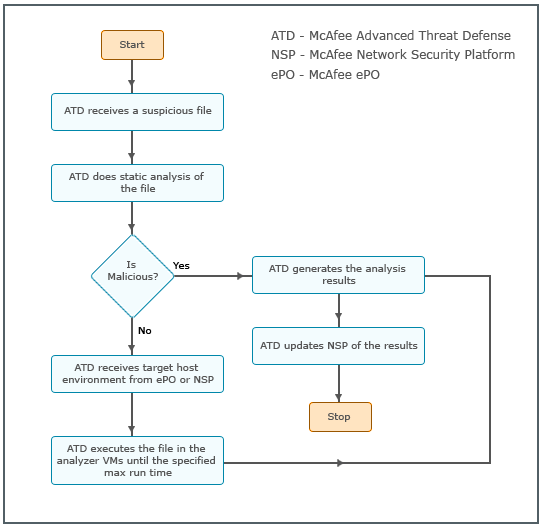
Consider that you have uploaded a file manually using Intelligent Sandbox web interface.
Assuming the file format is supported, Intelligent Sandbox unpacks the file and calculates the MD5 hash value.
Intelligent Sandbox applies the analyzer profile that you specified during file upload.
Based on the configuration in the analyzer profile, it determines the modules to use for static analysis and checks the file against those modules.
If the file is found to be malicious during static analysis, Intelligent Sandbox stops further analysis and generates the required reports. This, however, depends on how you have configured the corresponding analyzer profile.
If the static analysis does not report any malware or if you had configured Intelligent Sandbox to perform dynamic analysis regardless of the results from static analysis, Intelligent Sandbox initiates dynamic analysis for the file.
It executes the file in the corresponding analyzer VMs and records every behavior. The analyzer VM is determined based on the VM profile in the analyzer profile.
If the file is fully executed or if the maximum execution period expires, Intelligent Sandbox prepares the required reports.
After dynamic analysis is complete, it sets the analyzer VMs to their baseline version so that they can be used for the next file in queue.
Consider that an inline Sensor port that is assigned the corresponding Advanced Malware Policy, detects a file download over HTTP or SMTP:
The Sensor derives the MD5 hash value of the file and checks it against its local blacklist and white list. The Sensor's blacklist and white list are different from Intelligent Sandbox lists and these lists are not synchronized.
If the file is whitelisted, it allows the file download without processing it for malware; if the file is blacklisted, it blocks the file download without processing it further for malware. If the file is not part of the local white list or black list, the Sensor continues further processing.
Based on the file type, the Sensor concurrently passes a copy of the packet to the selected malware engines.
If the Sensor forwards the packets to Intelligent Sandbox, an informational alert is displayed in the Threat Analyzer indicating that a file is being forwarded to Intelligent Sandbox for malware analysis.
The Sensor forwards the entire file to Intelligent Sandbox but holds the last file packet for 6 seconds before forwarding it through the egress port.
Intelligent Sandbox performs static analysis of the file and if the file is found to be malicious, it informs the Sensor. The Sensor blocks the file download and takes the configured response action based on the confidence level reported by Intelligent Sandbox.
If Intelligent Sandbox is unable to find any malware through static analysis, then it informs the Sensor that the file is about to be dynamically analyzed.
Because dynamic analysis requires some time, the Sensor allows the last packet of the file to go through the egress monitoring port. It also informs the Manager about the file that is being dynamically analyzed.
The Manager regularly polls Intelligent Sandbox for the result of this dynamic analysis.
If you have integrated Trellix Intelligent Sandbox and ePO - On-prem, then the information on the target host is used from ePO - On-prem. If not, information from Passive Device Profiling in Trellix IPS is used to learn about the target host environment. Using this information, Intelligent Sandbox selects the analyzer VM and executes the file on that analyzer VM.
After the file has run for the maximum time you have specified in the analyzer profile for Trellix IPS, Intelligent Sandbox prepares the required reports.
After dynamic analysis is complete, it sets the analyzer VMs to their baseline version so that they can be used for the next file in queue.
The Manager displays the analysis report as well as in its Malware Dashboards and Threat Analyzer.