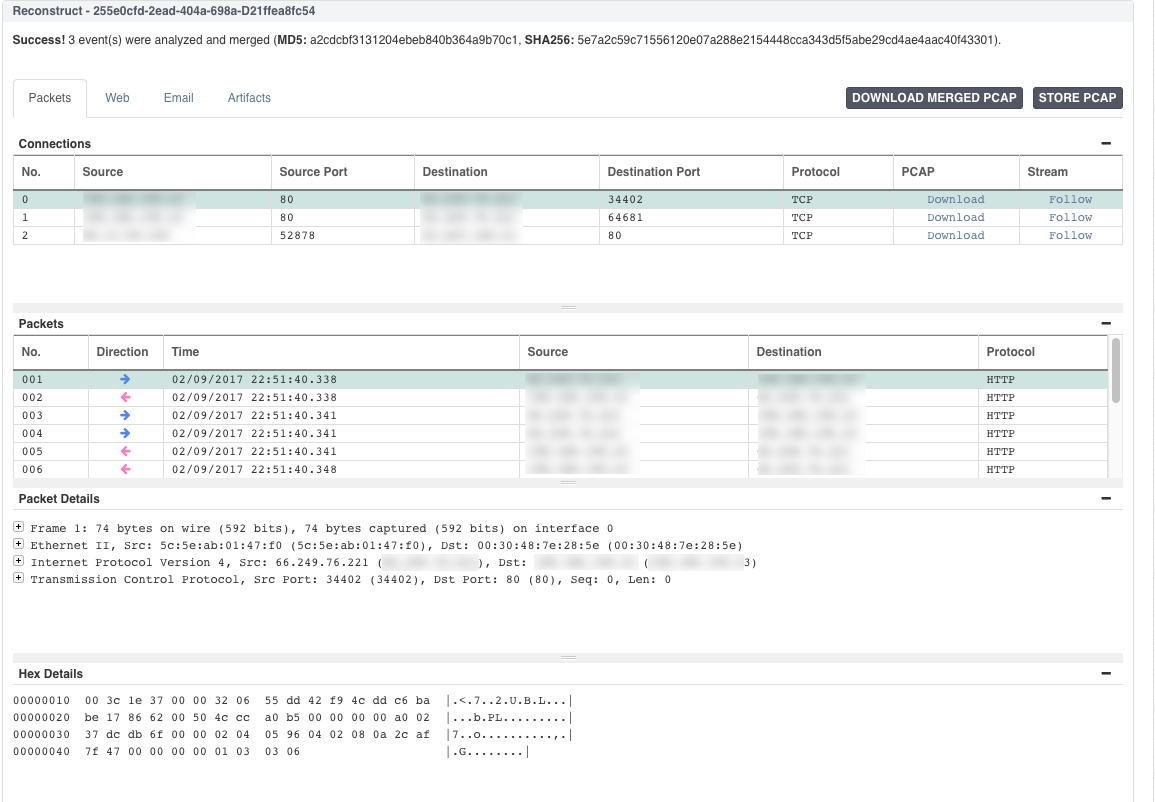
The Packet View analysis tool allows you to perform a deep dive into your event packet data by viewing the data at a connection, packet, and payload level. Simply select and reconstruct events for in-depth analysis in the Event table. After the NDR pivot engine processes your selected events, the results are displayed on the Packet tab, which is organized in the following sections: Connections, Packets, Packet Details, and Hex Details. You can perform the following tasks from the Packets tab:
View all packets for a connection, including the packet flow direction, source and destination IPs, source and destination ports, and the packet protocol for each packet session.
Analyze the metadata for a selected packet in tree view in the Packet Details section.
Analyze the hex data for a selected packet in the Hex Details section.
Use the Download Merged PCAP button to gather all packets captured for the selected events in pcap format.
Use the Store PCAP button to gather packets captured for your selected events in a single pcap file and store the file in Case history
Download the pcap file for a single connection.
View the stream for a single connection.
Click
 and from INVESTIGATION, select Search.
Click the Add Component button at the bottom of the dashboard and select the Event Table widget.
Click Add Component to save the widget to your dashboard.
From the Event Table, click the checkbox next to the events you want to reconstruct.
Click the Reconstruct button at the top of the Event Table. The NDR pivot engine processes the events and displays the results on the Packets tab.
Select an event from the Connections list to view all the packets associated with that event.
Select a packet from the Packets list to view the packet details and hex details.
From the Event Table, click the checkbox next to the events you want to reconstruct.
Click the Reconstruct button at the top of the Event Table. The NDR pivot engine processes the events and displays the results on the Packets tab.
From the Packets tab, click the Download Merged PCAP button at the top of the Packets tab.
From the Event Table, click the checkbox next to the events you want to reconstruct.
Click the Reconstruct button at the top of the Event Table. The NDR pivot engine processes the events and displays the results on the Packets tab.
From the Packets tab, select an event from the Connections list to view all the packets associated with that event.
Click the Download link at the top of the Connections list to download all pcap for that specific connection.
From the Event Table, click the checkbox next to the events you want to reconstruct.
Click the Reconstruct button at the top of the Event Table. The NDR pivot engine processes the events and displays the results on the Packets tab.
From the Packets tab, select an event from the Connections list to view all the packets associated with that event.
Click the Follow link at the top of the Connections list. The stream for the selected connection appears.
Note
The stream is color-coded to indicate the direction of the data. You can filter the stream by direction and view the data in hex or ASCII format.
To view the next connection stream or the previous connection stream, use the arrows at the bottom of the Stream window.
Important
This feature is currently available for TCP and UDP packet parsing of both events and alerts, specifically If the corresponding JSON file contains specific protocol identifiers in the
“protocolIdentifier”field, which is 6 (for TCP) and 17 (for UDP).For NDR 4.0.0 update release, this feature is not available in the Alerts page. However, it can be accessed from the Search page.
From the Event Table, click the checkbox next to the events you want to reconstruct.
Click the Reconstruct button at the top of the Event Table. The NDR pivot engine processes the events and displays the results on the Packets tab.
From the Packets tab, select an event from the Connections list.
Click the Store PCAP button at the top of the Packets tab.