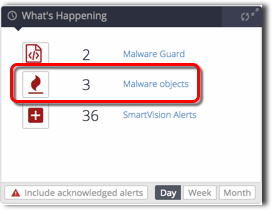
On the What’s Happening panel on the dashboard, you can pivot from the Malware object link to the corresponding filtered list of malware alerts.
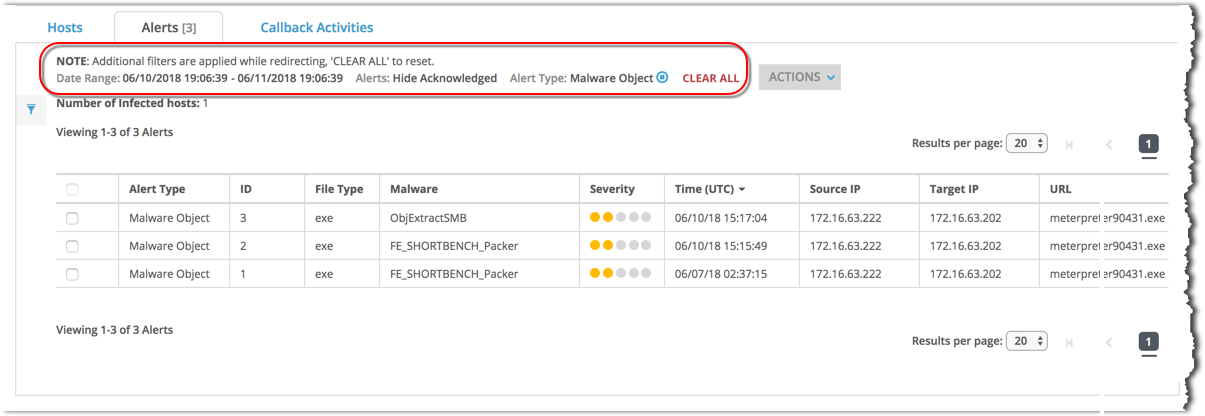
For information about this list, see “Monitoring Alerts and Hosts” in the Network Security User Guide.
Prerequisites
The What’s Happening panel includes the Malware Object icon.
To pivot from What’s Happening to the list of corresponding Malware Object alerts:
Click Malware Objects.
The Alerts > Alerts > Alerts page appears. The list is filtered to display the Malware Object alerts counted in the What’s Happening panel.
(Optional) View details about an individual alert by clicking the alert entry.
(Optional) Download the details about a single alert to an XML file:
Select the checkbox for the alert entry.
Select Actions > Download XML in the upper-right corner.
Save the file to your local system.