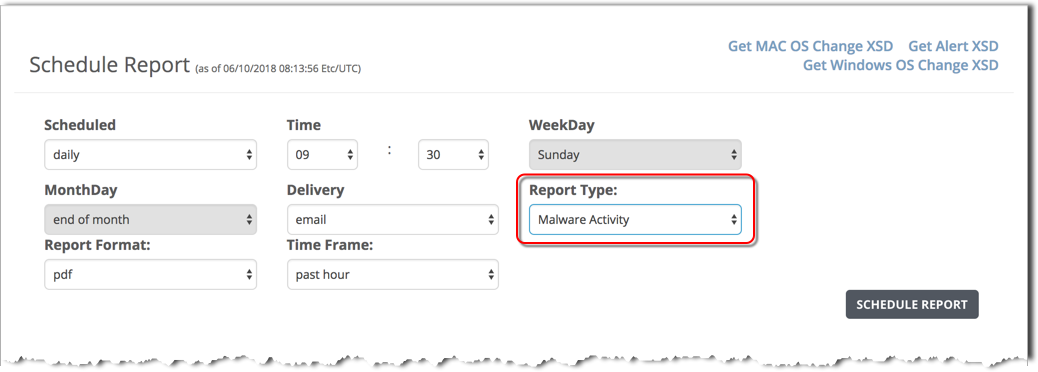
To schedule a malware activity report using the Web UI, use the Schedule Report form and specify the Malware Activity report type.
Prerequisites
The SMTP server or domain is configured and the email address of the report recipient is configured.
Admin or Operator access to the SmartVision appliance.
To schedule a malware activity report:
Log in to the appliance Web UI and select Reports > Schedule Reports.
In the Scheduled field, set the report frequency:
hourly
daily
weekly
monthly
In the Time field, set the time of day in hours and minutes (00:00).
If you selected a weekly report, specify the report day of the week in the WeekDay field.
If you selected a monthly report, specify the report day of the month in the MonthDay field.
In the Delivery field, specify the delivery method. The default delivery is email.
email—Deliver the report as a file attached to email.
file—Deliver the report as a file linked from the Web UI.
In the Report Type field, select Malware Activity.
In the Report Format field, the pdf output format is selected by default. The malware activity report is not available in other output formats.
In the Time Frame field, select the time period for this report:
past week
past month
past 3 months
Click Schedule Report.
The report type and specifications are added to the top of the scheduled reports list.
After the scheduled report runs, the report file name is added to the top of the Generated Reports list and the report file is emailed using the configured email server and recipient list.
(Optional) Export the XSD files. These files describe the structure of the Alert Details report.
To export the Windows OS Change XSD, click the Get Windows OS Change XSD link at the top right side of the page.
To export the MAC OS Change XSD, click the Get MAC OS Change XSD link at the top right side of the page.
To export the Alert XSD, click the Get Alert XSD link at the top right side of the page.