The Threats table displays all threats originating from different sources. The table on the lower half of the page contains a list of the threats. You can click a threat to view its summary and analysis details. You can filter threats based on any of the actions shown in the list below.
Note
For information about rearranging the table columns, see Customizing table columns.
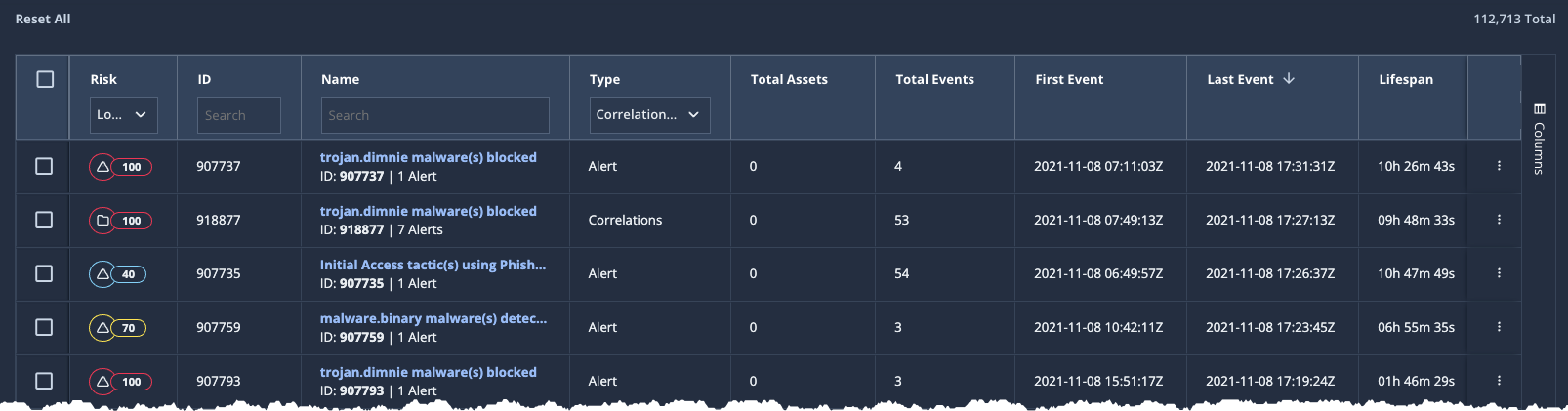
Risk and Risk Score Rationale—The threat risk is denoted by a circled icon. The color of the circle denotes status of the threat: Critical (red), High (orange), Medium (yellow), or Low (blue). You can sort the results in ascending and descending order or filter by level using the drop-down list.
ID—A unique identifier for the threat.
Name—The official name and ID of the threat. To search for a threat by name, enter all or part of the name in the Name column heading.
Type—The type of the threat: Correlations or Alert.
Total Assets—The number of assets related to the threat.
Total Events—The total number of events that triggered the threat.
First Event, Last Event, and Lifespan—The timestamps of the event that triggered the threat.
Intel Source—The source of any intelligence available about the threat. The options are Insights or Mandiant. If no intelligence is available, the field is empty. You can filter the threats table by intelligence source. Select a source in the drop-down list in the Intel Source column heading. You can sort the threats table by intelligence source. Click the Intel Source column heading to sort it.
Source/Destination—The source and destination of the threat. The source is shown above the destination. You can search data by entering text in this column heading.
Summary— A summary of the threat.
Data Source— The event classes associated with the threat. You can filter by entering one or more event class names in the Data Source column heading.
Assignment—The person assigned to review the threat. You can filter by entering all or part of a name in the Assignee column heading or selecting an assignee from the drop-down list.
Tags—The tags associated with a threat. You can filter by selecting one or more tags from the drop-down list.
Status—The state of the threat.
Open
Closed
Reopened
Suppressed