The User Activity Details panel lists the users that performed activity related to the selected SmartVision alert.
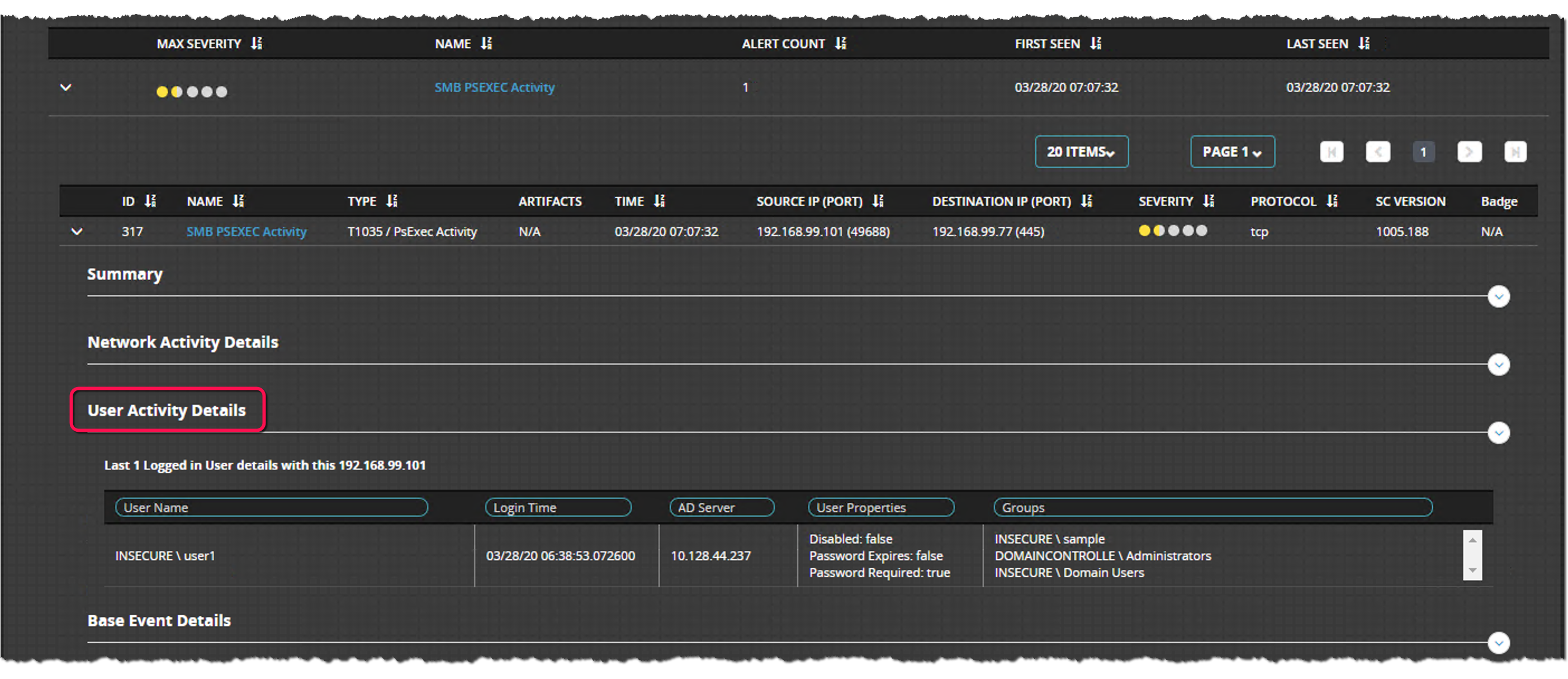
The User Activity Details panel shows the following information for each user:
Field | Description |
|---|---|
Displayed for all alert user activity | |
User name | The name of the user. Example: |
Login time | The last time the user logged in. Example: |
AD server | The IP address of the Active Directory server. Example: |
User properties | User status and password properties. Example: |
Groups | User's group memberships Example: |
Prerequisites
Log in to the appliance Web UI and choose Alerts > SmartVision.
Click the arrow at the left side of the SmartVision alert group you want to explore.
Click the arrow at the left side of the individual SmartVision alert you want to explore. The Summary panel is expanded by default.
Click User Activity Details. The panel lists network activity that involved the attacking host from five minutes before the event until five minutes after.
To filter the list on any combination of columns, enter match strings in the column headings.