You can deploy the EDRF from ePO - On-prem using Product Deployment or a Client Task.
Product Deployment
Watch this video to understand the steps involved in deploying EDRF using the Product Deployment method.
Log in to ePO - On-prem.
Go to Menu → Product Deployment, then click New Deployment.
Enter a Name and Description for the deployment.
Select the Trellix EDR with Forensics for Windows, macOS, or Linux 50.x.
Select the target endpoints from the System Tree.
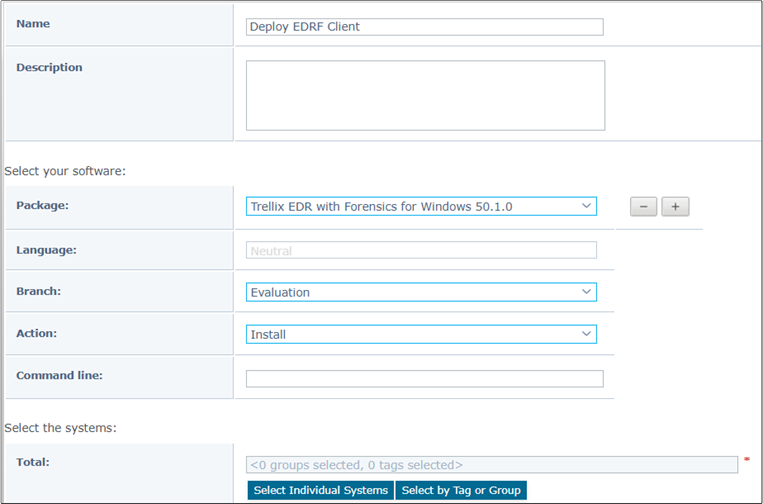
Choose Run Immediately to start the task now.
Click Save.
Monitor the status on the Product Deployment page.
Client Task
Watch this video to understand the steps involved in deploying EDRF using the Client Task method.
Log in to ePO - On-prem.
Go to Menu → Client Tasks → Client Task Catalog.
Click New Task. The Task Type dialog opens.
Select Product Deployment and click OK.
Enter a Name, Description, and select the Target Platform.
In the Products and Components section, select the Trellix EDR with Forensics for Windows, macOS, or Linux 50.x package, the Install Action, and the Current Branch.
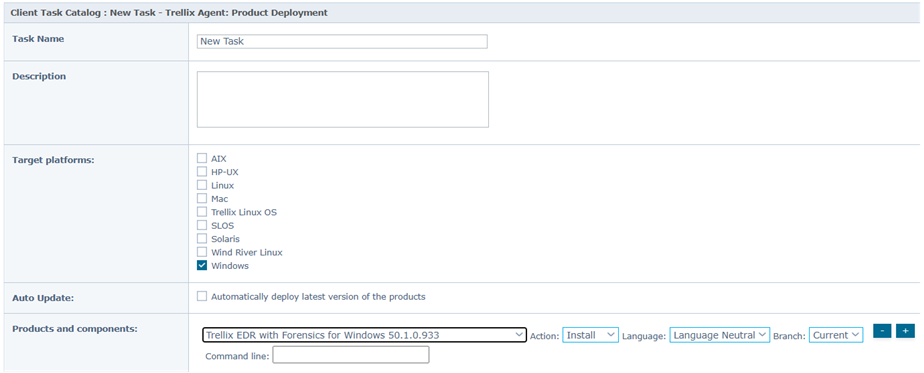
Click Save.
View the installation status in the Server Task Log.
After creating the product deployment client task, assign it to the target systems in the System Tree to initiate the installation.
Navigate to Menu → Systems → System Tree.
Select the required group or specific systems where you want to deploy the software.
Navigate to the Assigned Client Tasks tab.
Click Actions → New Client task Assignment.
In the Client Task Assignment Builder, configure the following:
Product: Select Trellix Agent.
Task Type: Select Product Deployment.
Task Name: Select the task you created previously.
Configure the Schedule settings to Run Immediately or set a specific schedule, then click Save.
(Optional) To trigger the deployment immediately:
Go to System Tree and select the target systems.
Select Actions → Agent → Wake Up Agents.
Select Force complete policy and task update, then click OK.
The installation begins on the target endpoints.
Verify the deployment
Once the deployment task is complete, verify that the software is installed and running correctly on the managed endpoints.
In ePO, navigate to Menu → Systems → System Tree.
Select a target system, and navigate to the Products tab.
Confirm that Trellix EDR with Forensics is listed with the correct version.
Verify on the Windows endpoints:

Open the Task Manager.
Confirm that the Trellix XClient processes are running.
Verify on the macOS endpoints:
Open Terminal.
Run the following command to check the process status:
sudo launchctl list | grep -i xclient
Confirm that the service is listed with a status code of 0 (running state).
(Optional) Verify that the XClient processes are visible in the process list:
ps aux | grep -i xclient
Verify on the Linux endpoints:
Open a Terminal window.
Run the following command to check the service status:
systemctl status xclient
Confirm the output displays the following status:
Loaded: yes
Active: active (running)
(Optional) List the running processes directly:
ps -ef | grep -i xclient
If the service is not active, run
sudo systemctl start xclientor check the installation logs in the/var/log/directory.
Note
The Malware and ProRem protection services are not enabled by default after deployment. To enable them, edit the Protection policy by navigating to Menu → Policy → Policy Catalog → Trellix EDR with Forensics → Protection.