The Process Memory script requests process memory data from host endpoints and uses the processes‑memoryacquire audit. This script acquires all the memory sections of the process as binary files. However, Redline cannot open downloaded acquisition data from this script, even as a .mans file. To view this downloaded data, use Winzip.
This script can be requested for Windows host endpoints only.
Note
Process Memory script support is not provided for macOS or Linux host endpoints.
You cannot copy, edit, reset, import, or delete the Process Memory script or use this script in data acquisition scripts you create. This script does not appear on the Data Acquisition Scripts page.
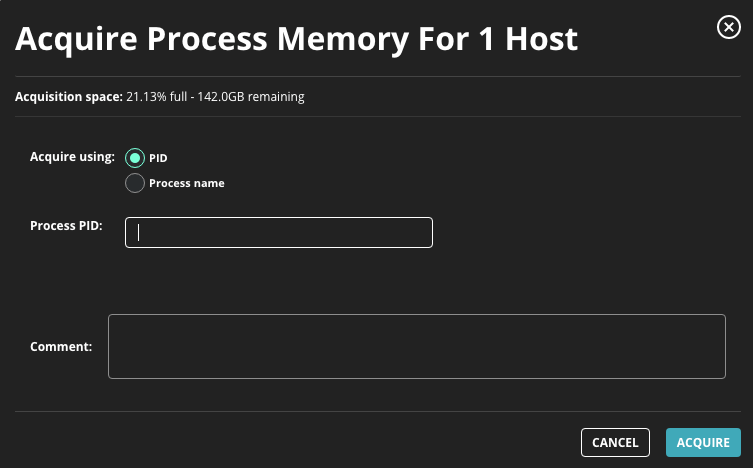
The following table describes the fields in this dialog box. At least one PID (process ID) or process name must be specified.
Field | Description |
|---|---|
Acquire using | Select PID to specify a process ID. Select Process name to specify a process name. |
Process PID | If PID was selected, specify the process ID to use when collecting process memory data. |
Process name | If Process name was selected, specify the process name to use when collecting process memory data. |
| |
Requesting process memory data
To request process memory data using the Web UI:
Important
At least one PID (process ID) or process name must be specified.
Select Hosts in the Endpoint Security (HX) Web UI.
Select a host.
Note
If you select multiple hosts, the Process Memory data acquisition option is not available. You can only request this script when a single host is selected.
From the Actions menu, select Process Memory. Alternatively, you can select Process Memory from the Acquire menu on a host details page.
Click Go to access the Acquire Process Memory dialog box.
In the Driver name field, specify a driver name to use when collecting driver memory data.
From the Acquire using menu, select PID if you want to specify a process ID or select Process name if you want to specify a process name.
Based on your previous selection, enter the process ID or the process name.
In the Comment field, enter the reason you want to acquire the file and any details about the data acquisition request that you want to track.
Click Acquire.
Process Memory data can be requested as a regular data acquisition. See Requesting a data acquisition.