The Email Security — Cloud Web UI includes a dashboard for you to monitor and interact with the ongoing inbound and outbound email defense of your organization. For more information on the dashboard features, see Dashboard overview.
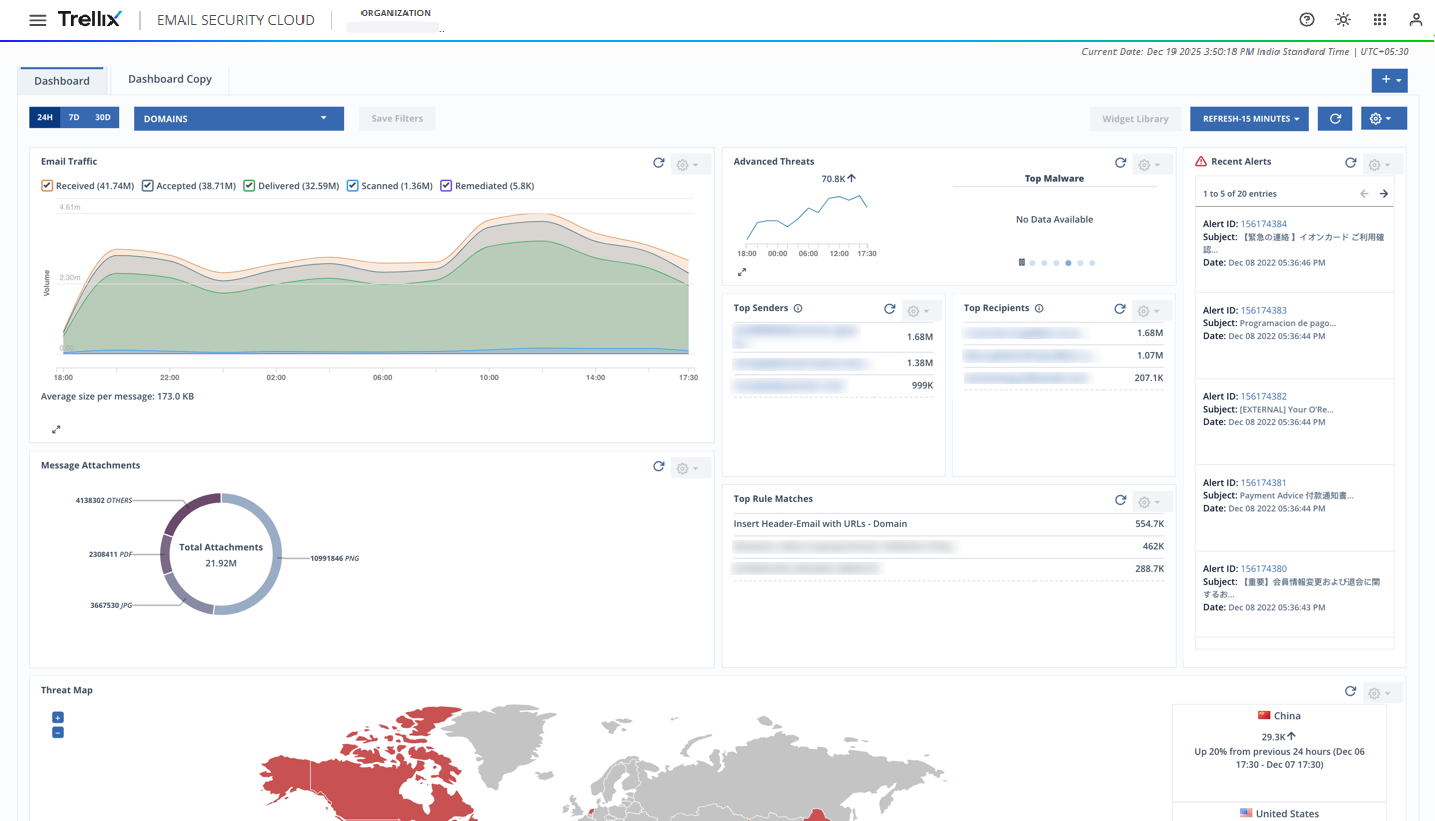
You can access the Email Security — Cloud dashboard using the following URLs, depending on your account region:
US URL: https://etp.us.fireeye.com/ or https://us.etp.trellix.com/
EU URL: https://etp.eu.fireeye.com/ or https://eu.etp.trellix.com/
APJ URL: https://etp.ap.fireeye.com/ or https://ap.etp.trellix.com/
US GOV URL: https://etp.us.fireeyegov.com/
CA URL: https://etp.ca.fireeye.com/ or https://ca.etp.trellix.com/
To access the dashboard, you will need the login credentials established during your enrollment. For step-by-step instructions about enrolling in IAM, see Enrollment in Trellix IAM. Users with read-only or non-read-only roles can view the dashboard.
If you cannot log in to the Email Security — Cloud Web UI, you might need to change your password.
Some procedures differ depending on the kind of IAM you were provisioned with.
If your IAM screen looks like the following screenshot, follow these instructions:
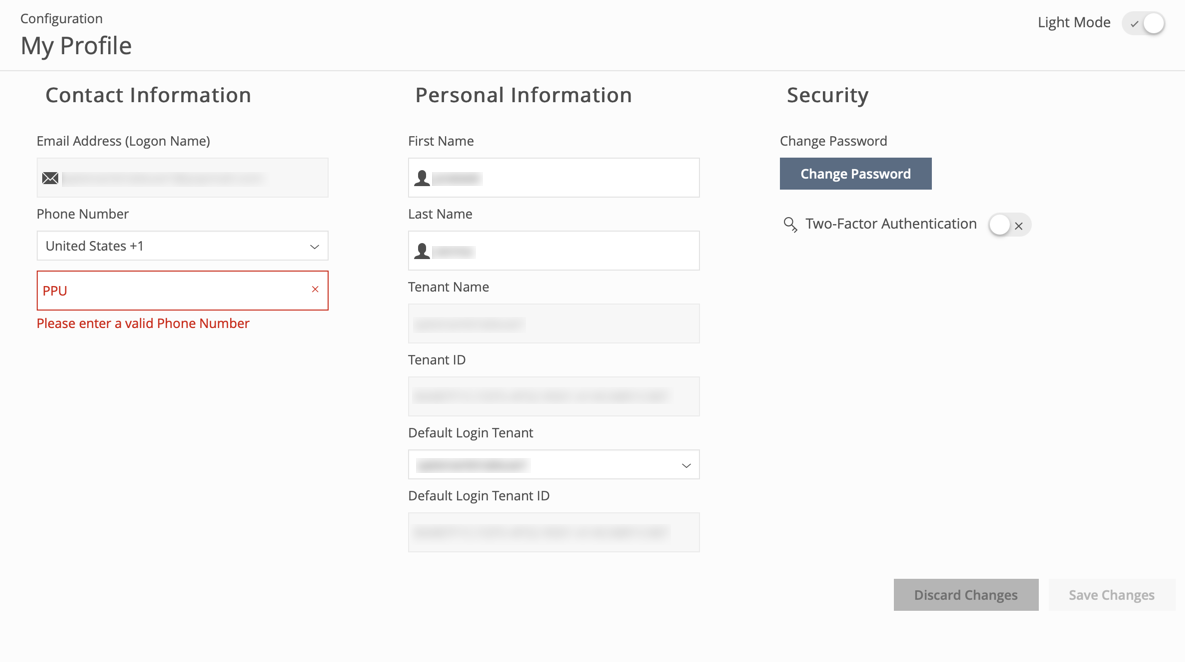
If your IAM screen looks like the following screenshot, follow these instructions:
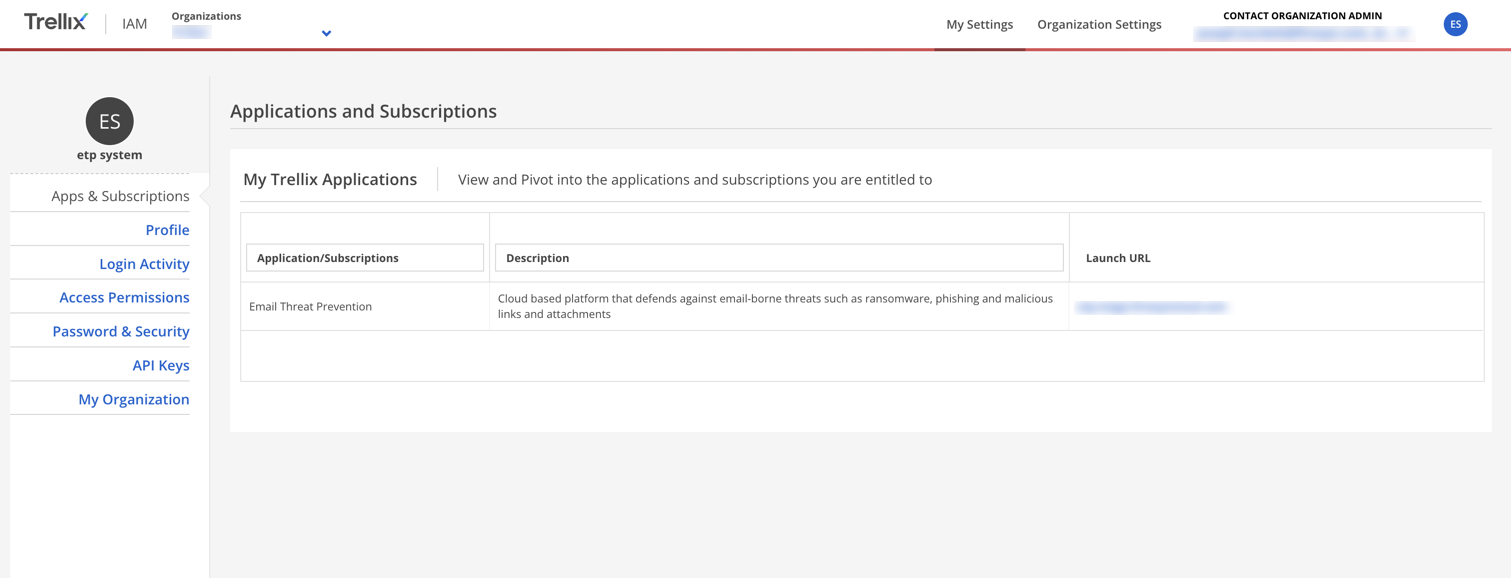
To change your password:
Note
Passwords must be at least 10 characters long and must contain at least one uppercase letter, one lowercase letter, one numeric character, and one special character. New passwords cannot be the same as the previous password.
Click on the user icon in the upper-right hand corner of the dashboard and select My Settings from the drop-down menu. This takes you to the IAM portal.
On the left menu, click Password & Security.
Click the Change Password button.
Enter your current password in the Old Password field.
Enter your new password in the New Password field.
Re-enter your new password in the Confirm New Password field.
Click the Change Password button to save your changes.
The Email Security — Cloud dashboard, Email Trace, On-Demand Quarantine, Policies page, Authorizations page, Domains page, Advanced Threats page, Quarantine, and navigation bar can be displayed in either English or Japanese.
To select your display language:
Click on the user icon in the upper-right hand corner of the dashboard and select My Settings from the drop-down menu. This takes you to the IAM portal.
On the left menu, click Profile.
Click the Edit button.
Click the Preferred Language drop-down and select English or Japanese.
Click the Save button to save your changes.
Return to the Email Security — Cloud portal and refresh the page.
The Email Security — Cloud web UI can be displayed in light or dark mode.
To select your UI theme:
Click on the user icon in the upper-right hand corner of the dashboard and select My Settings from the drop-down menu. This takes you to the IAM portal.
On the left menu, click Profile.
Click the Edit button.
Click the Preferred UI Theme drop-down and select Light or Dark mode.
Click the Save button to save your changes.
Return to the Email Security — Cloud portal and refresh the page.
To log out of the Email Security — Cloud web portal:
Click on the user icon in the upper right corner of the dashboard and select Log Out from the drop down menu.