You can associate policies to domain groups and their child domains from the policy details page. Policies assigned to a domain group can also be inherited by its child domains. If a child domain is independently associated with a policy, changes made to its parent domain group policies, will not affect its existing associations.
Important
This feature is only available for riskware, remediation, email routing and advanced URL defense policies. To assign other policies, see Domain policies.
Click on a policy's name in the Policies page.
In the policy details page, scroll down to Domains/Groups section and click Manage.
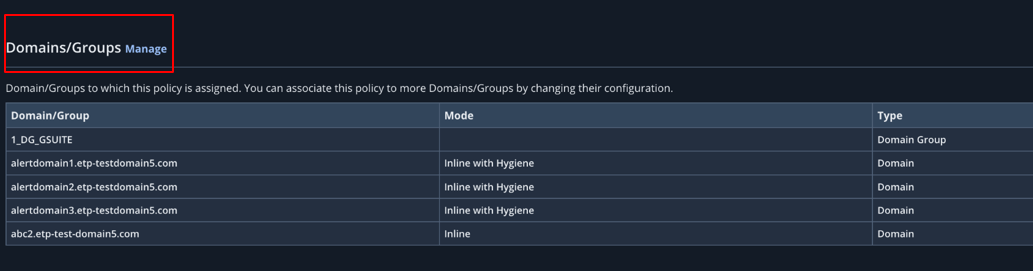
To associate the policy to a domain group, select Associate from the drop-down menu under Policy Association column.
To associate the policy to a domain group and its child domains, select Associate and Inherit all.

If Associate and Inherit all is selected for a domain group, the Inherit from Domain Group option will appear in the drop-down menu for its child domains, along with Associate and Disassociate options.

For independent policy association, select Associate from the drop-down menu under Policy Association column.
Changes made to the domain group's policies will not affect these child domains.
To inherit policy settings from the parent domain group, select Inherit from Domain Group.
For domains which are not part of a domain group, you can select Associate option to associate with the policy.

To dissociate a policy from a domain group or domain, select Disassociate from the drop-down menu under Policy Association column.
For a domain group, if you change the policy settings from Associate and Inherit all to Disassociate, the policy will be also be disassociated from the child domains which had auto-inherited the settings.
When you associate a policy with a domain or domain group, a green tick symbol will appear beside its name.
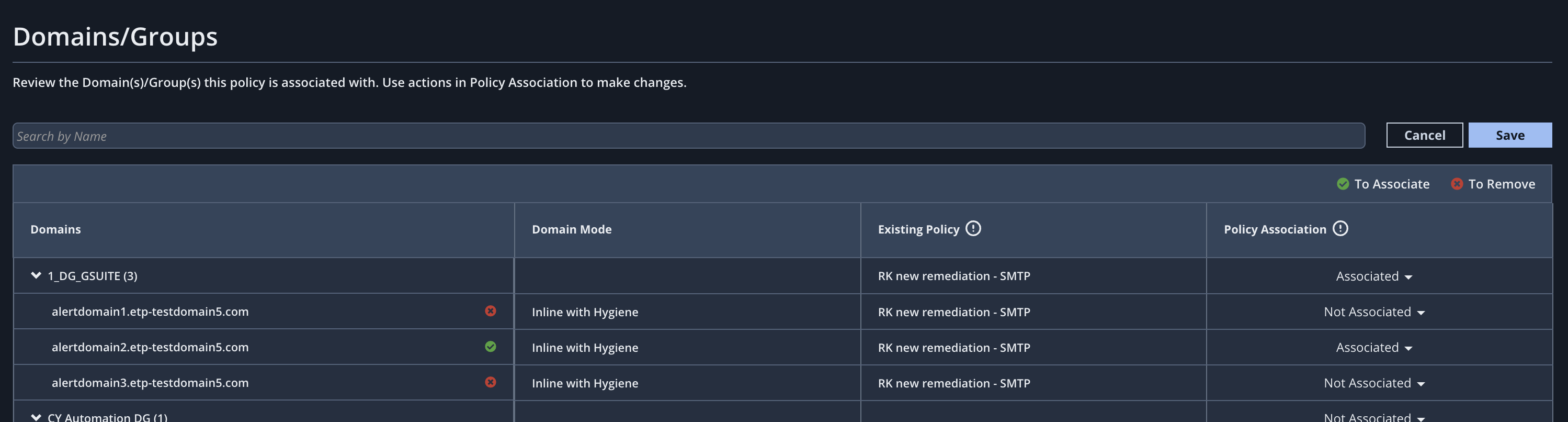
When you disassociate a policy from a domain or domain group, a red cross symbol will appear beside its name.
Check all the red and green symbols to verify your changes and click Save on the top-left of the Domain/Groups table.
A pop-up window will appear showing the changes made.
For domains which have auto-inherited policies from the parent domain groups, the details will appear in brackets.
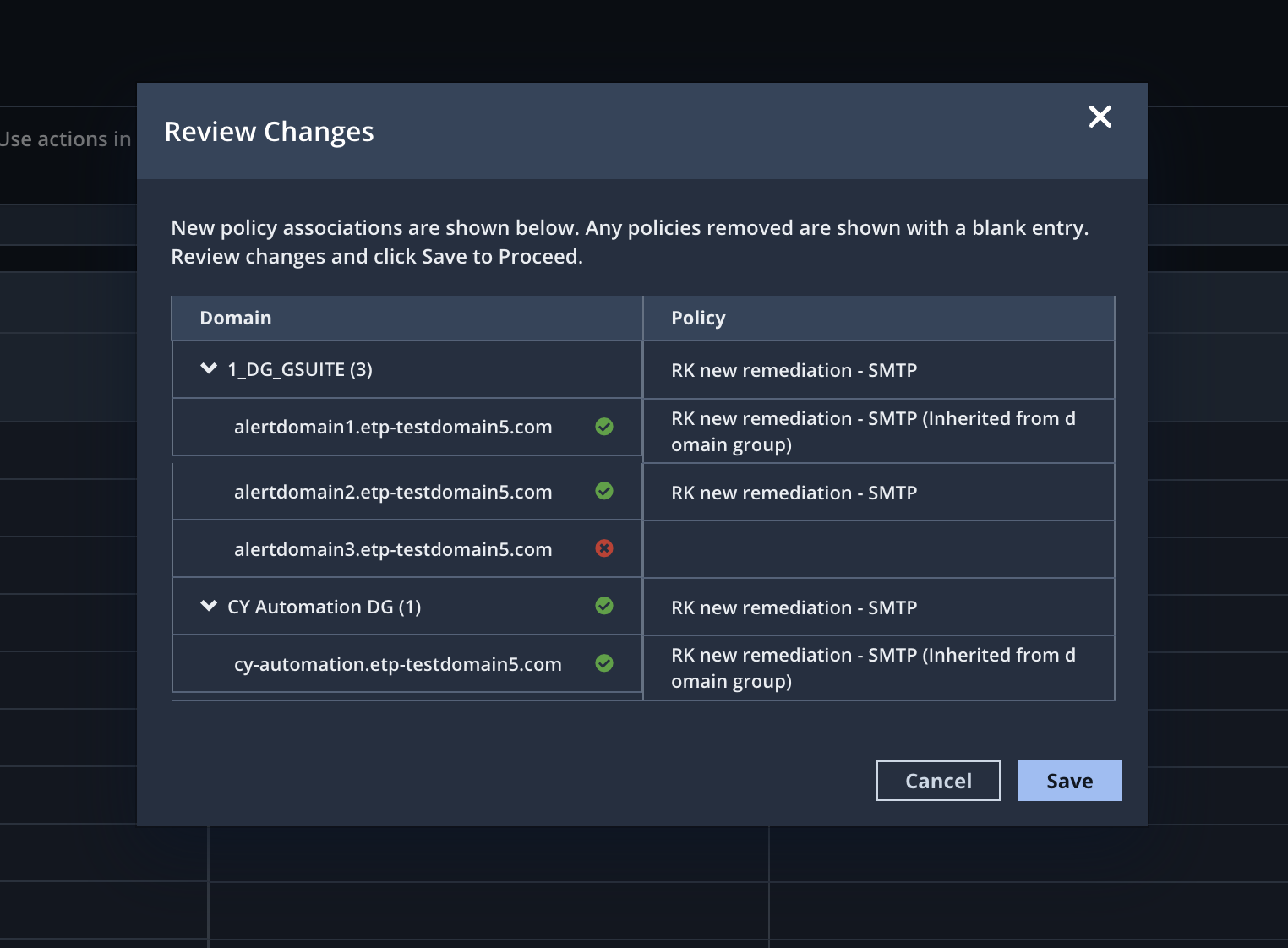
Click Save to save the changes.
To revert to the previous settings, click Cancel.