Domain groups are used to manage cross-domain policies and settings efficiently.
To create a new domain group:
On the Domains page, click Create Domain Group.
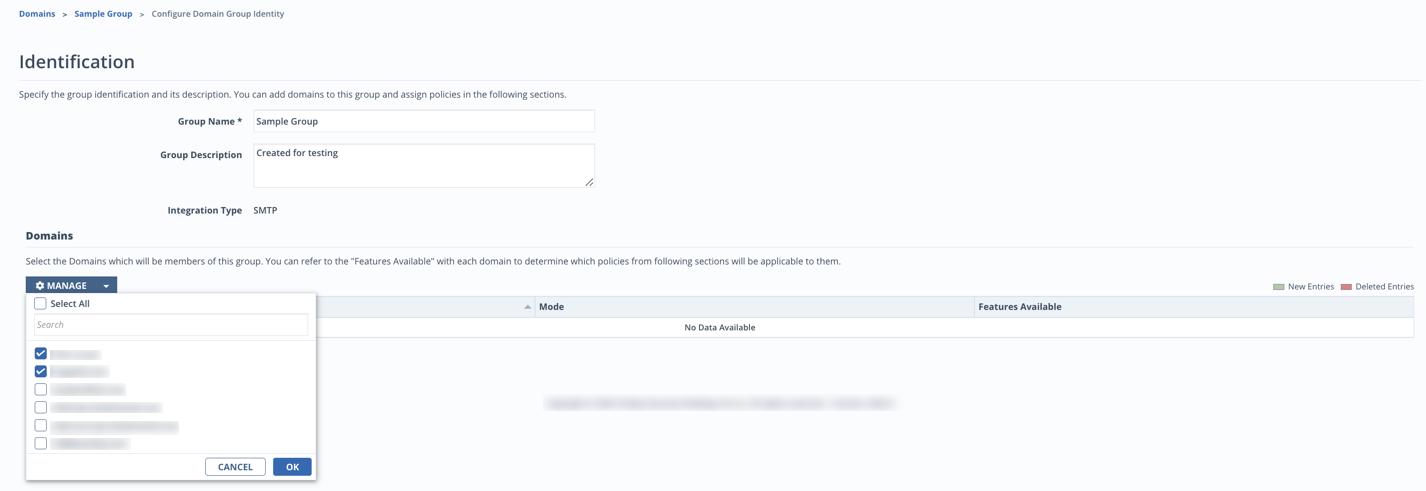
In the Domain Group page:
Select the Integration type: SMTP, MS365 API, or Google Workspace API.
Enter a name for the group (required).
Enter a description (optional).
Click Save.
Click Manage to display a list of domains that can be added to the domain group.
Note
The domain integration type must match the domain group integration type. For example, only SMTP domains can be added to SMTP domain groups.
Select one or more domains or click Select All, then click OK.
Click Save.
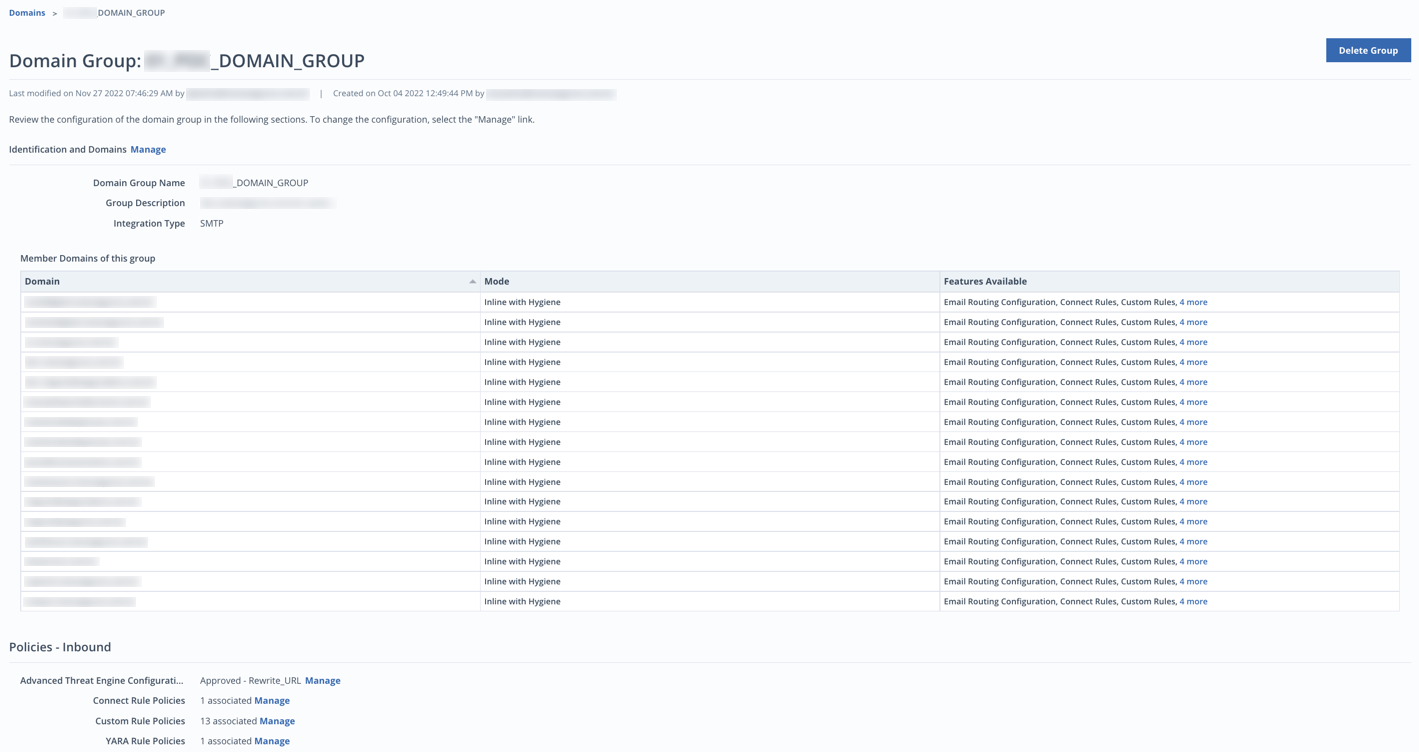
After creating a domain group, the following screen will appear:
Limiting access to domains and domain groups
You can limit the domains and domain groups that users have access to. Depending on their role, users either have Full access or Read Only access to the domains and domain groups you assign. Users cannot modify policies that are assigned to domains and domain groups outside their access.
To assign access while the user is still pending registration:
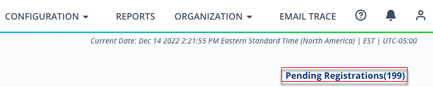
On your Email Security — Cloud dashboard, click Organization.
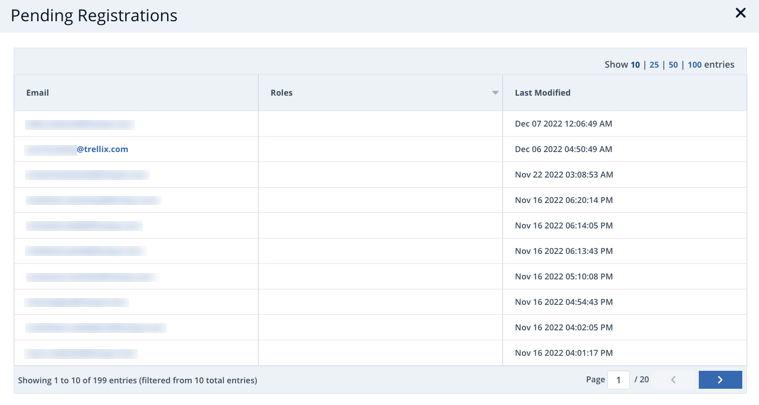
Select Pending Registrations.
Select the desired user.
Select the domain and domain groups that the user will have access to. By default, a user will have access to all the domains and domain groups that you have access to.
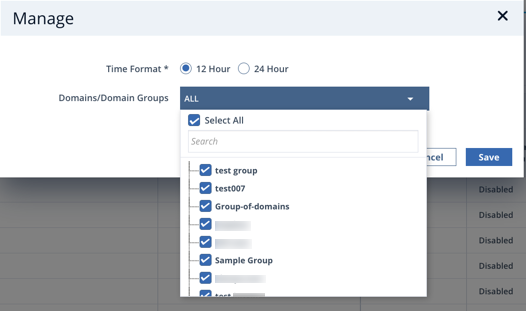
To assign access for existing users:
On the Organization page, select the desired user.

Manage the domains and domain groups.
Adding a domain to a domain group
To add a domain to a domain group:
On the Domains page, select the desired domain group.
Next to Identification and Domains, select Manage.
Select the domains you want to add.
Click Save.
Removing a domain from a domain group
To remove a domain from a domain group:
On the Domains page, select the desired domain group.
Next to Identification and Domains, select Manage.
Select the domains you want to remove.
Click the
 button.
Click Save.
Note
Users can move domains between existing groups by manually removing a domain from one group and adding it to another.