On-demand quarantine access keys are managed in the Users page of the Web UI.
To access the Users page, got to Manage > Users.
You can also access the Users page by clicking the Manage On-Demand Quarantine Access Keys link in the configuration page of a domain or domain group.
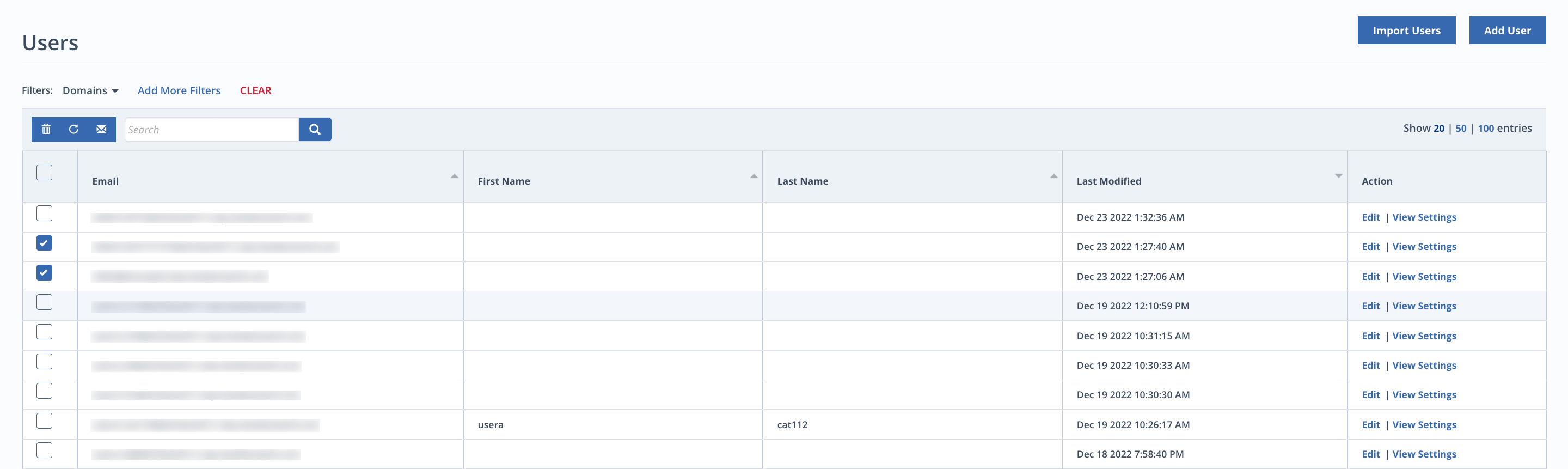
The Users page lets you resend existing access keys, reset access keys, and add non-admin users with new access keys.
To resend users their on-demand quarantine access keys:
In the Users page, search or filter for the non-admin users you want to send the access keys to. For more information about the Users page, see View and manage non-administrative user details.
In the list of filtered users, select one or more non-admin users.
Select the envelope icon (
 ) to resend all selected non-admin users their original access links through email.
To reset users' on-demand quarantine access keys:
In the Users page, search or filter for the non-admin users you want to send the access link to.
In the list of filtered users, select one or more non-admin users.
Select the refresh icon (
 ) to resend all selected non-admin users new access keys through email.
To add new users with new on-demand quarantine access keys:
In the Users page, click Import Users.
Click Import Users from CSV File in the pop-up window and select a CSV file from your local file explorer.
Select Send On-Demand Quarantine Access Link to new users.
Click Submit.
The following is an example of the email sent to non-admin users when they are added to the organization or when their On-Demand Quarantine access keys are resent or reset:
