YARA rules analyze and detect potentially malicious textual or binary patterns within an email body, header, or attachment. Rules you write in a YARA file can be uploaded to the Email Security — Cloud Web UI and assigned to a domain. YARA rules can be configured to monitor, alert, or alert and quarantine when email matches the patterns you specify in a YARA file.
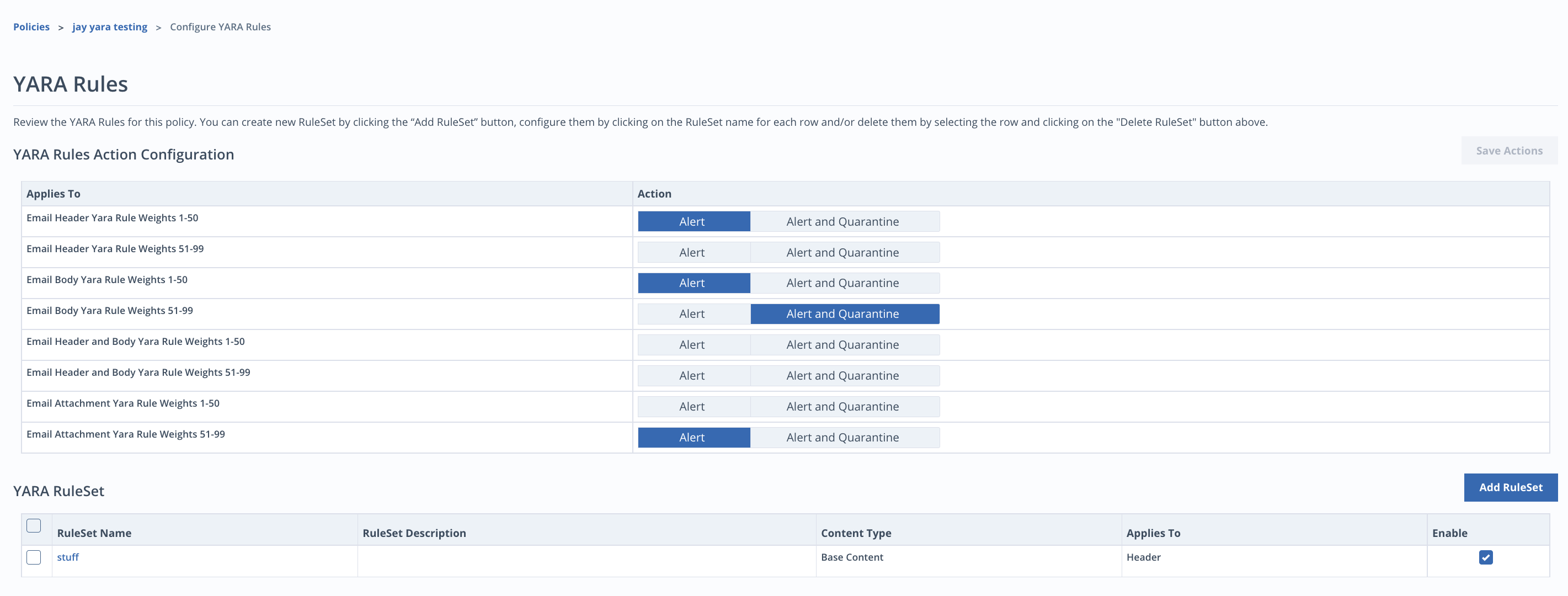
All rules are implicitly set to Monitor mode by default. A rule set to Monitor mode will collect data on or tag matching email messages, but it will not quarantine messages or send an alert. One use case for Monitor mode is to test the effectiveness of an uploaded rule before configuring it in Alert and Quarantine mode. Select Alert or Alert and Quarantine to change the mode. A rule set to Alert mode will generate an alert. A rule set to Alert and Quarantine mode quarantines detected messages and generates an alert.
Note
The rule mode is set to Monitor unless you select Alert or Alert and Quarantine.
A single YARA rule file can only be set to one action mode. However, if two identical YARA rules are uploaded, they can be assigned different modes. For example, one rule can be set to Alert and Quarantine mode and the other to Monitor or Alert mode. The actions associated with Alert and Quarantine mode (generating an alert and quarantining the message) will take precedence if two separate YARA rules match against the same message. However, the Events tab of Message Details will include details for both Monitor and Alert and Quarantine mode hits.
Alerts generated from Alert and Alert and Quarantine mode YARA rules can be searched for in Email Trace. See Adding more filters for more information.
A YARA file can contain multiple rules, including global rules and private rules. Global rules are evaluated before other rules and they apply rule conditions to all other rules you upload. Private rules do not trigger alerts when matched against an email.
Creating a YARA rule file
YARA files must meet the guidelines of YARA 4.3.0. For guidance on writing YARA rule files, see Writing YARA Rules by Victor Alvarez.
Creating and managing a YARA rule policy
To create a custom YARA rule policy in Email Security — Cloud:
On the Policies page, click Create Policy.
Select the rule type YARA Rules and provide a policy name and description (optional). Click Create.
The policy configuration page opens. Under Rules, select Manage.
Set the YARA rule actions. Select Alert or Alert and Quarantine. If neither are selected, the rule mode is set to monitor.
Click Add Ruleset.
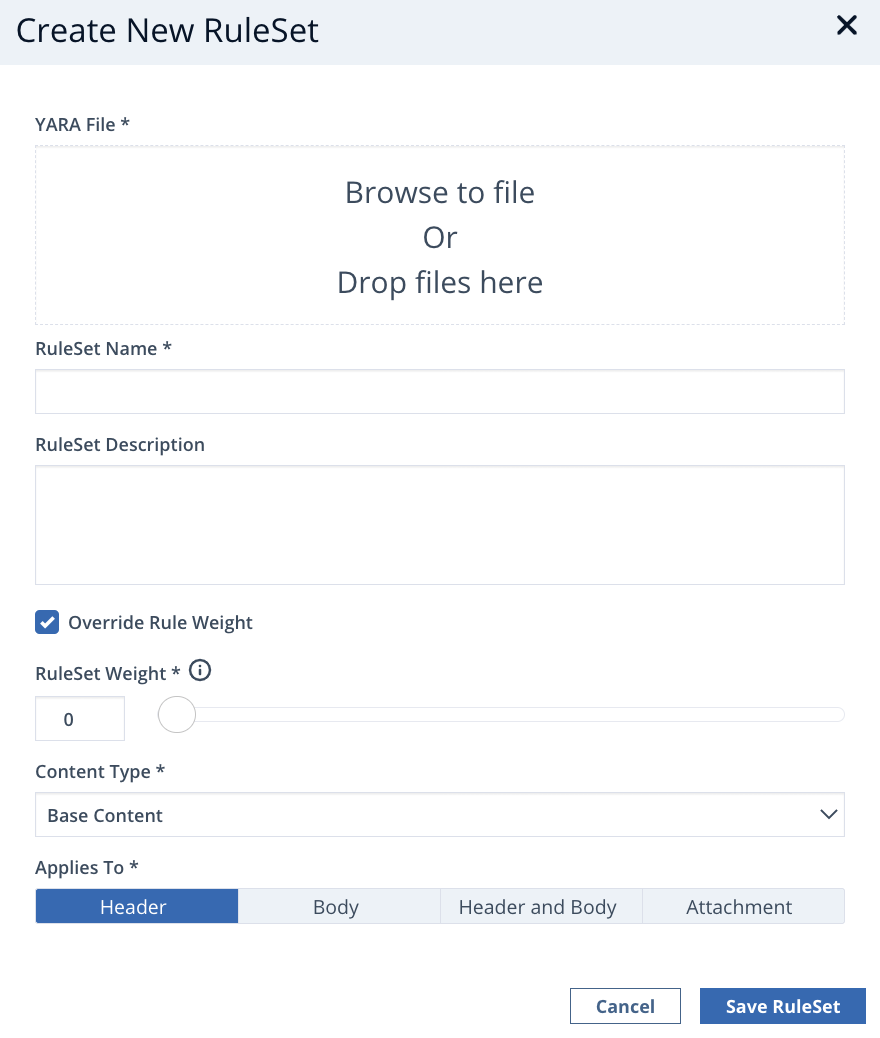
Click in the YARA File field and browse to your YARA file.
Enter the ruleset name and description (optional).
By default, the rule weights defined in the YARA file are used. To override the rule weights, select Override Rule Weight.
Drag the RuleSet Weight slider to indicate the weight of the rules. All rules in the YARA file will use the weight you define.
0: The rule will be monitored.
1-50: The rule will follow the rule actions set for that range.
51-99: The rule will follow the rule actions set for that range.
100: The rule will be considered malicious and will alert and quarantine when matched.
Select Base Content, Active Content, or Base + Active Content in the content type drop-down menu. Active Content and Base + Active Content only apply to attachments.
Base content—Allows Email Security to apply the YARA rule to a particular file type or to all common file types. The appliance does not extract the macro from the attachment.
Active content—Allows Email Security to apply the YARA rule to DOC, DOCX, PPT, PPSX, PPTX, XLS, XLSX, or common file types. The appliance extracts the macro from the attachment for analysis.
Base + Active content—Allows Email Security to apply the YARA rule to DOC, DOCX, PPT, PPSX, PPTX, XLS, XLSX, or common file types. The appliance analyzes the attachment and extracts the macro from the attachment for analysis.
Select the part of an email that is analyzed by the rule (header, body, header and body, or attachment).
Note
You must configure a rule action for the part of the email you selected to be analyzed.
Click Save Ruleset.
In the YARA Rules Action Configuration section, select Alert or Alert and Quarantine for each option. All rule sets configured in the policy will follow the selected actions.
Click Save Actions.