You can define custom rules for inbound or outbound email traffic. Each custom rule consists of a trigger and an action to be taken when the rule is triggered. Rules are applied before antivirus and antispam detection and can be prioritized. You can select which rule policies will be applied to each domain. In the case of custom rule policies, you can specify the order in which they will be evaluated.
To manage which connect or custom rule policies are associated with a domain:
On the Domains page, click the name of a domain.
The Policies section shows the number of policies directly associated with a domain and inherited from the parent domain group. The policies associated at the domain level will have higher priority than policies inherited from the parent domain group.
In the Policies section, click the Manage link.
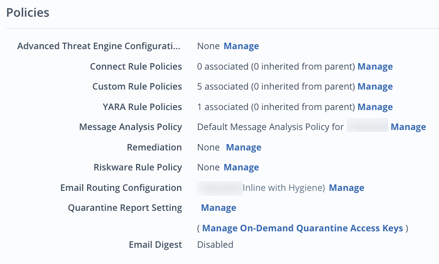
The screen displays the existing rule policies associated with this domain or inherited from the domain group in priority order.
Click Manage.
Select the policies to be associated with the domain.
Click OK to view the new assignment of policies.
Administrators can change the priority of custom rule policies by clicking the
 (up) or
  (down) arrows in the Priority column.
Click Save.
Note
Inherited policies can only be associated or disassociated at the domain group level.
To remove a policy from a domain's connect rules or custom rules:
Select the policy to be deleted by clicking its checkbox.
Click the Remove (
 ) icon. Inherited policies can only be associated or removed at the domain group level.
Click Save.
About custom rule policies
Custom rules let you perform the following functions:

A maximum of 1000 custom rules can be added to a single custom rule policy. The custom rule execution limit for a single domain is 1024 rules. If more than 1024 enabled custom rules are associated to a domain or inherited from a domain group across multiple policies, only the first 1024 rules will be executed. The remaining rules are ignored.
Note
The custom rules functionality is only available to Email Security - Cloud inline and inline with hygiene mode users.
Custom rule hits appear in the Detail View in Email Trace as "Custom rule verdict: Pass. Scope admin".
Creating custom rules
To create a custom rule:
In the Policies page, click Create Policy.
Select the traffic type: Inbound or Outbound. Only SMTP integration is available for outbound traffic.
If you chose inbound, select your integration type: SMTP, MS365 API, or Google Workspace API.
Select Custom Rules.
Under Identification, enter a policy name and description (optional).
Click Create. The configuration page for your newly created custom rule policy appears.
Under Rules, select Manage next to Custom Rules.
In the Configure Custom Rules page, click Add Rule. A maximum of 1000 rules can be added to a custom rule policy.
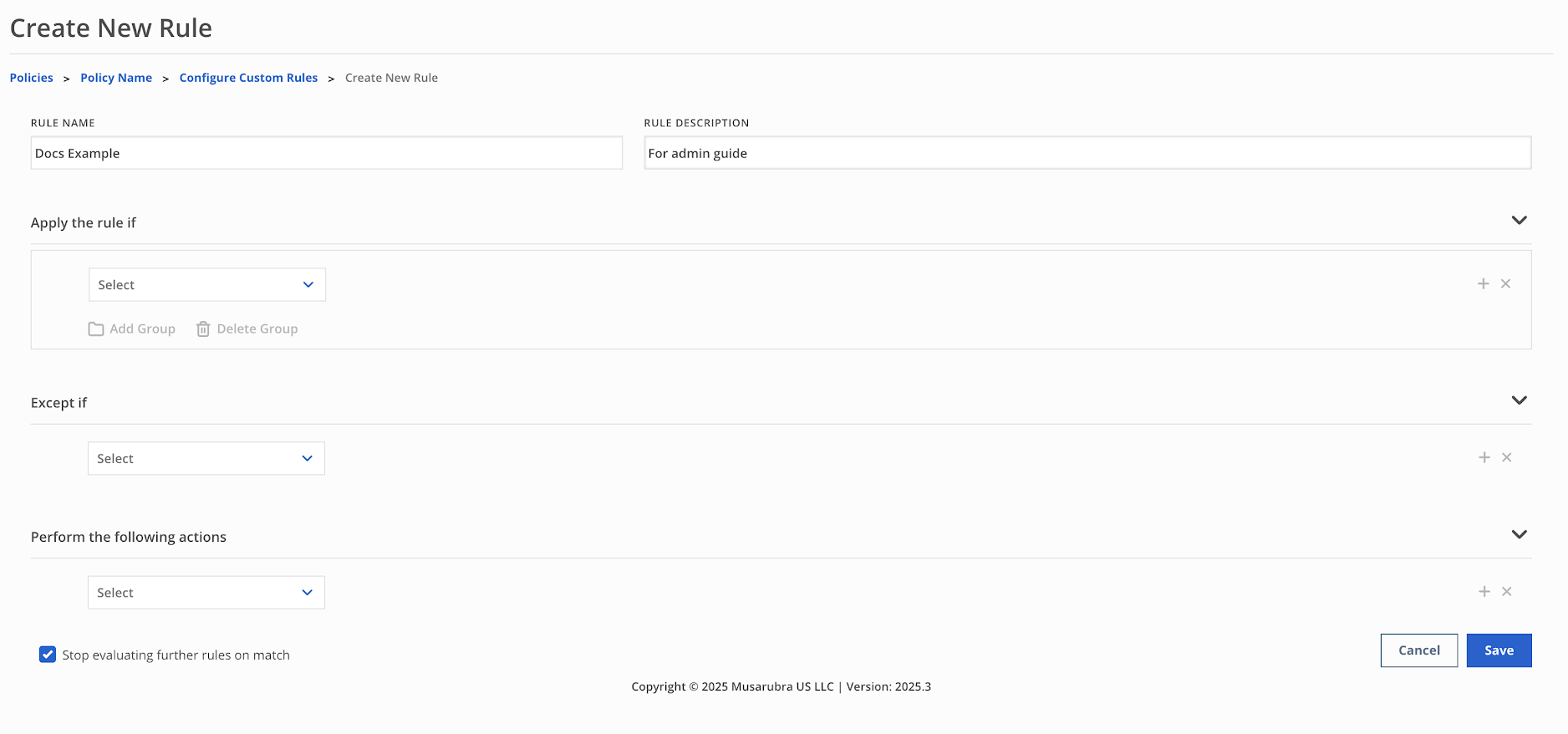
Enter a rule name and description (optional).
Select which conditions (Apply the rule if), exclusions (Except if), and actions apply to the rule. See the table below for more information on the configuration options for a custom rule.
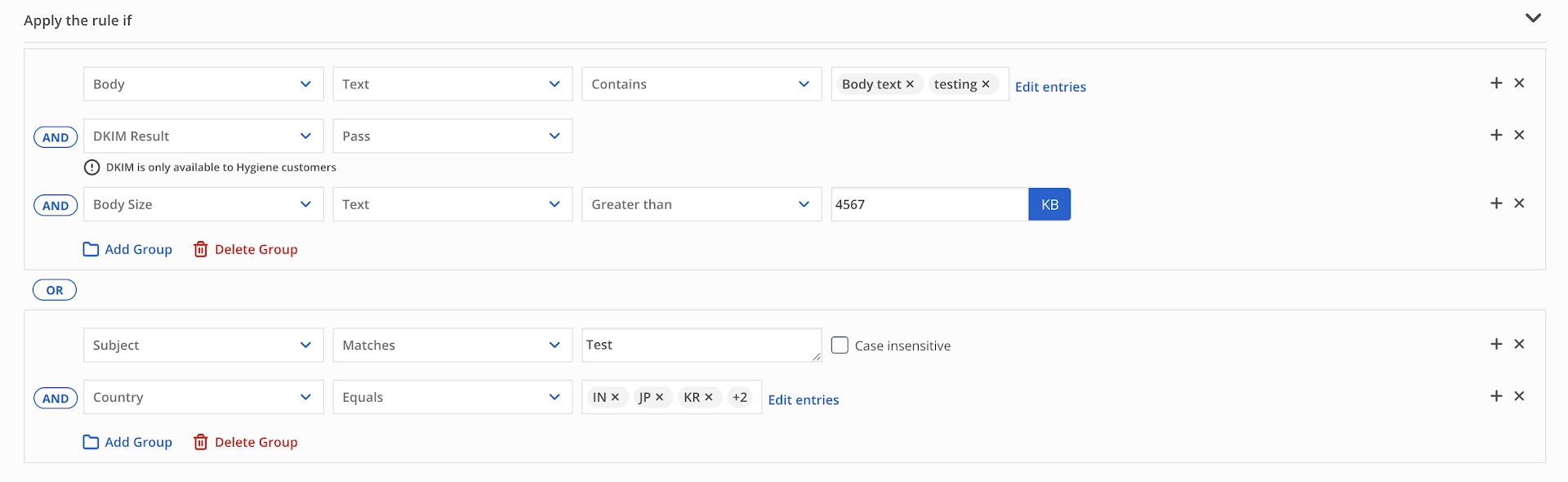
You can create groups of conditions that could be evaluated together as a unit. Evaluation stops with the first group where all the conditions are matched. Further groups will not be evaluated.
Note
Within the apply the rule if group, the conditions are joined by AND. Within the except if group, the conditions are joined by OR.
Select Stop evaluating further rules on match to stop evaluation of subsequent rules after a rule match (optional).
Click Save. Custom rules are enabled by default, but can be disabled. See Enabling or disabling custom rules.
Apply if and except if
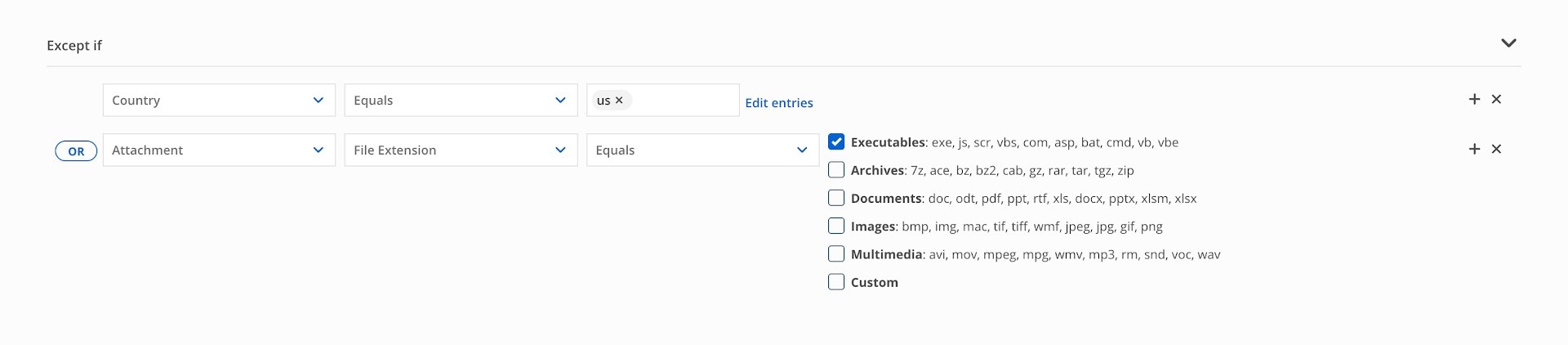
Specific email criteria can be included (Apply the rule if) or excluded (Except if) from a custom rule when the rule triggers. Users can add up to 16 conditions (Apply the rule if) or negative conditions (Except if) to a custom rule.
Note
At least one condition (negative or positive) and one action must be selected to create a custom rule.
You can create a group of conditions using the Add Group button. Conditions within an Apply the rule if group are joined by AND. All the conditions must match for the group to be evaluated as a match which in turn enforces the custom rule.
Conditions within an Except if group are joined by OR. Any one of the conditions must match for the group to be evaluated as a match which in turn enforces the custom rule.
You can also create multiple groups of conditions under Apply the rule if separated by OR (The minimum is one group of conditions). The custom rule action is applied when any one of the configured groups evaluates to a match.
Existing rules will be shown under a single group. More groups can be added using the Add Group button.
Important
The following configuration options are not available for outbound custom rule policies:
DMARC Verdict
DKIM Result
SPF Result
Accept Rule
Deployment Mode
The following configuration options are not available for MS365 API or Google Workspace API custom rule policies:
HELO/EHLO Name
DMARC Verdict
DKIM Result
SPF Result
Accept Rule
Reverse Domain
Sender IP
Country
Deployment Mode
The following options are available for configuring both conditions and exclusions:
Configuration options | Available drop-down selections | Description | Value UI element | Value example |
|---|---|---|---|---|
Envelope From | Equals | Detects an email if the sender email address exactly matches a value in the list. Match is case insensitive. | Multi-value text input | admin@example.com user.name@example.com |
Contains | Detects an email if the sender email address contains a value in the list. Match is case insensitive. | Multi-line text input | first.last user.name | |
Matches | Detects an email if the sender email address matches the specified regular expression (regex). Match is case sensitive by default. To enable case insensitivity, select the Case insensitive checkbox. | Single value text input for entering a regex pattern | ^firstname\.[^@]+@ | |
Is Empty | Detects an email if the message is missing a sender email address. | N/A | Yes or No | |
Envelope From Domain | Has MX | Detects an email if the sender's domain has an MX record in DNS. | N/A | N/A |
Has A | Detects an email if the sender's domain has an A record in DNS. | N/A | N/A | |
Subject | Equals | Detects an email if the subject of the message exactly matches a value in the list. Match is case insensitive. | Multi-value text input | Test mail from server Important Info |
Contains | Detects an email if the subject of the message contains a value in the list. Match is case insensitive. | Multi-value text input | Test Important | |
Matches | Detects an email if the subject matches the specified regular expression (regex). Match is case sensitive by default. To enable case insensitivity, select the Case insensitive checkbox. | Single value text input for entering a regex pattern | [Ii]mportant [Ii]nfo | |
Is Empty | Detects an email if the subject is empty. | N/A | N/A | |
Keyword | Contains | Detects an email if the subject or body of a message has a keyword that contains a value in the list. The subject is matched first and the body is ignored if the subject matches. Match is case sensitive. | Multi-value text input | Special offers Great offers |
Matches | Detects an email if the subject or body matches the specified regular expression (regex) for the keyword. Match is case sensitive by default. To enable case insensitivity, select the Case insensitive checkbox. | Single value text input for entering a regex pattern | Special offers? | |
HELO/EHLO | Equals | Detects an email if the network name of the sending server exactly matches a value in the list. Match is case insensitive. | Multi-value text input | testname.com nametest.com sample.com |
Contains | Detects an email if the network name of the sending server contains a value in the list. Match is case insensitive. | Multi-value text input | testname nametest sample | |
Matches | Detects an email if the network name of the sending server matches the specified regular expression (regex). Match is case sensitive by default. To enable case insensitivity, select the Case insensitive checkbox. | Single value text input for entering a regex pattern | \.trellix\.com$ | |
Body | Contains | Detects an email if the message body contains a value in the list.
Match is case insensitive. | Multi-value text input | urgent message |
Matches | Detects an email if the body matches the specified regular expression (regex).
Match is case sensitive by default. To enable case insensitivity, select the Case insensitive checkbox. | Single value text input for entering a regex pattern | [uU]rgent message, transfer \$[0-9]{4,} | |
Body Size | Text
| Detects an email if the text body size is greater than or less than the value specified. | Value selector (1KB - 204800KB) Negative values are not permitted. | N/A |
HTML
| Detects an email if the HTML body size is greater or less than the value specified. | |||
Header Exists | Header Name | Detects an email if the specified header name is present in the email message. | Single value text input | X-Test-Message |
Header Value: Equals (Optional) | When selected, the rule will detect an email if the header value exactly matches a value in the list. Match is case insensitive. | Multi-value text input | This is a test. | |
Header Value: Contains (Optional) | When selected, the rule will detect an email if the header value contains a value in the list. Match is case insensitive. | Multi-value text input | test message | |
Header Value: Matches (Optional) | When selected, the rule will detect an email if the header value matches the specified regular expression (regex). Match is case sensitive by default. To enable case insensitivity, select the Case insensitive checkbox. | Single value text input for entering a regex pattern | [tT]his is a test. | |
Recipient | Equals | Detects an email if one or more recipients of the email message exactly match a value in the list. | Multi-value text input | example@test.com name@test.com admin@test.com |
Contains | Detects an email if one or more recipients of the email message contain a value in the list. | Multi-value text input | example.user name.user different.name | |
Matches | Detects an email if one or more recipients of the email message match the specified regular expression. Match is case sensitive by default. To enable case insensitivity, select the Case insensitive checkbox. | Single value text input for entering a regex pattern | example[._]user@test\.com$ | |
| ||||
DMARC Verdict | Matches Policy: Pass | Detects an email if the message's DMARC evaluation is Pass. If the message passes, the action specified for the rule is executed. | Drop-down menu | N/A |
Matches Policy: Reject | Detects an email if the message's DMARC evaluation is Reject.
| Drop-down menu | N/A | |
Matches Policy: Quarantine | Detects an email if the message's DMARC evaluation is Quarantine. If the message is quarantined, the action specified for the rule is executed. | Drop-down menu | N/A | |
Matches Policy: None | Detects an email if the message's DMARC evaluation is None and then executes the specified action for the rule. | Drop-down menu | N/A | |
Is Undefined | Detects an email if there is no DMARC policy defined for the message and then executes the specified action for the rule. | Drop-down menu | N/A | |
| ||||
DKIM Result | Fail | Detects an email if none of the DKIM signatures in the message are validated.
| N/A | N/A |
Pass | Detects an email if any of the DKIM signatures in the message are validated and executes the specified action for the rule. | N/A | N/A | |
None | Detects an email if no DKIM signature header is in the message and executes the specified action for the rule. | N/A | N/A | |
| ||||
SPF Result | Pass | Detects an email if the sender's SPF record validation passes and then executes the specified action for the rule. | N/A | N/A |
Hard Fail | Detects an email if the SPF record validation for the message results in a hard fail.
| N/A | N/A | |
Soft Fail | Detects an email if the SPF record validation for the message results in a soft fail and then executes the specified action for the rule. | N/A | N/A | |
Neutral | Detects an email if the located SPF policy is neutral and then executes the specified action for the rule. | N/A | N/A | |
None | Detects an email if there is no SPF information available to authenticate the sender and then executes the specified action for the rule. | N/A | N/A | |
| ||||
Accept Rule | Is Matched | Detects an email if the accept rules for the message are matched and then executes the specified action for the rule. For information about accept rules, see Managing connect rule policies. | N/A | N/A |
| ||||
Reverse Domain | Equals | Detects an email if the sender domain obtained through DNS reverse look-up exactly matches a value in the list. Match is case insensitive. | Multi-value text input | fullmoon.example.com newmoon.example.com nomoon.example.com |
Contains | Detects an email if the sender domain obtained through DNS reverse look-up contains a value in the list. Match is case insensitive. | Multi-value text input | fullmoon newmoon nomoon | |
Matches | Detects an email if the sender domain obtained through DNS reverse look-up matches the specified regular expression (regex). Match is case sensitive by default. To enable case insensitivity, select the Case insensitive checkbox. | Single value text input for entering a regex pattern | \.trellix\.com$ | |
Message Size | Greater than | Detects an email if the message size is greater than the value specified. | Value selector (1KB - 204800KB). Negative values are not accepted. | N/A |
Less than | Detects an email if the message size is less than the value specified. | |||
Sender IP | In Network | Detects an email if the sender IP exactly matches a value specified in the list.
Match is case insensitive. | Multi-value text input | 12.34.567.89 |
Country | Equals | Detects an email if the 2 letter country code of the sender IP exactly matches a value specified in the list. Match case is insensitive. | Multi-value text input | US UK IN |
Deployment Mode | Out of Band (OOB) | Detects an email if the message domain's deployment mode is OOB. | N/A | N/A |
Inline | Detects an email if the message domain's deployment mode is Inline. | N/A | N/A | |
Inline with Hygiene | Detects an email if the message domain's deployment mode is Inline with Hygiene. | N/A | N/A | |
Attachment | File Extension
| Detects an email if any of the message attachment extensions exactly match the selected extension types (including customized types). | Extension selector | N/A |
File Name
| Equals: Detects an email if any of the message attachment file names exactly match a value specified in the list. | Multi-value text input | example.txt attachment.pdf | |
Contains: Detects an email if any of the message attachment file names contain a value specified in the list. | Multi-value text input | sample\.exe | ||
Matches: Detects an email if any of the message attachment file names match the specified regular expression (regex). Match is case sensitive by default. To enable case insensitivity, select the Case insensitive checkbox. | Single value text input for entering a regex pattern | N/A | ||
SHA256
| Detects an email if the SHA256 hash of any message attachment exactly matches the value specified in the list. A SHA256 match is case sensitive and has to exactly math the SHA256 hash. | Multi-value text input | N/A | |
True File Type | Detects an email if the true file type of any of the message attachments exactly match a value specified in the list. Match is case insensitive. | Multi-value text input | The following list includes the most common formats. Please note that this list not exhaustive: text/plain text/html text/calendar application/pdf application/vnd.ms-excel application/x-rar audio/mpeg audio/x-wav image/gif image/jpeg video/mp4 video/quicktime | |
Size
| Greater Than: Detects an email if any message attachment size is greater than the value specified. | Value selector (1KB - 204800KB). Negative values are not accepted. | N/A | |
Less Than: Detects an email if any message attachment size is less than the value specified. | ||||
Envelope From Group
| Equals | Detects an email if the group email address of any of the groups to which the sender email address belongs exactly matches a value in the list. Match is case insensitive. | Multiple Group select menu | N/A |
Contains | Detects an email if the group email address of any of the groups to which the sender email address belongs contains a value in the list. Match is case insensitive. | Multi-line text input | example.group different.name | |
Matches | Detects an email if the group email address of any of the groups to which the sender email address belongs matches the specified regular expression (regex). Match is case sensitive by default. To enable case insensitivity, select the Case insensitive checkbox. | Single value text input for entering a regex pattern | [._]group@test\.com$ | |
| ||||
Recipient Group
| Equals | Detects an email if the group email address of any of the groups to which one or more of the recipient email addresses belongs exactly matches a value in the list. Match is case insensitive. | Multiple group select menu | N/A |
Contains | Detects an email if the group email address of any of the groups to which one or more of the recipient email addresses belongs contains a value in the list. Match is case insensitive. | Multi-line text input | example.group different.name | |
Matches | Detects an email if the group email address of any of the groups to which one or more of the recipient email addresses belongs matches the specified regular expression (regex).Match is case sensitive by default. To enable case insensitivity, select the Case insensitive checkbox. | Single value text input for entering a regex pattern | [._]group@test\.co m$ | |
| ||||
Actions
Actions executed by a custom rule policy must be configured along with a condition or exclusion. Custom actions are taken when a rule triggers.
You can configure up to 5 actions for a single rule. If you include a Drop, Deliver, Quarantine, Remediate, or Bypass Scanning action, it must be the final row configured. You cannot select subsequent actions for the rule.
There can be only one of the same action added per rule, with the exception of Insert Header. You can add multiple rows for the Insert Header action as long as the total number of actions configured for the rule does not exceed five.
If Stop evaluating further rules on match is enabled, rule evaluation stops when a rule matches. Succeeding rules are not evaluated. If Stop evaluating further rules on match is not enabled, the rule evaluation continues when a rule matches.
Available actions depend on the criteria selected in the Apply rule if section.
If the custom rule is created in inbound view, the following actions are available:
Note
MS365 API and Google Workspace API only support the following actions:
Bypass Scanning
Bypass Hygiene
Remediate As (Select Spam, Virus, or Advanced Threats)
Action | Description |
|---|---|
BCC | Delivers the email to the recipient and sends a blind carbon copy (BCC) to additional email addresses. BCC recipients must be in the same domain as the original recipient of the email. BCC recipients in other domains will not receive their copy of the email message. |
Insert Header | Inserts a custom header into the email before delivery. |
| |
Modify Subject | Modifies the subject before delivery. |
| |
Bypass Scanning | Delivers the email to the recipient, bypassing scanning. |
| |
Bypass Hygiene | Delivers the email to the recipient, bypassing antivirus and antispam scanning. |
Reroute | Routes the email to another MTA for processing. |
| |
Deliver | Delivers the email to the intended recipient, bypassing both AV/AS and Advanced Threat scanning. |
| |
Drop | Drops the email and does not deliver it to its intended recipient. |
| |
Quarantine | Routes the email to the quarantine. If you select the checkbox, Mark as spam, the email will appear with 'S' marked in red in your quarantine notifications. Please note that marking the email as spam will not make it releasable. |
| |
Remediate As | Remediates the email based on the policies configured for spam, virus, or advanced threats. Select Spam, Virus, or Advanced Threats. |
If the custom rule is created in outbound view, the following actions are available:
Action | Description |
|---|---|
BCC | Delivers the email to the recipient and sends a blind carbon copy (BCC) to additional email addresses. BCC recipients must be in the same domain as the sender of the email. BCC recipients with other domains will not receive their copy of the email message. |
Insert Header | Inserts a custom header into the email before delivery. |
| |
Modify Subject | Modifies the subject before delivery. |
| |
Bypass Hygiene | Delivers the email to the recipient, bypassing antivirus and antispam scanning. |
Bypass Sender Rate Limiting | Bypasses the rate limits of the sender address. Rate limits are set in the outbound message analysis policy. This action is only available if the "Envelope From" condition is part of the custom rule. |
Deliver | Delivers the email to the intended recipient, bypassing both AV/AS and Advanced Threat scanning. |
| |
Drop | Drops the email and does not deliver it to its intended recipient. |
| |
Quarantine | Routes the email to the quarantine. If you select the checkbox, Mark as spam, the email will appear with 'S' marked in red in your quarantine notifications. Please note that marking the email as spam will not make it releasable. |
| |
Using regular expressions to configure custom rules
A regular expression, or regex, is a method for matching text with patterns. Regular expressions can be used to match against the following custom rule configuration options:
Envelope From
Subject
Keyword
HELO/EHLO Name
Body
Header Exists
Recipient
Reverse Domain
Attachment > File Name
To match only subject strings containing any regular expression, add ^ to the beginning of the word and $ to the end of the word. For example, if the regular expression is "Memorandum," users must spell it as "^Memorandum$". For more information, see online examples of regular expressions in Google Support.
Cloning Custom Rules
To clone an existing custom rule:
In the Configure Custom Rules page, click the Create Like link on the row of the rule you want to clone.
In the Create Rule page, modify settings as needed.
Click Save. Allow up to 10 minutes for the changes to take effect.
Changing rule priority
To change the priority of an existing custom rule:
Click the (increase) button to increase the priority of the rule or the (decrease) button to decrease the priority of the rule. The rule with priority 1 takes the most precedence. Save your changes. Allow up to 10 minutes for any changes made to take effect.
Deleting custom rules
To delete an existing rule:
Select the checkbox next to the rule and click the
(delete) button.Click
 to confirm. Allow up to 10 minutes for the changes to take effect.
Enabling or disabling custom rules
In the Configure Custom Rules page:
To enable an existing rule, check the box under the Enable column.
To disable an existing rule, uncheck the box under the Enable column.
Save your changes.
Modifying custom rules
To modify an existing custom rule:
Click the Edit link in the row where the rule is listed.
In the Edit Rule page, change the options as necessary.
Click Save. Allow up to 10 minutes for the changes to take effect.