Depending on your business needs, you can configure and customize your deployment to suit specific scenarios.
Note
While upgrading the appliance software, ePO - On-prem pushes all existing policies if you choose to upgrade using the full upgrade mode. We recommend that you upgrade the appliance using the full upgrade mode for all deployments.
You can plan to configure all scenarios or a combination of these scenarios based on your business needs when you install or upgrade the appliance software.
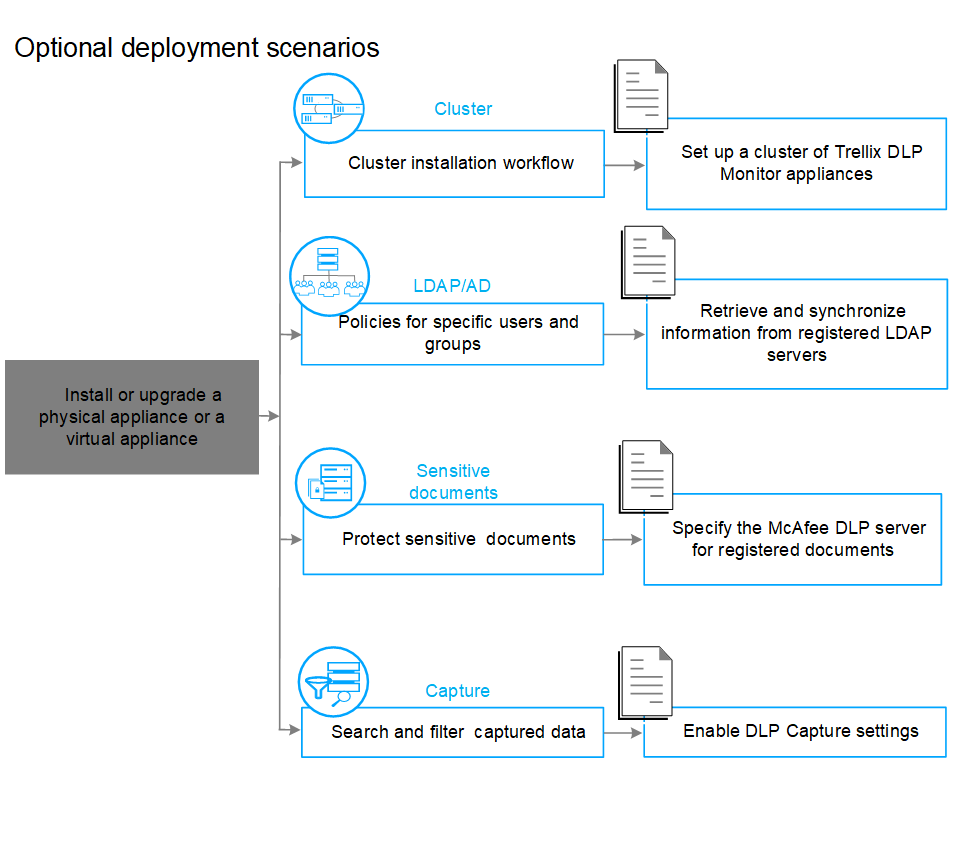
Configure the Trellix DLP Network Monitor appliance as a standalone device or as a member of a cluster.
Integrate the appliance with the registered LDAP and AD servers for applying policies to specific users and groups.
Set up the storage disk to save the captured data. The DLP Capture feature enables you to use the captured data to search and filter potential data loss incidents.
Note
You can choose to use the DLP Capture feature, if needed. DLP Capture requires additional storage disk space to hold the captured data.
For a Trellix DLP 8800, Trellix DLP 7700, and Trellix DLP 6600 appliance, set up the Trellix DLP Capture Storage Array and connect it to the appliance. For a virtual appliance, an additional hard disk gets created during deployment to store the captured data.
Enable the DLP Capture feature from ePO - On-prem and set how long you want to retain the captured data for.
Integrate the appliance with Trellix DLP Discover server, which is configured as Trellix DLP Server to protect sensitive data.
Compliant — Enabled state in policy matches the enabled state on client system
Non-Compliant — Enabled state in policy doesn't match the enabled state on client system