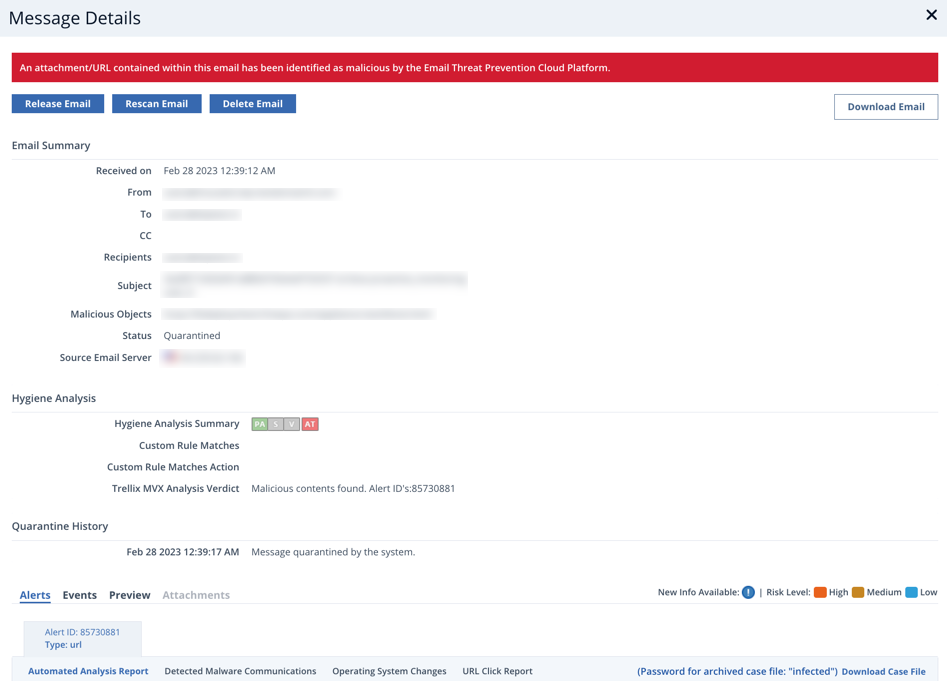
To view the details for a malicious email, click on the row of a quarantined email on the Quarantine page. The Message Details page allows you to release, rescan, delete, or download an email from the quarantine.
Actions
To release an email from quarantine and deliver it to the recipient:
Click Release Email. Optionally, check the box to report the email as "Not Spam".
(Optional) Enter the reason for releasing the email in the Justification box.
Click Yes, release email to release the email from quarantine. Note that this option is only available to domains configured in Inline or Inline with Hygiene mode. Only emails received within the last 30 days can be released.
Caution
The released email may contain LIVE malware. Proceed with caution.
To rescan an email in the quarantine:
Note
For more information on email rescanning, see Releasing, rescanning, or deleting quarantined email.
Click Rescan Email.
Click Yes, rescan email. Note that this option is only available to inbound domains configured in Inline with Hygiene mode.
To rescan a password-protected email in the quarantine:
Click Rescan with Password.
Enter the required passwords.
Click Yes, rescan email. Note that this option is only available to inbound domains configured in Inline with Hygiene mode.
To delete an email from quarantine:
Click Delete Email.
Click Yes, delete email. Note that this option is only available to domains configured in Inline or Inline with Hygiene mode. Only emails received within the last 30 days can be deleted.
To download email from quarantine:
Click Download Email to download a copy of the malicious email as a text file.
Email summary
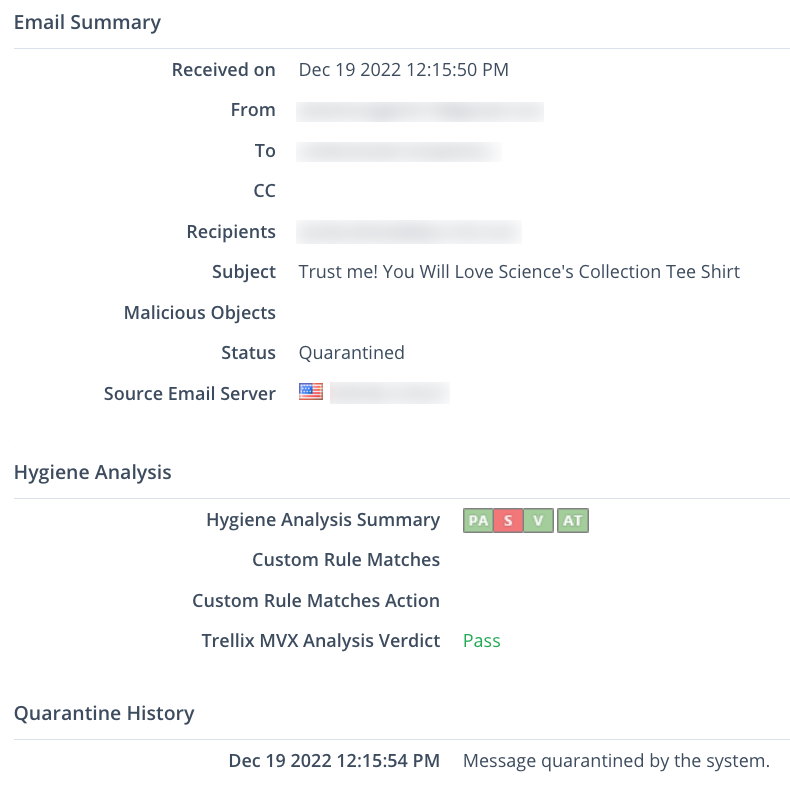
The Email Summary section displays header information such as the date and time the email was received, as well as the email From, To, CC, and Subject fields. It also specifies the attachment file names or URLs, the email status, and the email server that sent the malicious email. If the email was matched against a YARA rule policy, the attachment(s)/URL field will show the name of the YARA rule policy responsible for the quarantined message.
Hygiene analysis
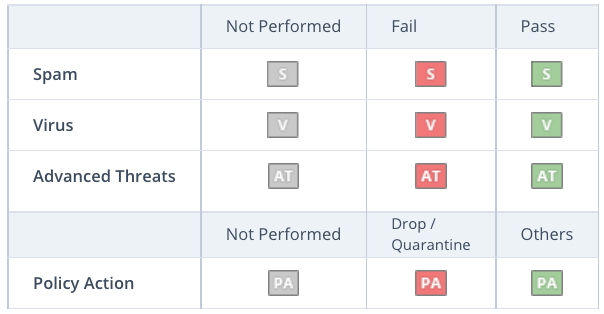
This section lists the reason an email was flagged as malicious (Policy Action - PA, Spam - S, Virus - V, and Advanced Threats - AT). The chart below describes the icons used to graphically indicate the results of the email analysis. A green icon in a category indicates that the email was not considered malicious for that specific category. A red icon indicates that it was malicious. A gray icon indicates that the email analysis was not performed.
Quarantine history
This section specifies the date and time the message was quarantined.
Alert details
The Alert Details section of the Message Details page identifies the Alert ID and type of the quarantined message. Further details are split into the following four tabs:
Automated Analysis Report
Detected Malware Communications
Operation System Changes
URL Click Report
For more information about these tabs, see Advanced threat alert details.
Event details
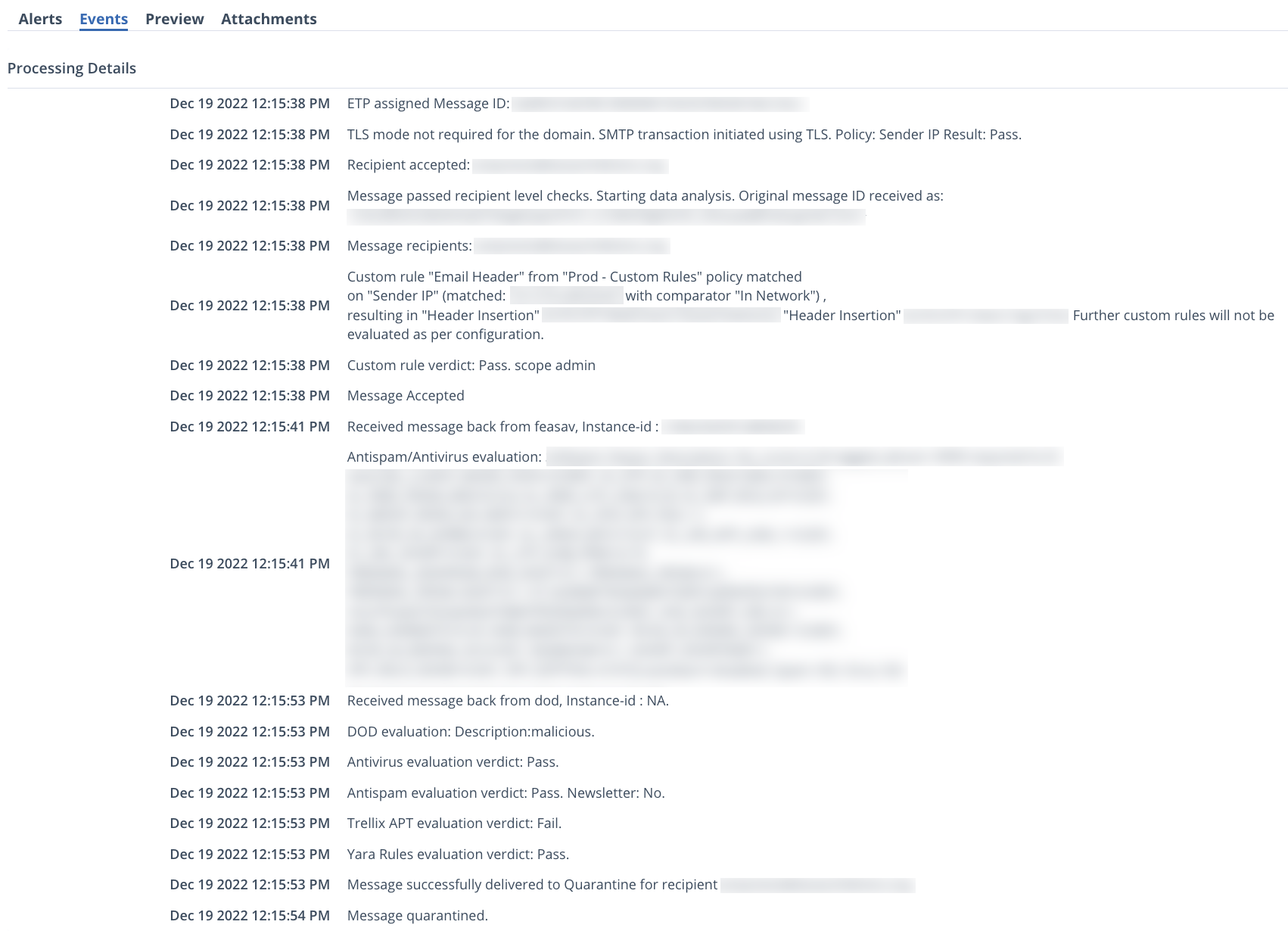
The Events section provides a log of how the system processed the malicious email and its quarantine status. Details about matched policies and subsequent actions taken related to matched policies are also included in the Events log. If the email was released from the quarantine, it also displays the email server and port where it was released. The Events log displays information in chronological order, beginning with the time when the email was quarantined. Retroactive alerts are displayed in the Events log. Gmail and O365 emails that are remediated after they are read display a read receipt. This applies to manually and retroactively remediated mail in SMTP mode and all remediated mail in Native mode.
Message preview
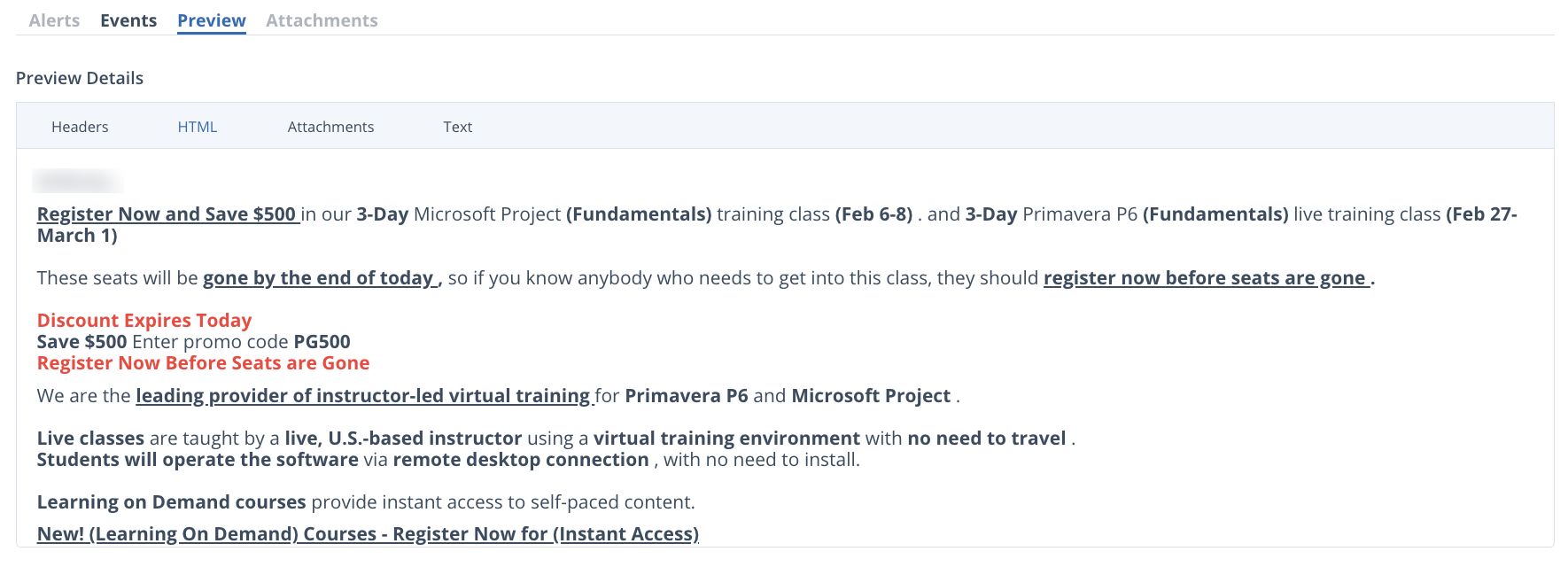
The preview section provides a preview of the email. Four tabs display the following details:
Headers—Displays the headers from the raw email.
HTML— Displays the HTML if there is an HTML version of the original email. All pictures are removed and links are disabled.
Attachments—Shows the name and size of files attached to the email as "attachment" or "inline", if there are any.
Text— Shows the text of the email in plain-text format.
Administrators can view the message preview activity of other admins in the View Activity page under the Administrators tab.
Attachments
The attachments section shows attachment filenames, file types, and their MD5/SHA256 hashes.
From the attachments section, you can query VirusTotal and analyze the results. For more information, see VirusTotal and URLScan.IO integration.

URLs
The URLs section displays the URLs found in the email.
From the URLs section, you can query VirusTotal or URLScanIO and analyze the results. For more information, see VirusTotal and URLScan.IO integration.
