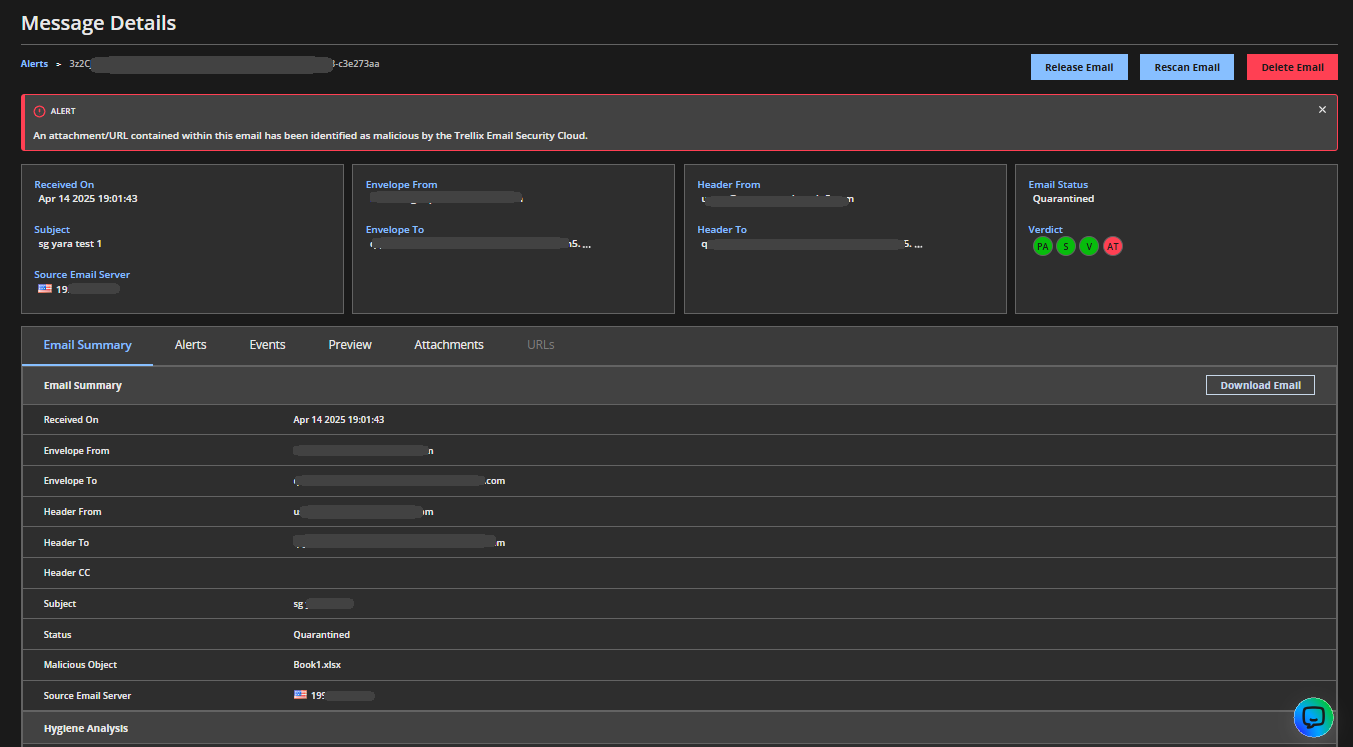
To view the details for an individual alert, click its Alert ID on the Alerts page. You will be redirected to the Message Details page. The page shows detailed information about the malicious email. You can also release, rescan or delete a quarantined email.
Actions
Release email: Releases a malicious email from the quarantine and delivers it to the recipient. The released email may contain LIVE malware. Proceed with caution. You will be prompted to confirm that you want to release the email. Only the emails received within the last 30 days can be released.
Rescan email: Rescans a malicious email from the quarantine to analyze if its contents are malicious or not. If the email is found clean, it is released from quarantine. Only the emails received within the last 15 days can be rescanned.
Rescan with password: Rescan emails that contain password-protected attachments and quarantined under riskware rule ID 65066. You need to provide candidate passwords to enable Email Security — Cloud to decrypt and analyze the attachment during the rescan. You can submit multiple passwords per request.
Delete email: Permanently deletes a malicious email from the quarantine. You will be prompted to confirm that you want to delete the email. Note that this option is only available to domains configured in Cloud Hygiene mode and inline mode. Only the emails received within the last 30 days can be deleted.
Download Trellix advanced URL detection engine screenshot: (
 ) Downloads the screenshot captured by the advanced URL detection engine of a malicious URL. Downloaded copies of screenshots are not malicious.
Download email: Downloads a copy of a malicious email as a text file. You can find this button in the Email summary tab.

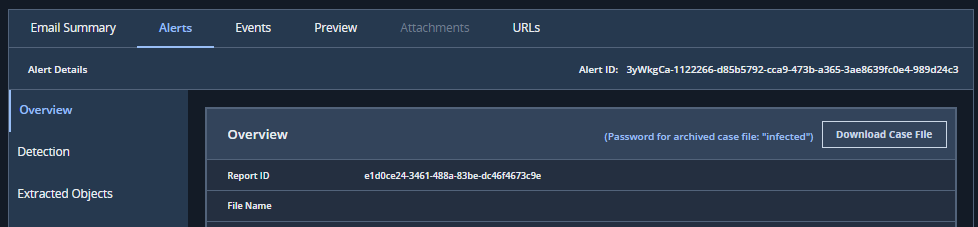
Download case file: Downloads a password-protected zip file that contains the malware case file, a copy of the malicious email, the alert.json file and the associated malware. The malware file is also contained within its own password-protected zip file. You can find the button in Alerts>Overview section.
Caution
The case file may contain LIVE malware. Proceed with caution.
To know more about the Message Details tabs refer to the following links:
Email summary tab
The Email Summary displays header information such as the email sender and recipients, CC, and subject fields. Additionally, it also specifies the source email server that sent the malicious email.
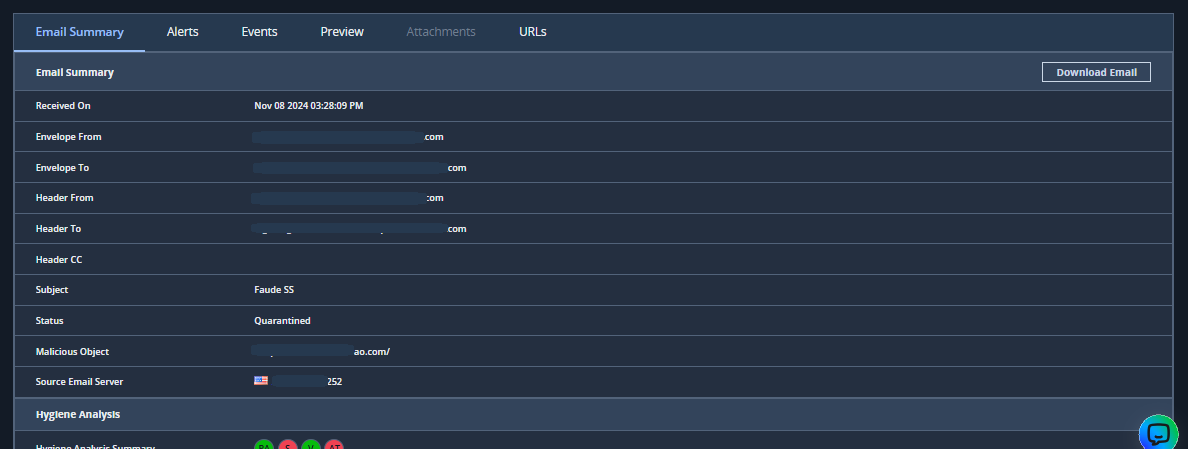
The Hygiene Analysis shows the reason it was flagged as malicious.
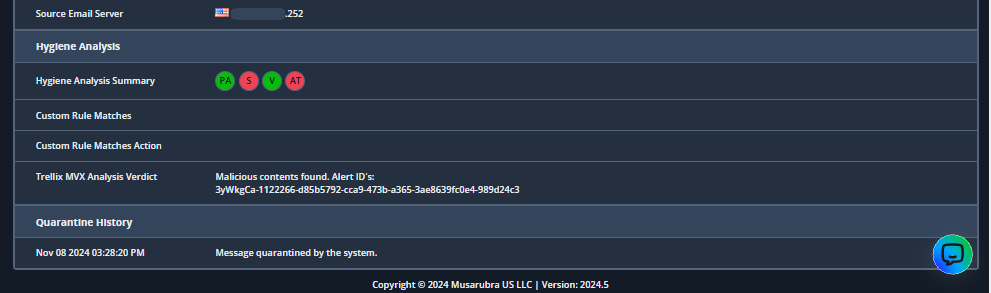
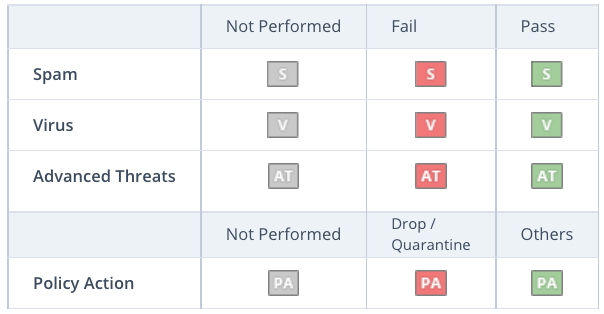
The chart below describes the icons used to graphically indicate the results of the email analysis. A green icon in a category indicates that the email was not considered malicious for that specific category. A red icon indicates that it was malicious. A gray icon indicates that the email analysis was not performed.
This section also displays Custom rule matches, Custom rule matches action and Trellix MVX analysis verdict.
The Quarantine History shows the date and time when the message was quarantined by the system. It also shows the justification provided for releasing the email.