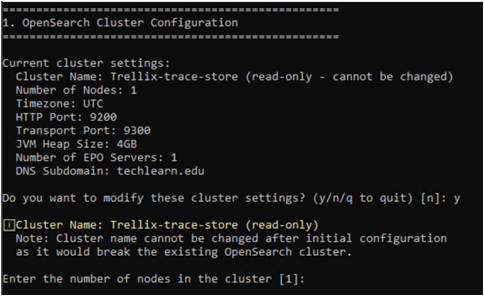
In this section, you create the EDR Telemetry Store configuration file using the setup wizard and then deploy the cluster.
The wizard prompts you to configure the following:
Cluster name and basic settings
Trellix ePO server details (required)
DNS subdomain for endpoints (required)
Node configuration and roles
Index management policies
The setup wizard automatically configures the following security settings:
SSL/TLS certificates: Auto-generates certificates using Mutual Transport Layer Security (mTLS).
Cluster security settings: Enforces authentication using mandatory mTLS.
Start the OpenSearch Cluster Setup Wizard.
enable configure opensearch cluster setup
Configure the cluster settings in the wizard as follows:
At each prompt, enter the required value. To accept a listed default value, press Enter.
To exit the cluster setup, type
qand press Enter.Cluster name: Enter a cluster name.
Default value:
Trellix-trace-storeNumber of nodes: Enter the number of nodes in the cluster.
Default value:
3Note
For the single-node configuration, enter
1.For more information about different node roles in a multi-node cluster, see EDR Telemetry Store node roles.
Timezone: Select the timezone.
Default value:
UTCHTTP Port: Enter the HTTP port number.
Default value:
9200Transport Port: Enter the transport port number.
Default value:
9300Number of ePO servers: Enter the number of ePO servers.
Default value:
1IP address or Hostname of ePO servers: Enter the IP address or hostname of your ePO Trellix server.
ePO server console port: Enter the port number for the ePO console.
Default value:
8443ePO server username and password: Enter the ePO server credentials.
DNS subdomain: Enter the DNS subdomain.
For example,
domain.com