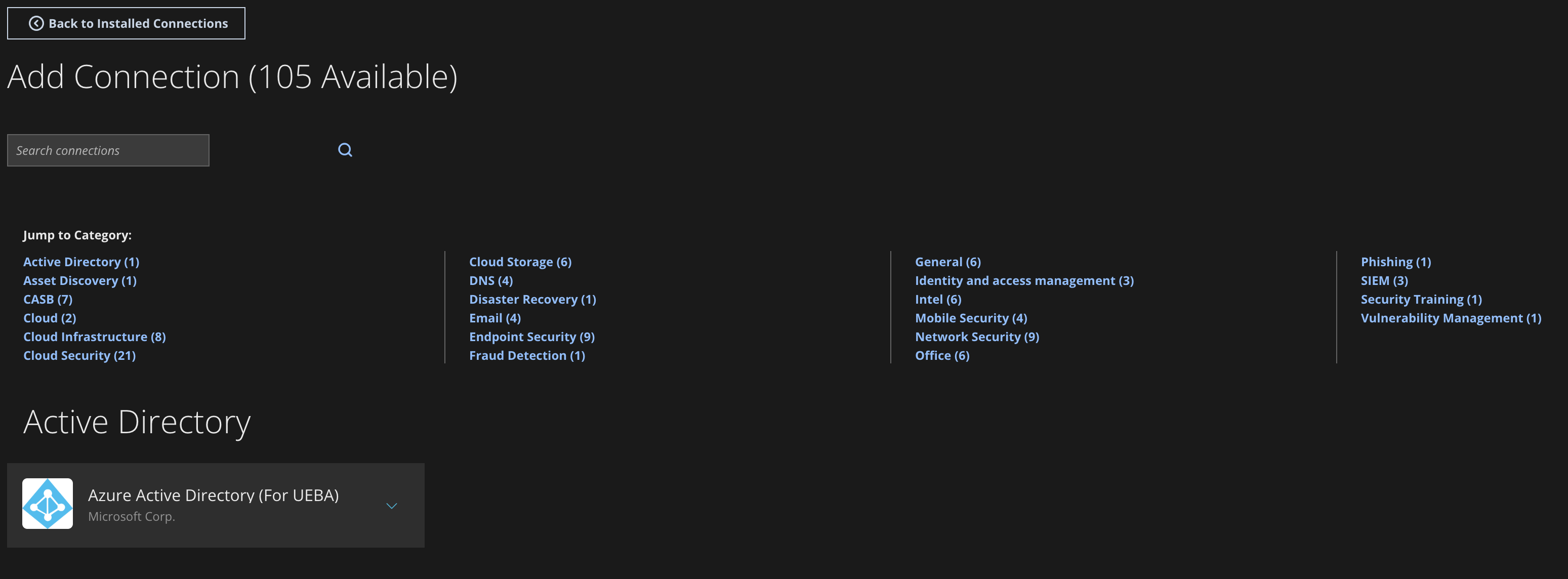
Each tile on the Add Connection page provides information about the cloud connection, including a summary of the installation steps and the ability to print the installation steps. It also provides a wizard that guides you with step-by-step instructions with input fields as needed. For example:
Important
Each cloud connection has its own input fields. You might need to work with the product vendor to obtain the values for those fields (for example, API keys, domains, and so on).
From the main menu, select Configure > Cloud Connect to open the Cloud Connect page.
Click Add Connection.
Locate the connection.
Click the arrow to expand the connection information.
Do one of the following:
Select View Install Steps or click Print Installation Steps to see a summary of the steps you must perform to install the integration. Click Exit Preview Mode when you are ready to begin the installation.
Select Install to open a wizard that guides you through the installation.
After the installation is complete, the cloud connection is displayed on the Cloud Connect page.