To create an internal user group in your Trellix IAM organization, use the User Groups page.
The Internal User Groups list (the list of all groups defined in this IAM organization) and the External User Groups list (the list of externally defined groups accessible by this IAM organization) can be sorted and filtered on the Description column. The fields in this page are described in Viewing the lists of internal and external user groups.
IAM Admin access to the Trellix IAM Web UI.
To create a user group:
Log in to the Trellix IAM Web UI.
Select Organization Settings > User Groups.
The User Groups page lists all Trellix IAM user groups known to your IAM organization.
The Internal User Groups panel lists user groups that are defined in your organization. The External User Groups panel lists user groups that are defined in other organizations but which Trellix has added to your organization.
Click Add. The Add User Group view appears.
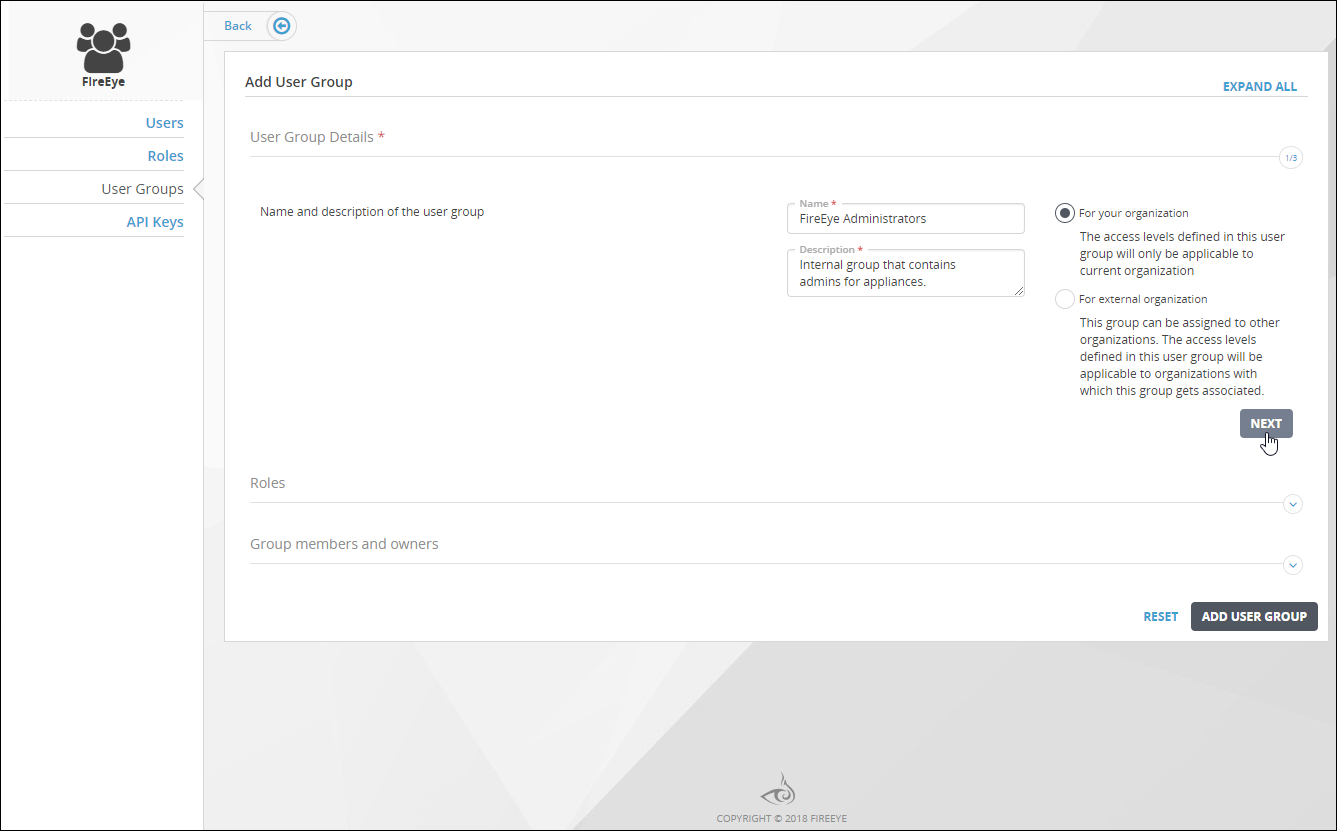
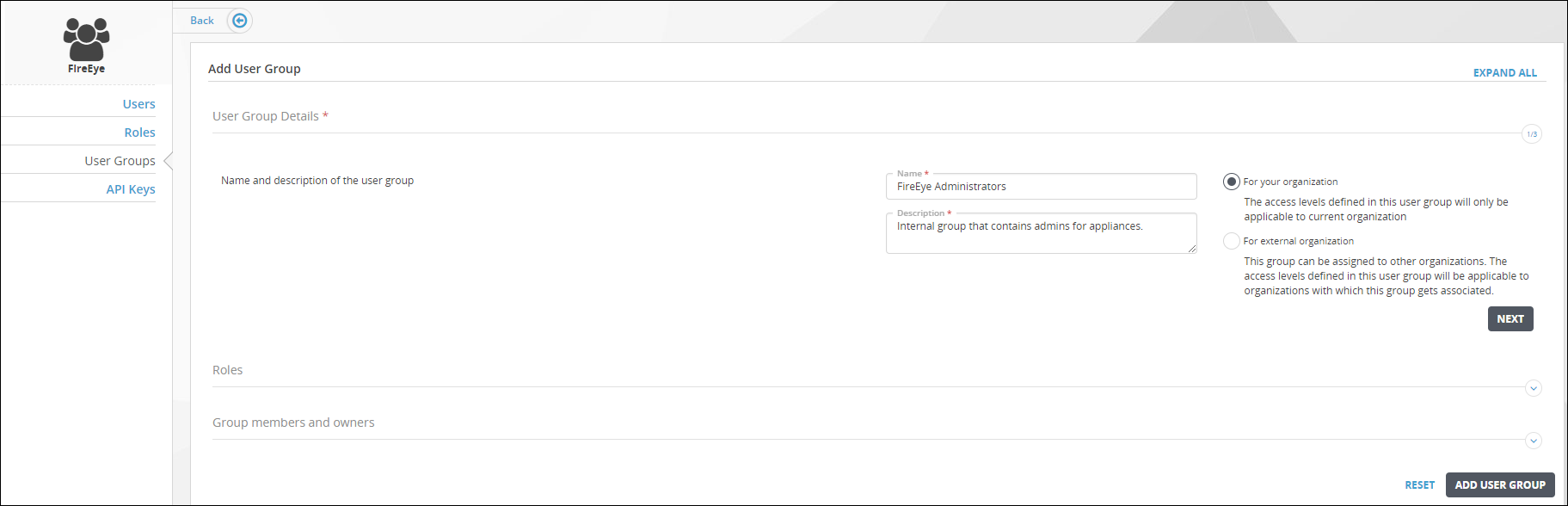
Enter a name and a description for the group.
Click Next to view the panels that enable you to assign roles to the group.
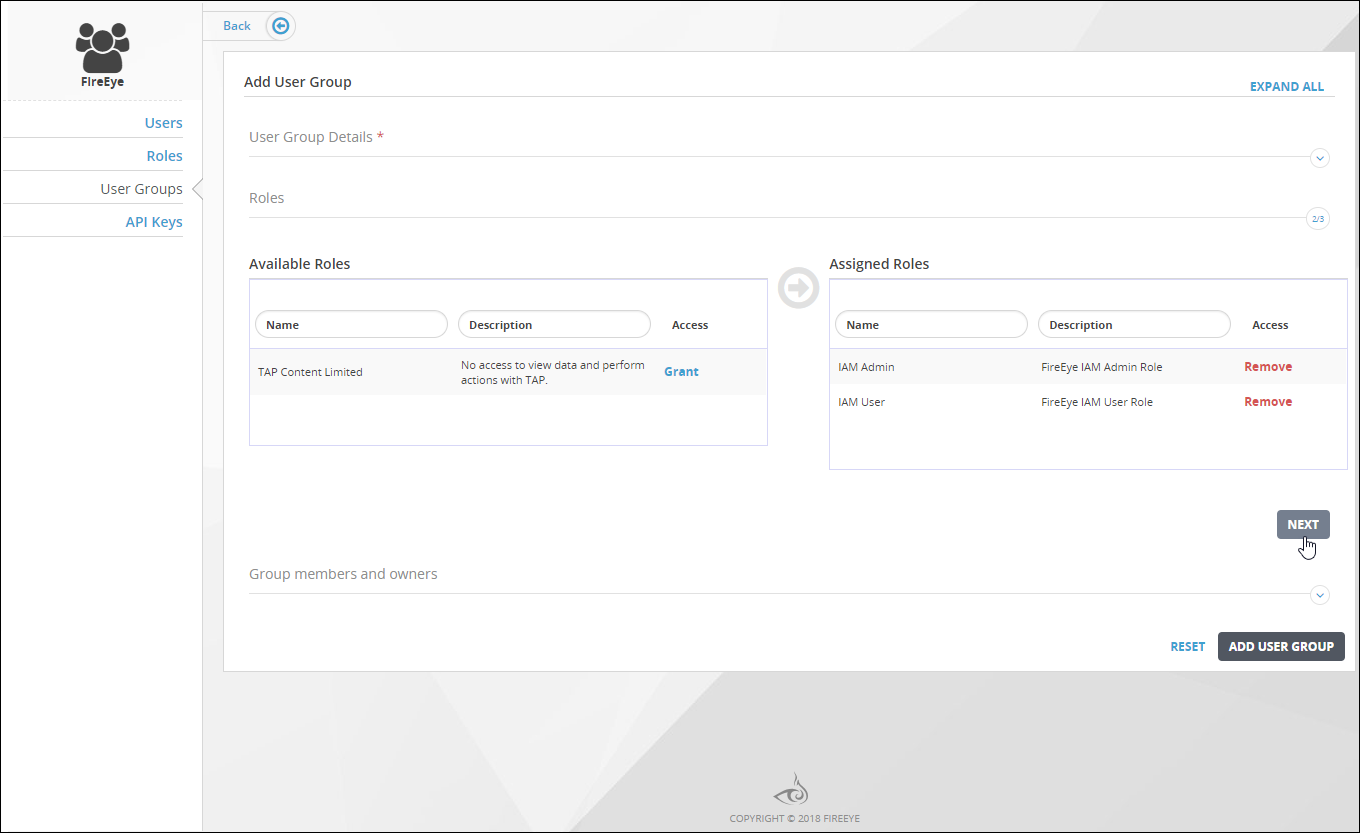
To assign a role to the user group, find the role in Name column of the Available Roles list and click Grant in the Options column. The role name moves from the Available Roles list to the Assigned Roles list on the right.
Click Next to view the panels that enable you to assign users to the group.
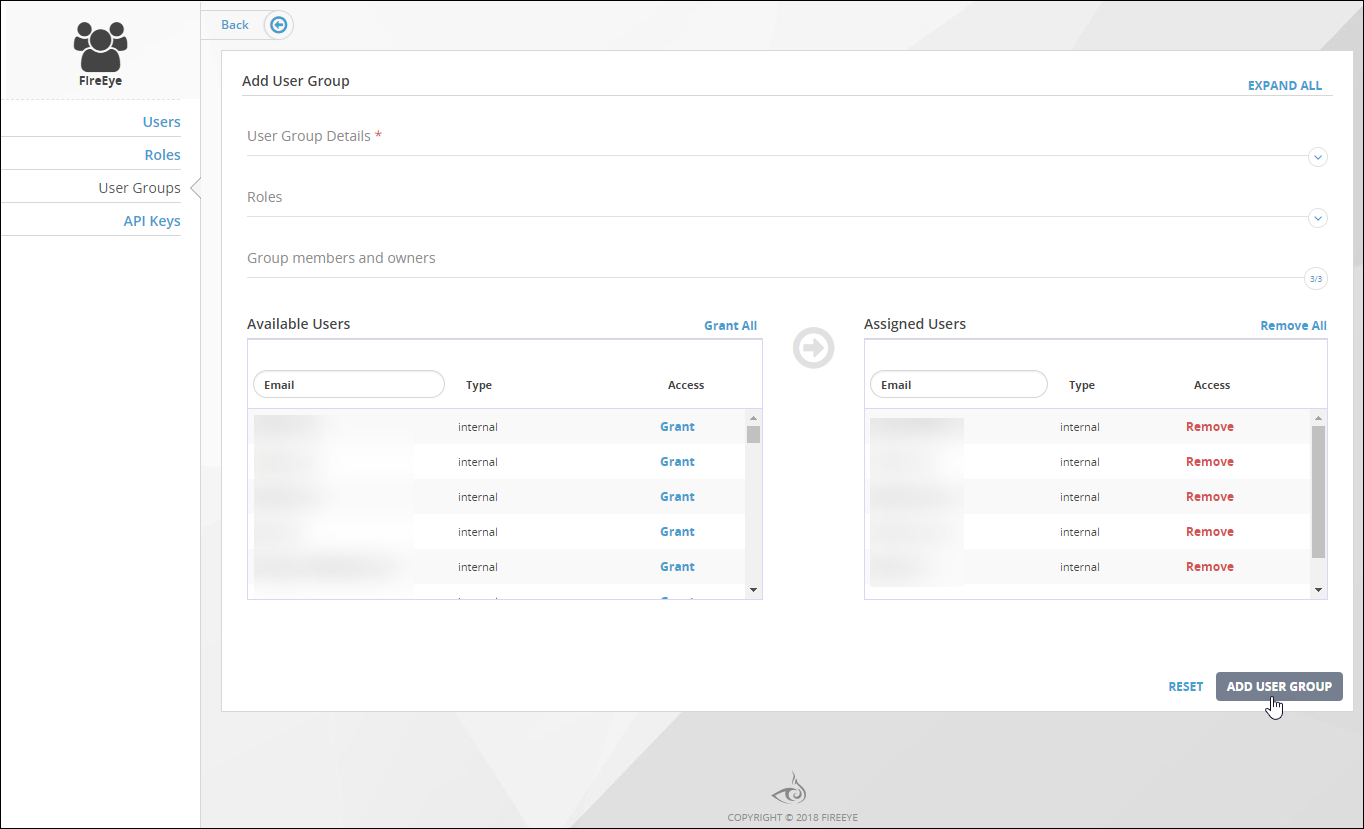
In the Available Users panel, the entry for your own user account displays
You Cannot Grantin the Access column.To assign a user account to the user group, find the user account in the Available Users list on the left side of the page, and then click Grant in the Options column. The user name moves from the Available Users list to the Assigned Users list to the right.
Click Add User Group.
The name of the new group appears in the User Groups panel of the User Groups main view.