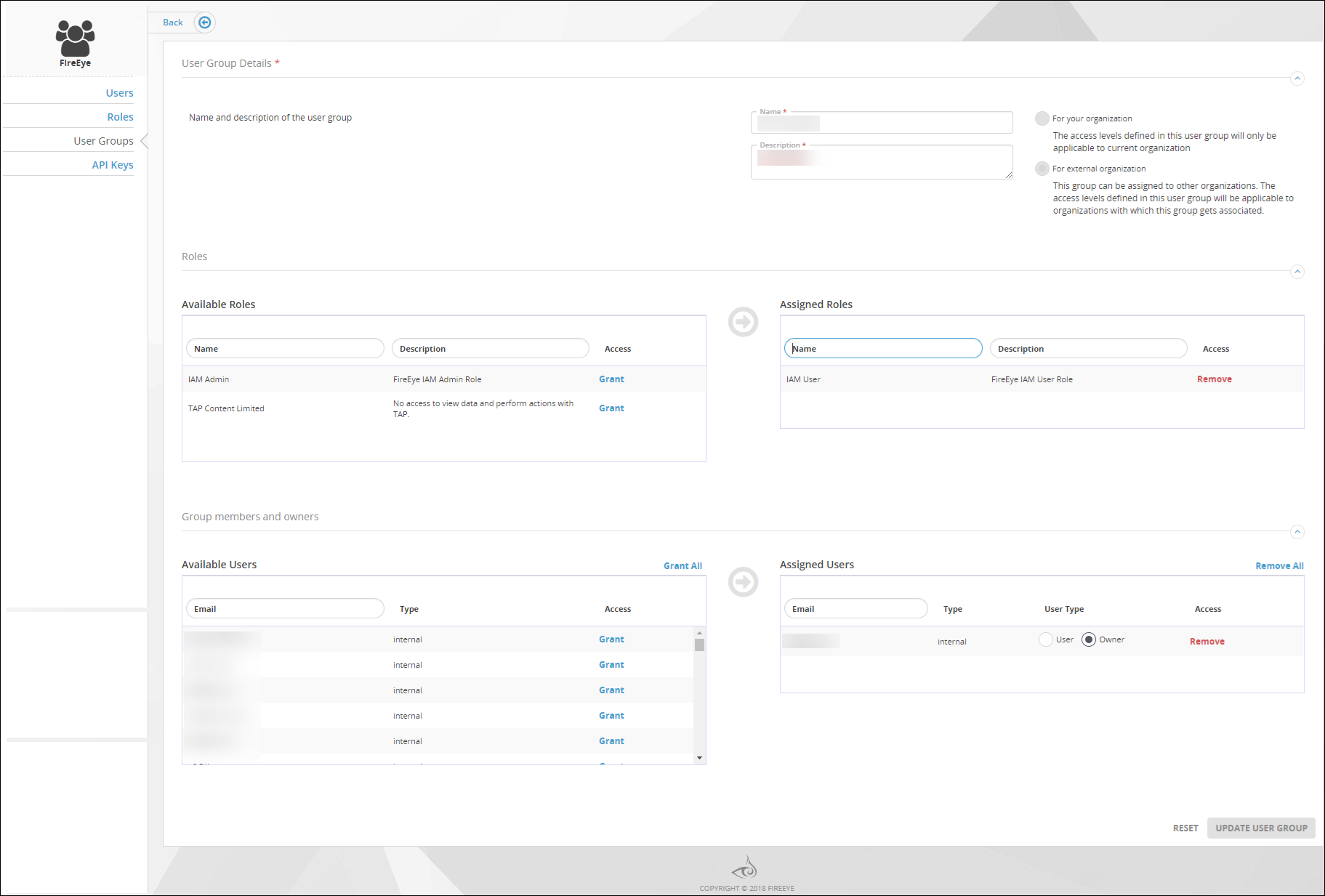
To view the roles and user accounts assigned to an internal user group, use the Edit User Group view of the User Groups page.
IAM Admin access to the Trellix IAM Web UI.
To view the roles and user accounts assigned to a user group:
Log in to the Trellix IAM Web UI.
Select Organization Settings > User Groups.
The User Groups page lists all Trellix IAM user groups known to your IAM organization.
The Internal User Groups panel lists user groups that are defined in your organization. The External User Groups panel lists user groups that are defined in other organizations but which Trellix has added to your organization.
(Optional) Sort and filter either of the lists on the Name field.
Note
Filtering is case-sensitive, and it does not match wild card characters.
Select the role you want to view. Use either of the following methods:
Click the role name in the first column.
Click the Options icon and select View/Edit.
The Edit User Group view appears, and the Assigned Roles panel lists the roles assigned directly to the user group.
Note
The entitlements assigned to a global role are specific to the product for which the role grants user access. Custom roles can have entitlements for one or more products.