You can edit an internal user group in your Trellix IAM organization by adding roles or user accounts and by removing roles or user accounts.
Note
Removing a user account from a user group will reduce the group's access privileges if the user's directly assigned roles grant privileges that the group does not have through other sources. A user group derives its access privileges though the roles directly assigned to it and through the roles directly assigned to its members.
To edit an internal user group, use the User Groups page.
IAM Admin access to the Trellix IAM Web UI.
To edit a user group:
Log in to the Trellix IAM Web UI.
Select Organization Settings > User Groups.
The User Groups page lists all Trellix IAM user groups known to your IAM organization.
The internal User Groups panel lists user groups that are defined in your organization. The External User Groups panel lists user groups that are defined in your organization but which Trellix has added to your organization.
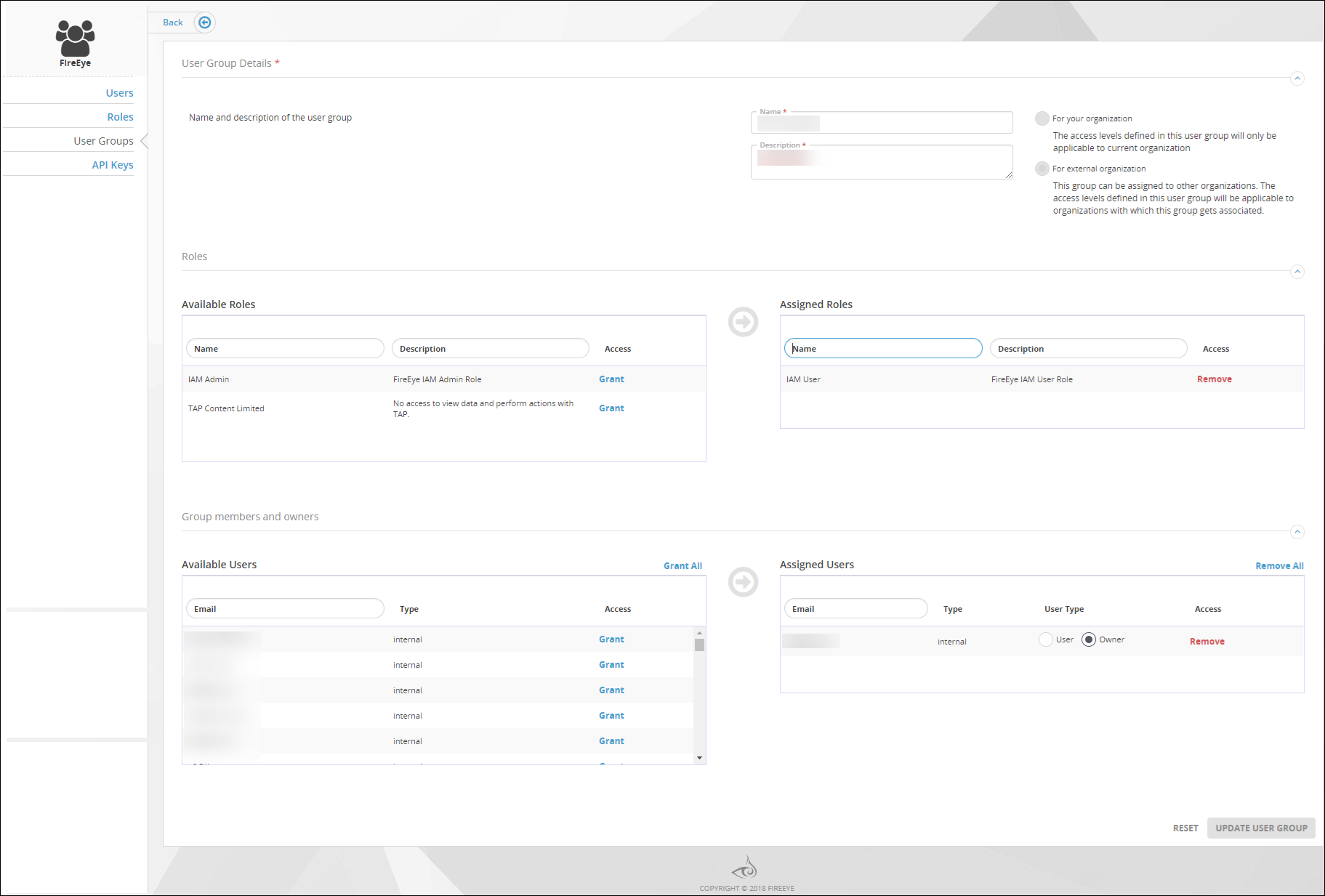
Click the name of the user group you want to edit. The Edit User Group view shows details about the selected group.
To assign a role to the group:
Find the role in the Available Roles list and click Grant in the Options column. The role name moves from the Available Roles list to the Assigned Roles list on the right.
To remove a role from the group:
Find the role in the Available Roles list and click Remove in the Options column. The role name moves from the Assigned Roles list to the Available Roles list on the left.
To assign a user to the group:
Find the user in the Available Users list and click Grant in the Options column. The user name moves from the Available Users list to the Assigned Users list on the right.
To remove a user from the group:
Find the user in the Available Users list and click Remove in the Options column. The user name moves from the Assigned Users list to the Available Users list on the left.
Click Add User Group.