A policy rule contains at least one constraint, which tests true or false depending on the defined values. The rule in the following example has one constraint that prevents the assigned user from seeing Network Security alert data in searches.
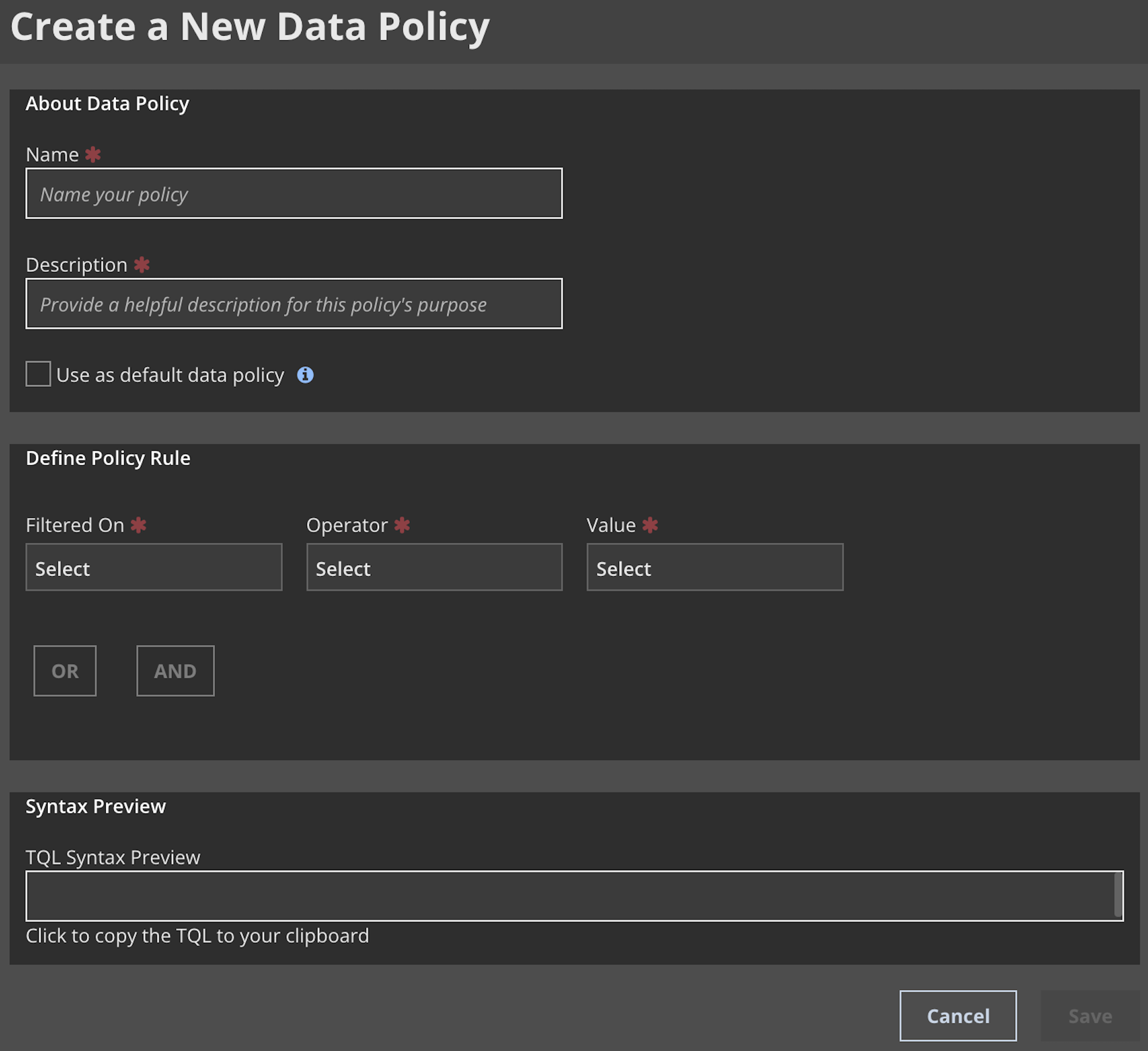
To create or modify a data policy:
To create a new policy, on the Policies tab, click Create Data Policy
To modify a data policy, on the Policies tab, click the policy in the Name column or select Edit Data Policy from the Options menu.
Provide a name and description of the policy.
(Optional) Select the checkbox to designate this as the default policy for the organization, described in Configuring search-based data policies.
Define constraints for the policy rule.
Select a filter, an operator, and one or more values. Filters include class, deviceid, _metadata_customer_id, meta_cbid (Comm Broker ID), and product. Operators include EQUALS and DOES NOT EQUAL. Values depend on the selected filter. Select multiple values one at a time.
Selecting multiple values automatically creates an OR grouping with values separated by commas and enclosed by square brackets. For example:
class!=[Trellix_ex_metadata,Trellix_ex_alert,Trellix_nx_alert].To add additional constraints, click AND or OR and repeat the previous step.
(Recommended) Click the syntax in the syntax preview to copy it to the clipboard. You can use this in a test search to make sure it returns the expected results.
Click Save.
Note
You can hover over the device name for values such as deviceid and meta_cbid to see a human-readable name (for example, the domain name of the device). The human-readable name does not appear in the syntax preview.