You can change the name, description, and role assignment of a custom role in your Trellix IAM organization. To edit a custom role, use the Role Definitions view of the Roles page.
Note
You cannot edit or delete global roles, and you cannot change the product type of a custom role.
Note
If you change a role while an affected user is logged in, the user is forcibly logged out. When the user logs in again, the user has the capabilities provided by the new definition of the role.
IAM Admin access to the Trellix IAM Web UI.
To edit a custom role:
Log in to the Trellix IAM Web UI.
Select Organization Settings > Roles. The Role Definitions view lists the global and custom roles defined in your IAM organization.
(Optional) Sort and filter the list on the Name field or the Description field.
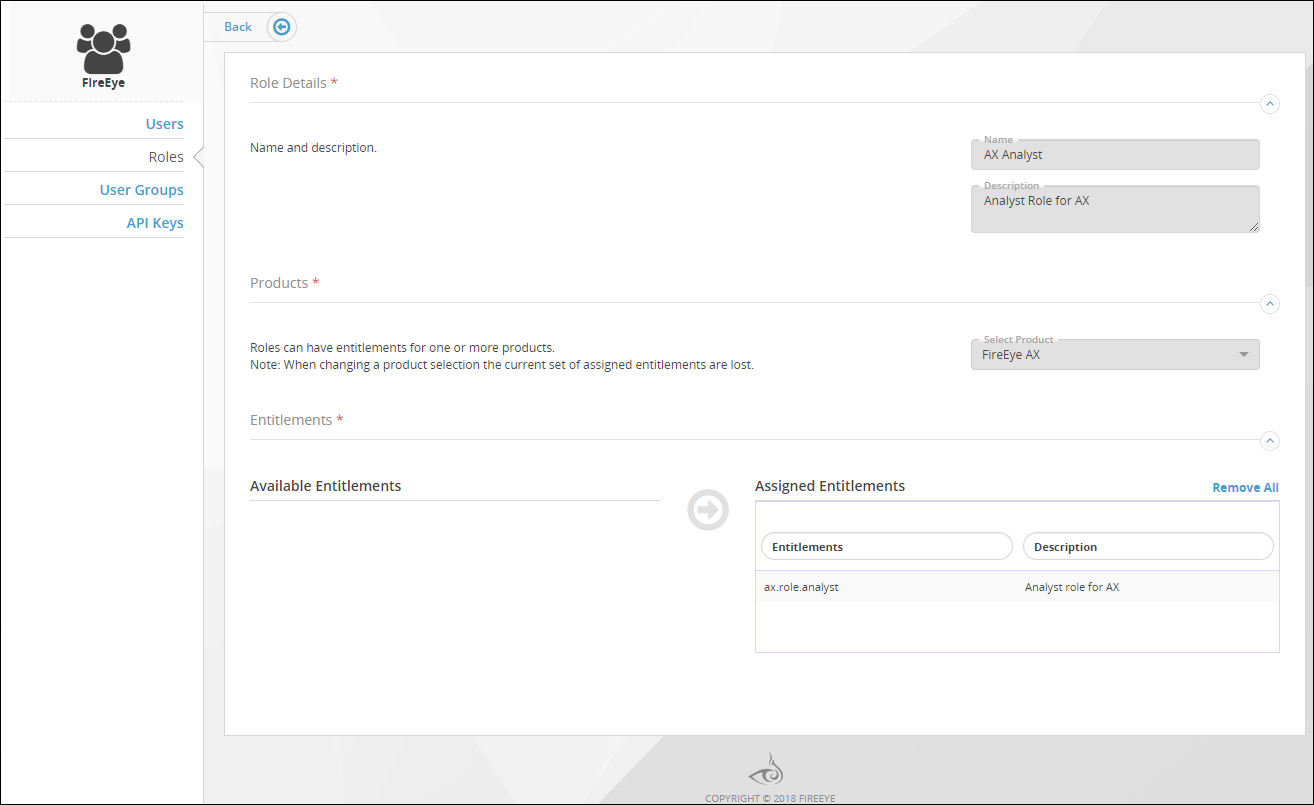
Click the name of the custom role you want to edit. The Edit Role view shows details about the selected role.
To change the name or description of a custom role, enter new text in the Name or Description fields.
To add an entitlement to the custom role, do the following:
In the Available Entitlements list, find the entitlement you want to add.
Go to the Options column and click Grant.
To remove an entitlement from the custom role, do the following:
In the Assigned Entitlements list, find the entitlement you want to remove.
Go to the Options column and click Remove.
Verify that the entitlement names are updated in the Available Entitlements list and in the Assigned Entitlements list.
Click Update Role.