The email reconstruction tool allows you to reconstruct all emails accessed within your network from the Event Table, Protocol Connections and File Info charts, and from the Details tab on the Alert page. Email fields, including To, From, Subject, and Date, appear in all reconstructed emails. Plain-text emails are reconstructed and viewed in plain text. NDR provides three options for viewing reconstructed HTML emails: Sanitized Email View, Raw HTML View, and Unsanitized Email View.
Reconstructed HTML Email View | Description |
|---|---|
Sanitized HTML View | Displays the reconstructed HTML email in plain-text format, excluding all executable scripts and links. |
RAW HTML View | Displays only the raw HTML content, excluding all plain-text body content. |
Unsanitized HTML View | Displays the reconstructed HTML within the email body, including links and executable scripts.
|
Email reconstruction from the Event Table
Follow the steps below to reconstruct HTML emails from the Event Table.
Click
 and from INVESTIGATION, select Search.
Enter doc_values_type:smtp in the search bar and click Enter.
Click the search icon to perform the search.
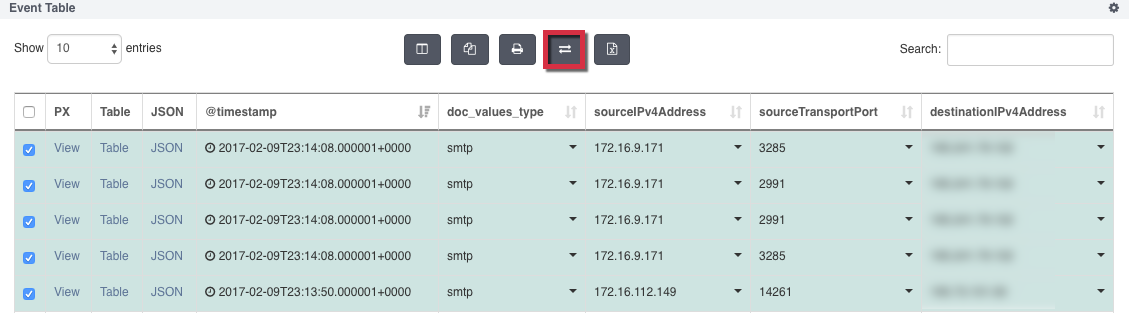
After the search completes, select the SMTP events you want to reconstruct in the Events Table.
Click the Reconstruct button at the top of the Event Table to pivot directly to the Artifacts dashboard. Each reconstructed email appears as a unique record on the Email tab.
(Optional) To download all the artifacts at once, click DOWNLOAD ALL ARTIFACTS .
The DOWNLOAD ALL ARTIFACTS button is enabled if there is at least one artifact available.
From the Email tab, select a record and click + to expand the record.
Select a view of the reconstructed email: Sanitized View, Raw Email View, or Unsanitized Email.
Email Reconstruction from the Protocol Connections and File Info Charts
Follow the steps below to reconstruct HTML emails from the Protocol Connections chart or File Info chart.
Click
and from INVESTIGATION, select Search.Enter doc_values_type:smtp in the search bar and click Enter.
Click the search icon to perform the search.
After the search completes, select the SMTP events you want to reconstruct in the chart and hover over the document number to view additional metadata.
Click the Reconstruct link to pivot directly to the Artifacts dashboard.
(Optional) To download all the artifacts at once, click DOWNLOAD ALL ARTIFACTS .
The DOWNLOAD ALL ARTIFACTS button is enabled if there is at least one artifact available.
From the Email tab, select a record and click + to expand the record.
Select a view of the reconstructed email: Sanitized Email, Raw Email View, or Unsanitized Email.
Email reconstruction from the Alerts page
Follow the steps below to reconstruct HTML emails from the Alerts page.
Click
and from INVESTIGATION, select Search.Click on an alert to see the alert details under the Details tab.
Click the Reconstruct button to pivot directly to the Artifacts dashboard and reconstruct all SMTP events captured in the PCAP.
(Optional) To download all the artifacts at once, click DOWNLOAD ALL ARTIFACTS .
The DOWNLOAD ALL ARTIFACTS button is enabled if there is at least one artifact available.
From the Email tab, select a record and click + to expand the record.
Select a view of the reconstructed email: Sanitized View, Raw HTML View, or Unsanitized View.