The List widget allows you to show an ascending or descending list of values for a selected field. You can order the list by unique count, packet count, or byte count. This feature makes it easy to show the most common or least common field value by count or by traffic volume. For example, if you want to find the document types that are least used in the environment, you can build a list of doc_values_type and sort them by ascending count.
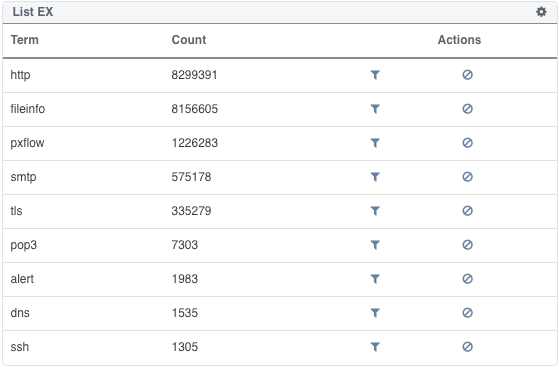
From the list, you can add a field filter to the current search query by clicking on the filter icon associated with the filter term. The dashboard refreshes with the new search results. Filters applied to the current query through the filter tab also apply to any List chart in the dashboard.
Important
When using the Filter tab, you must click the Apply button at the bottom left of the Filter tab each time you add or modify a filter. This applies the new or modified filter to your NDR search query.
You can use the Settings icon in the List panel to modify or exclude a field, term, or value from the current search, and to sort the list by count, packets, or bytes in ascending or descending order. You can also show or exclude the byte or packet count associated with each field term or value type by selecting "True" or "False" in the Show Bytes/Packets field.
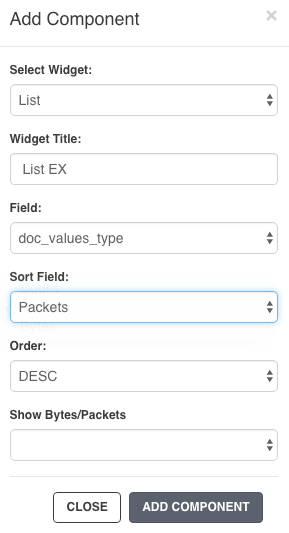
From the selected NDR dashboard, click the Add Component button and select List.
Name the widget.
Select the field filter from the Field drop-down menu.
Select the sort condition (count, packets, or bytes) from the Sort Field drop-down menu.
Select the sort order (ascending or descending) from the Order drop-down menu.
Select True or False to show or hide data in the Show Bytes/Packets field.
Click Add Component to save the List widget to your dashboard.
Click the search icon in the Query Bar to run your query and display the results.
(Optional) When the List appears in the dashboard, you can use the Settings icon in the List panel to configure the list size or modify the list attributes. You can display 10, 15, 25, or 50 terms in the list. The default list size is 10.