You can re-enroll an internal user whose enrollment link has expired. When you re-enroll a user, Trellix IAM automatically sends the user a link to the re‑enrollment page for that account.
Note
You cannot re‑enroll an external user.
To re‑enroll a local user account, use the Users page.
IAM Admin access to the Trellix IAM Web UI.
To re‑enroll a local user account:
Log in to the IAM Web UI.
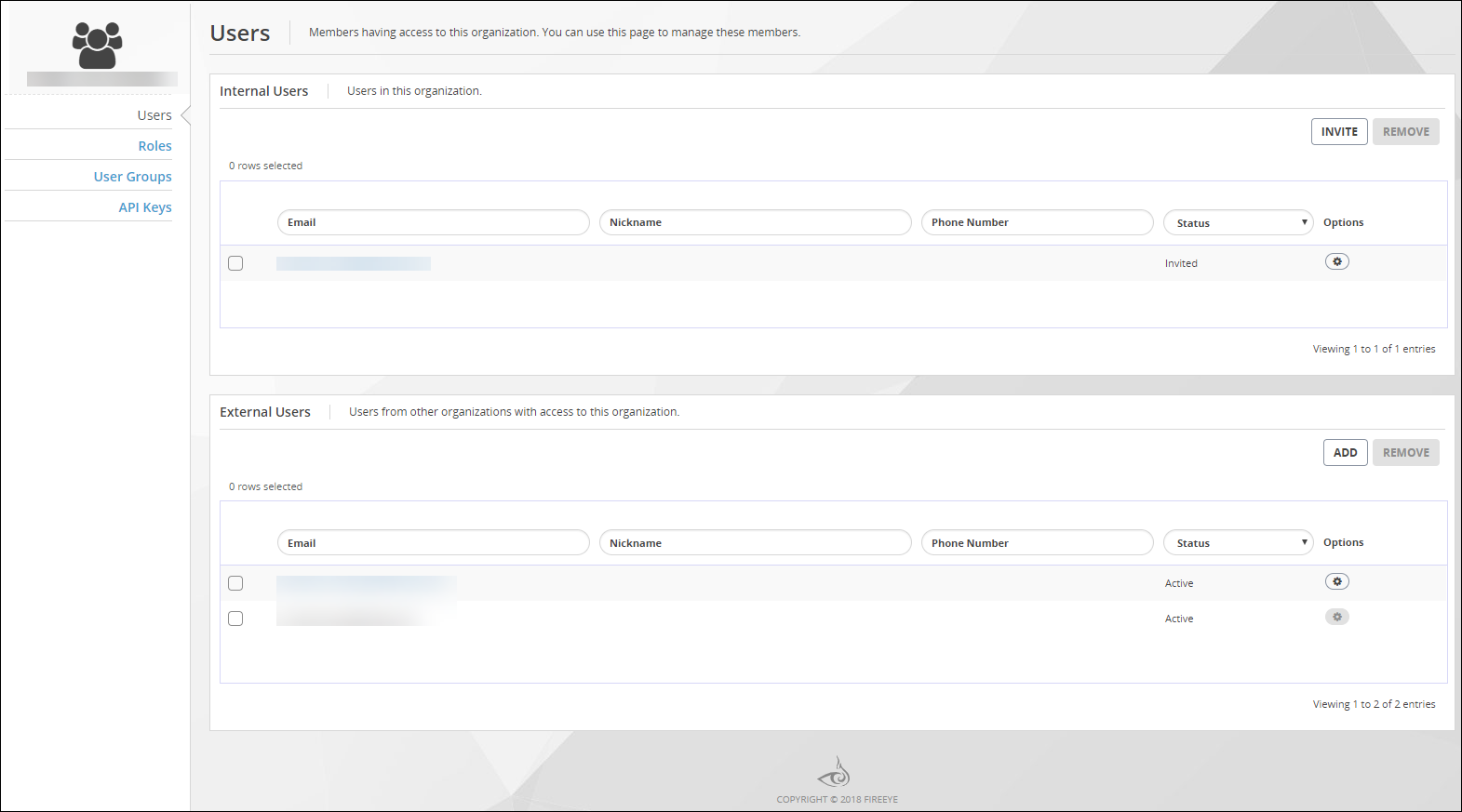
Select Organization Settings > Users.
The Users page lists all IAM user accounts known to your IAM organization.
The Internal Users panel lists user accounts that are defined in your organization. The External Users panel lists user accounts that are defined in other organizations but which the organization administrator has added and assigned roles.
(Optional) Sort and filter the list on the Email field, the Nickname, field, or the Phone Number field.
Find the user account you need to re‑enroll.
Click the Options icon for that user account and select Re‑Enroll.
Click OK.
Trellix IAM automatically sends the user a re‑enrollment link.
(Optional) To copy the re‑enrollment link, click Copy Links near the top of the page and click the Copy icon.
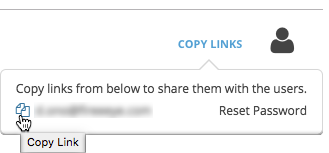
Save the link. If the user did not receive the automated email message, you can send the link again using your own email account.