To configure an application-level logging from a system-level template that applies to all agents:
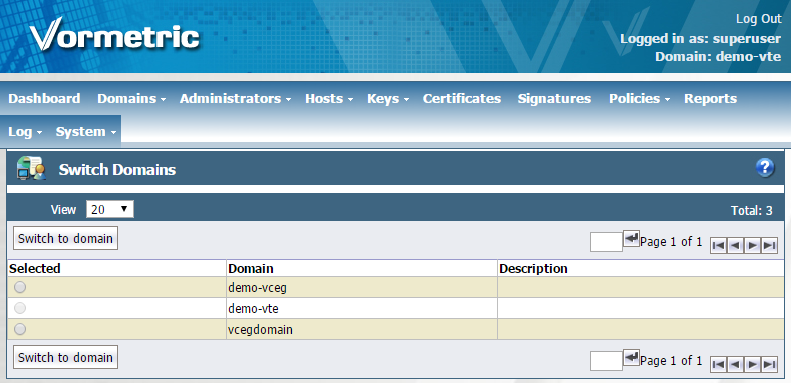
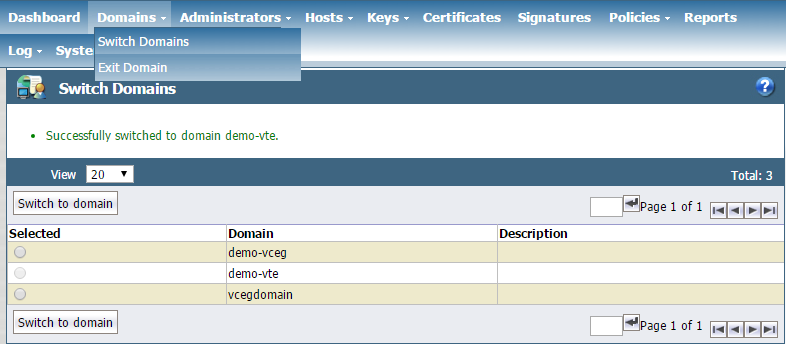
Log on to the DSM as an administrator of type System Administrator or All. Do not switch into a domain. If you're already in a domain, then exit it by selecting Log > Exit Domain.
Note
If you're logged into a domain, the domain name appears in the upper-right corner of the Vormetric Web Console.
Click System > Log Preferences.
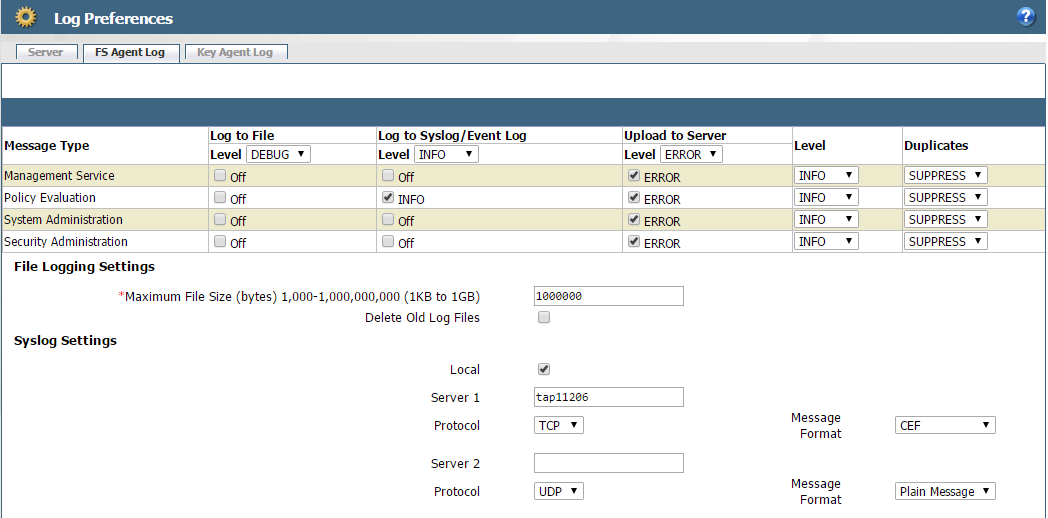
In the Log Preferences window, click the FS Agent Log tab.
At a minimum, make sure the following configurations are made to send Vormetric application-level policy evaluation messages to the Helix Enterprise syslog server:
In the Message Type Row:
In the Log to Syslog/Event Log column, set the level to
INFO.In the Upload to Server column, set the level to
ERROR.
In the Policy Evaluation Row:
In the Level columnSet the level to
INFO.In the Log to Syslog/Event Log columnSet the level to at least
INFO.In the Upload to Server column, set the level to at least
ERROR.
Note
Additional logging can be configured, but this will suffice to log the specific messages detailed above that Helix Enterprise will alert on.
Caution
Setting Upload to Server to INFO or DEBUG level for policy evaluation can affect DSM performance. It is highly recommended that you turn on Log to File or Log to Syslog instead of Upload to Server for INFO and DEBUG level.
Under Syslog Settings on FS Agent Log page, add the Helix Enterprise system details:
Server 1 (for example:
tap11206– should be Helix Enterprise system FQDN or IP address)Protocol
Message Format (Select
CEF)
Click Apply to apply changes.