You can convert domains from SMTP mode to Native mode or Native mode to SMTP mode in the Email Security — Cloud portal.
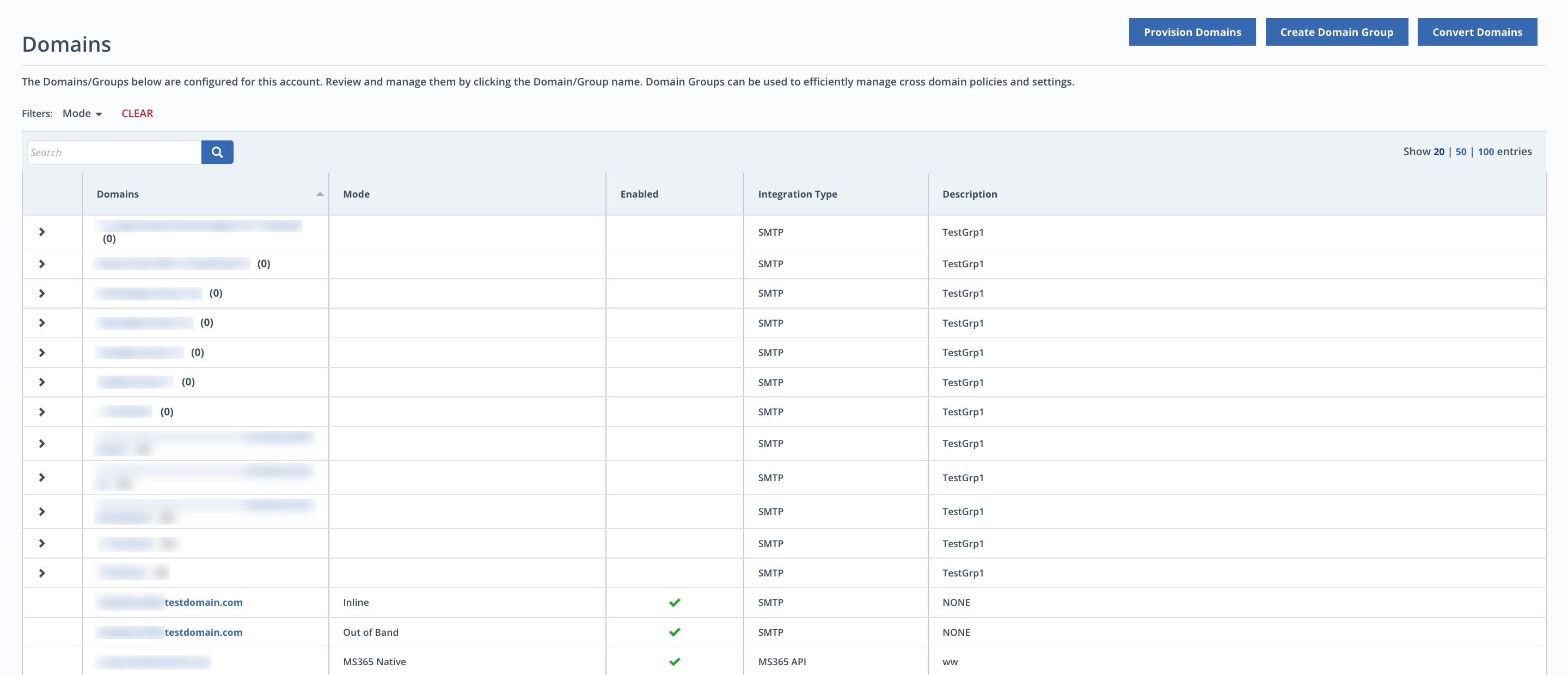
To convert SMTP domains to Native domains:
Important
Converting a domain stops SMTP mail flow to Email Security — Cloud. Any traffic received via SMTP after the completion of this workflow will be rejected.
Please make the necessary changes to your DNS records prior to conversion. The MX record of the domain must be updated to mirror the correct mail server before conversion otherwise there can be risk of emails not being delivered to the customer's Native domains.
Note
For more information on remediation policies, message analysis policies, custom rules, YARA rules, and quarantine reports, see Configuring policies.
Go to Configure > Domains.
Click Convert Domains in the top right corner.
Select SMTP to Native from the drop-down menu.
Select one or more domains.
Select MS365 Native, MS365 Native with Hygiene, Google Workspace Native, or Google Workspace Native with Hygiene. Click Next.
Select an existing remediation policy or create a new one. Click Next.
Select an existing message analysis policy or create a new one. Click Next.
Select policies to associate with the domains. Select custom rules, YARA rules, and quarantine reports (optional). Click Next.
Review the domain settings.
Click Save.
To convert Native domains to SMTP domains:
Important
When you convert a domain, Email Security - Cloud will stop scanning emails in Native mode. Please allow up to ten minutes before emails are routed via SMTP for source domains.
Please make the necessary changes to your DNS records prior to conversion. The MX record of the domain must be updated to mirror the correct mail server prior to conversion otherwise there can be a risk of emails not being delivered to customer's Email Security - Cloud Instance.
Note
For more information on remediation policies, message analysis policies, custom rules, YARA rules, and quarantine reports, see Configuring policies.
Click Configure > Domains.
Click Convert Domains in the top right corner.
Select Native to SMTP from the drop-down menu.
Select one or more domains.
Select Inline, Out of Band (OOB), or Inline with Hygiene. Click Next.
Select an email routing policy or create a new one. Click Next.
Select a remediation policy or create a new one (optional). Click Next.
Remediation policies are not available for OOB.
Select a message analysis policy or create a new one (optional).
Select policies to associate with the domains. Select custom rules, YARA rules, connect rules, and quarantine reports (optional).
Custom rules, connect rules, and quarantine reports are not available for OOB.
Review the domain settings.
Click Save.