The Email Trace feature of Email Security — Cloud lets you search and filter through inbound messages sent to your organization or outbound messages sent from your organization. To access the Email Trace page, click Email Trace in the top navigation bar. You can search for emails by:
Searching by message attributes
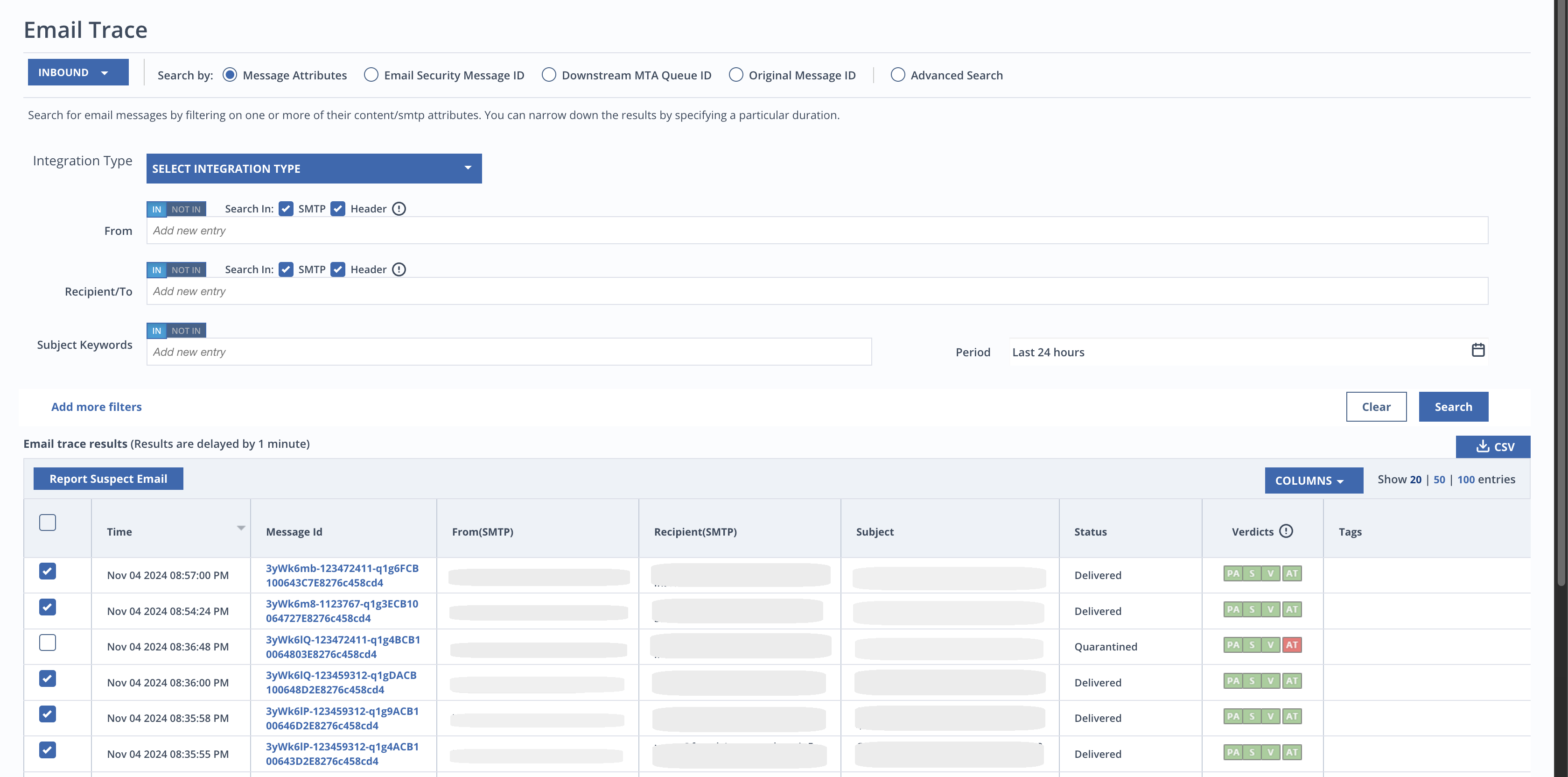
You can search for received emails based on various attributes. You can search through a specific time period of emails based on sender email address, recipient email address, or subject keyword.
Note
Searches that employ multiple filters use an "AND" operation in between filters. Multiple values in a single filter use an "OR" operation.
To search by attributes:
Enter the desired search parameters.
Click the Search button to display the results.
By default the search results display the following columns:
Time
Message ID
From (SMTP)
Recipient (SMTP)
Subject
Status
Verdicts
Tags
Has Release Justification
You can add or remove columns in the search results by using the Columns drop down.
Note
Hover over the flag in the Sender IP column to view the country name and code.
To view the details of a message, click anywhere within the message's row.
Click CSV to download a CSV file of the email trace results.
Basic filters
The basic search filters provide various options to search email messages based on the following criteria:
Attribute | Description |
|---|---|
Integration type | The Email trace supports email searches based on SMTP, MS365 API, and Google Workspace API. The search can be performed on one or multiple fields. |
From | The Email trace supports email searches based on SMTP "From" or Header "From". The search can be performed on either or both the fields. The In/Not In toggle option allows you to search for a sender email address that is either In or Not in a list of comma-separated email addresses. You can enter a maximum of 10 comma separated email addresses. Use the format username@ to search for email addresses with the same username. Use the format @domain to search for all email addresses having a specific domain. |
Recipient/To | The Email trace supports email searches based on SMTP "Recipient" or Header "To". The search can be performed on either or both the fields. The In/Not In toggle option allows you to search for a recipient email address that is either In/Not in a list of comma-separated email addresses. You can enter a maximum of 10 comma-separated email addresses. Use the format username@ to search for email addresses with the same username. Use the format @domain to search for all email addresses having a specific domain. |
Subject keywords | This field lets you search based on keywords in the subject string. The In/Not In toggle option lets the user search for subject keywords that are in the list of comma separated keywords, or not in the list of comma separated keywords. There can be maximum of 10 comma separated values that can be entered for search on this field. |
Period | Email trace searches are performed for last 24 hours by default. Searches can be performed on a custom time period by specifying a date and time up to last 30 days. |
To add more filters, see Adding more filters.
Searching by Email Security — Cloud message ID
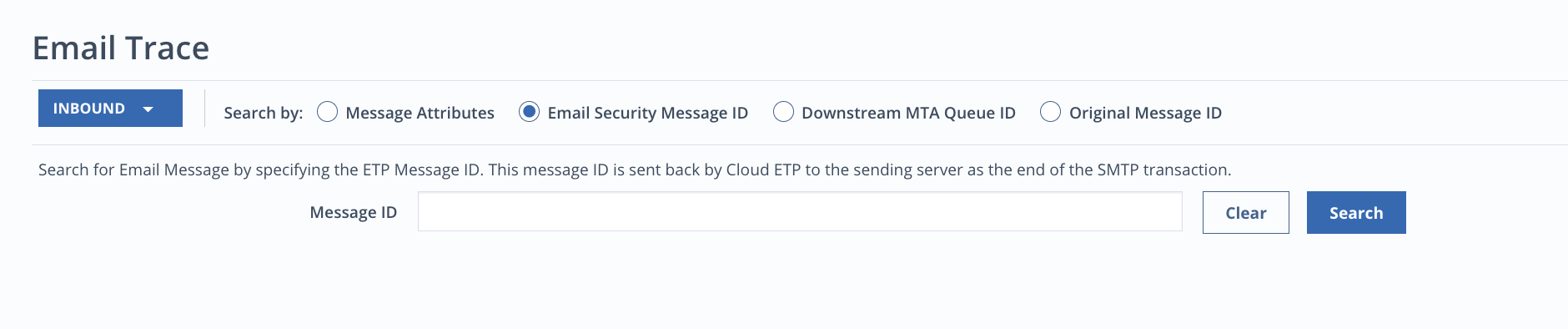
Any message received by Email Security — Cloud is assigned a Message ID. This Message ID is sent back by Email Security — Cloud to the sending server at the end of the SMTP transaction. You can use this Message ID to trace the message and view the details. You can search for only one message ID at a time.
To view the details of a message, place the cursor on the row you want to review and click the Details link.
Searching by downstream MTA queue ID
This ID is sent back by the receiving server when Email Security — Cloud delivers the message after analysis. You can use this Queue ID to trace the message and view the details. You can search for only one message ID at a time.
To view the details of a message, place the cursor on the row you want to review and then click the Details link.
Searching by original message ID
Some sending servers may generate and add a Message ID as a header to the message.
To view the details of a message, place the cursor on the row you want to review and then click the Details link.
Searching for similar emails
In the Email Trace search results page, you can search for messages similar to a singular message you've selected.
When a single email is selected that has a subject, attachments, or url domains listed, the Search Similar button is displayed. The subject, attachment names, and domain URLs are populated in the search and all other search data is cleared when the search similar function is used. The email time period is set to last 24 hours and the search parameters can be adjusted to narrow or expand the search.