You can use the campaign page to create, manage and monitor your existing campaigns. Campaigns containing simulated phishing attack links can be sent to required groups of users to test their ability to recognize phishing mails and educate them further, regarding the same.
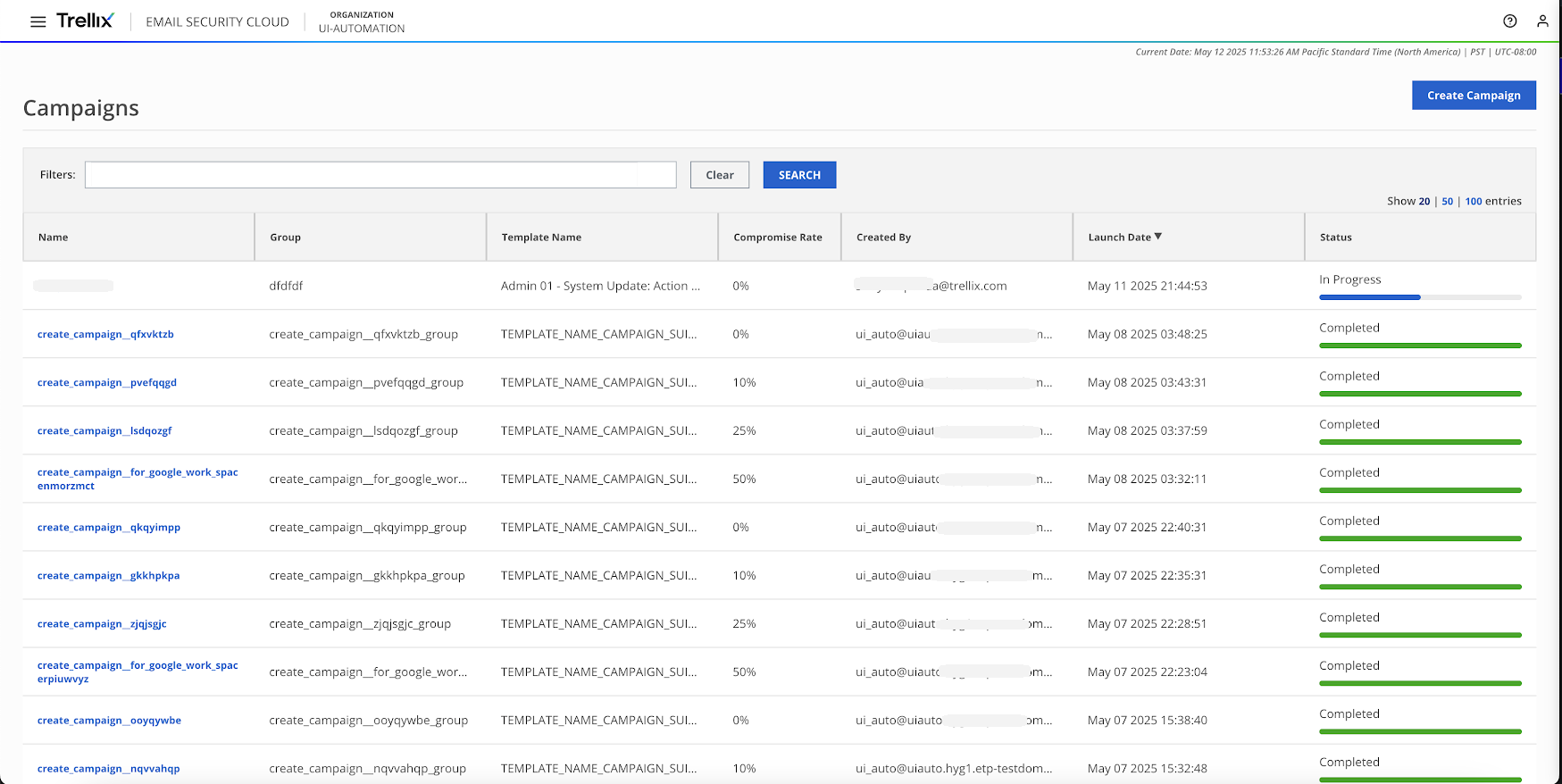
The following table lists the information shown on the Campaigns page.
Headings | Description |
|---|---|
Name | Name of the campaign. Click on the name to view more details. |
Group | The group or department with which the campaign has been shared. |
Template Name | Subject of the campaign |
Compromise Rate | Percentage of users who clicked and failed the phishing simulation test. |
Created By | Name of the campaign creator |
Launch Date | Date when the campaign is launched |
Status | Campaign progress tracker |
Details of a campaign
In the campaigns table, click on a campaign name to view more details.
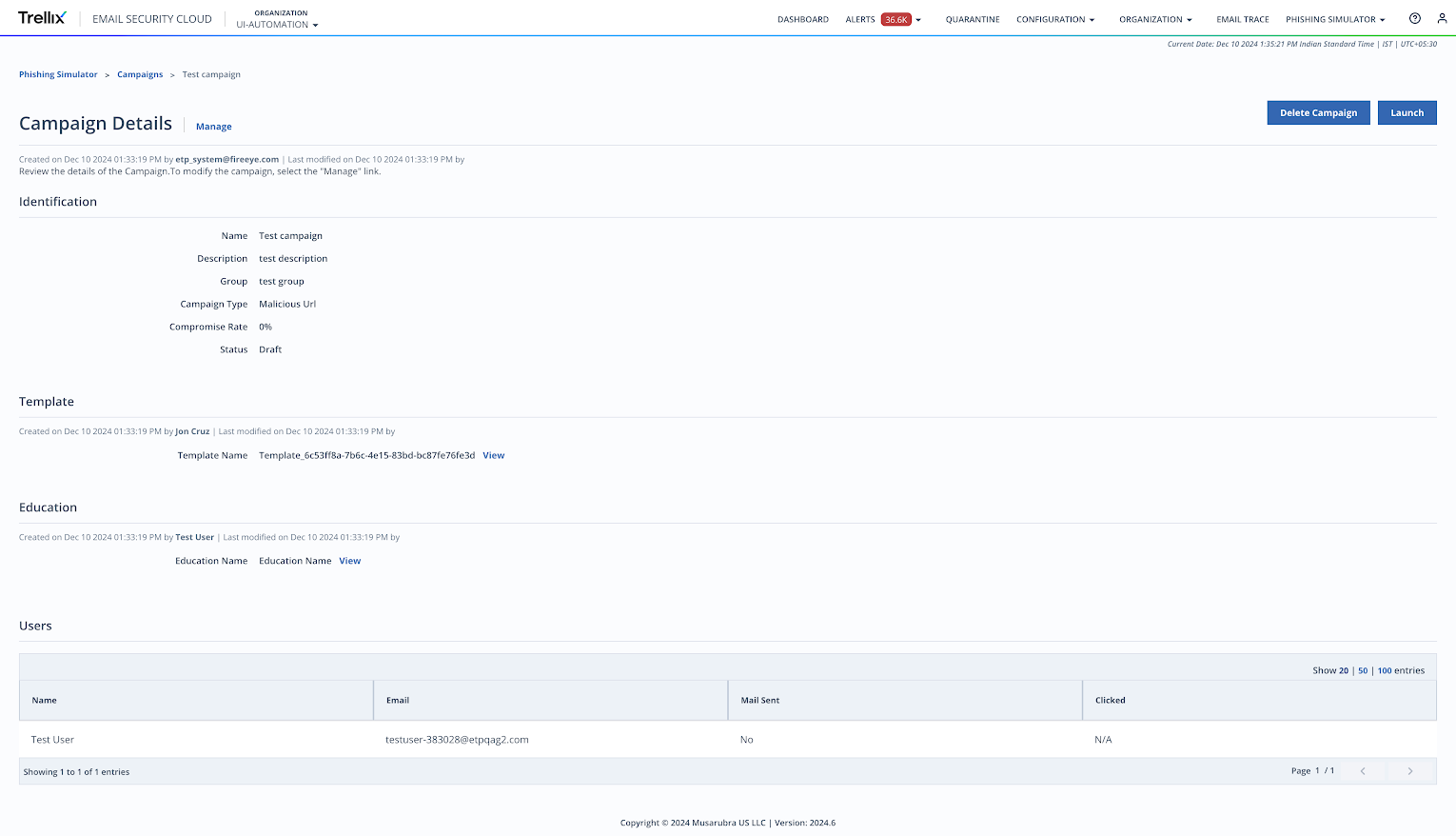
The Identification section has the campaign name, description, group, compromise rate and status.
The Template Detail section has a list of templates used to build the simulated email. Click View to know more about each template.
The Education Details section has the awareness articles used in the simulated email. Click View to know more about the articles used.
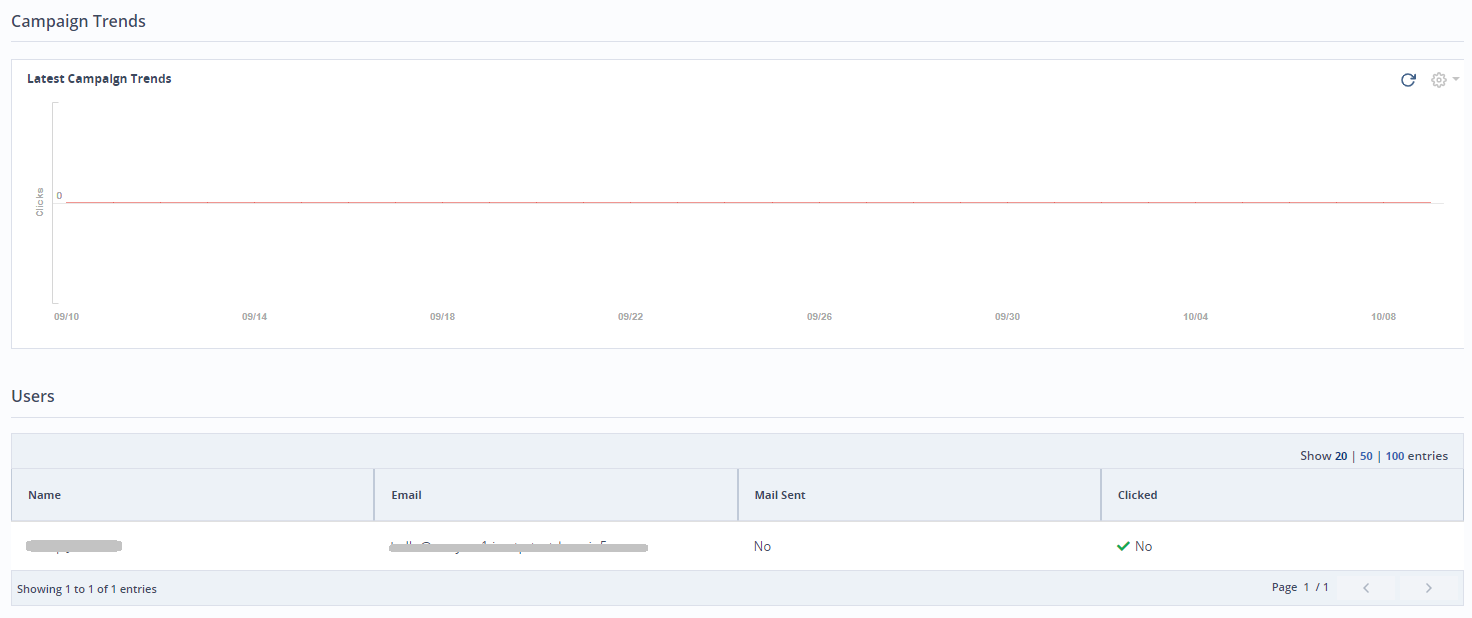
The Campaign Trend section highlights the number of clicks across a time period. This provides an insight into how effective the campaign was. This section will appear only for active campaigns.
The Users section shows a list of users the campaign is shared with. It also shows their email IDs, email delivery message and whether they have clicked the phishing links or not.
You can export user details in CSV format after stopping a campaign using the Download CSV button in the Users section. Use the Filters search box to search campaigns by email.

You can Unschedule or Reschedule a scheduled campaign. Once you unschedule a campaign, the Delete and Schedule Campaign buttons will appear.
The Stop Campaign button will appear for active campaigns.
Data retention
Please note that all draft campaigns will be deleted after 90 days.
Campaigns which are 'in progress' will be 'closed' after 30 days. Closed campaign data will be accessible on Reports for 31 days and on the Campaign details page for 365 days. These closed campaigns will be then deleted after 365 days.