Migration overview
You can migrate Trellix Drive Encryption 8.0.x to Trellix Drive Encryption - SaaS, which is managed by Trellix ePolicy Orchestrator - SaaS. There is no automatic upgrade path to move from Trellix Drive Encryption On-prem to Trellix Drive Encryption - SaaS.
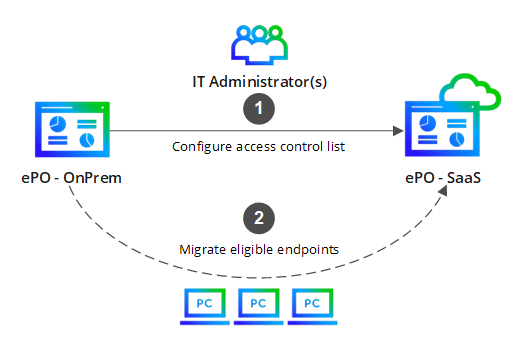
To migrate, you must configure the access control list and migrate the eligible endpoints to Trellix ePolicy Orchestrator - SaaS. You need to use the Trellix ePO - SaaS migration wizard in the Trellix ePO - On-prem console. Eligible endpoints are filtered based on predefined migration criteria to ensure only the appropriate devices are migrated.
The migration of Drive Encryption from Trellix ePO - On-prem to Trellix ePO - SaaS is done only for Unified Extensible Firmware Interface (UEFI) systems. After the migration, it includes both the encryption software on the client devices and the management components on the servers.
To know more about the options not available in this release, see article 000014093.
Bulk key migration
(Optional) This server task facilitates the migration of all keys, including legacy machine keys, irrespective of the system's migration status. This is useful if there are plans to decommission the Trellix ePO - On-prem server. By bulk migrating all key material, system recovery is still possible through DETech by exporting recovery information using the KeyCheck value.
All machine keys are encrypted with the Trellix ePO - SaaS tenant's public key before migration and then sent to Trellix ePO - SaaS over the Internet.
Make sure the following prerequisites are met before migrating the machine keys.
The Trellix ePO - SaaS migration and Cloud Bridge extensions are installed and linked to a Trellix ePO - SaaS tenant.
Drive Encryption service URLs are allowed through the firewall.
The remote command for the Drive Encryption service URL is successfully executed.
Run key migration Server Task manually
To migrate the machine keys to Trellix ePO - SaaS, follow these steps.
Task
On the Trellix ePO - On-prem console, select Menu → Automation → Server Tasks.
Select TDE: Migrate All Drive Encryption Machine Keys to ePO SaaS and click Run.
Trellix Drive Encryption machine keys successfully migrated to Trellix ePO - SaaS.
Schedule key migration Server Task
To schedule the migration of machine keys, follow these steps.
On the Server Tasks page, edit TDE: Migrate All Drive Encryption Machine Keys to ePO SaaS.
On the Description tab, Enable schedule status, then click Next.
On the Actions tab, no configuration is required if the prerequisites are met. Click Next.
For more information about prerequisites, see Bulk Key Migration.On the Schedule tab, configure the Start date and End date, then click Next.
On the Summary tab, review the configuration, then click Save.
By default, it runs every 12 hours, which is recommended as it uses system resources to preprocess the keys for migration.
Task logs
When the Server Task runs, either manually or on a schedule, logs are available in the Menu → Automation → Server Task Log. To view the progress, click on 'TDE: Migrate All Drive Encryption Machine Keys to ePO SaaS'.
Drive Encryption assigns remaining user assignments from Trellix ePO - On-prem
The client will dynamically request any remaining user assignments to be completed. Issues encountered at this stage can be identified through the built-in reporting capabilities. Once the issues are resolved, a retry action can be initiated. The migration will not be completed unless all user assignments are successfully preserved.
Note
The last 100 days of audit events for the system are also migrated, allowing for continuous tracking and monitoring without losing important data.
Trellix Drive Encryption - SaaS Migration Guide
5
System requirements for migration
To successfully migrate your systems to Trellix Drive Encryption - SaaS, it is important that you review the migration criteria.
Systems | Requirements |
|---|---|
Trellix Agent | 5.8.x |
Trellix Drive Encryption | 8.0.x |
Client systems | Processor: 1 Gigahertz (GHz) or faster processor or System on a Chip (SoC) (AMD and Intel) BIOS Mode: Unified Extensible Firmware Interface (UEFI) RAM: 1 Gigabyte (GB) for 32-bit or 2 GB for 64-bit Hard Disk: 16 GB for 32-bit OS or 32 GB for 64-bit OS ESP Size: 50 Megabyte (MB) |
The Drive Encryption software supports UEFI-based tablets and uses a Trellix ePO - SaaS tablet test tool to verify if the pre-boot environment responds to the tablet’s touch interface. For more information about this tool, see KB78050.
Necessary steps for migration
Check in the Trellix ePO - SaaS extensions
The extensions ePO - SaaS Migration and Trellix ePO SaaS Cloud Bridge must be checked in to enable the migration of Drive Encryption to Trellix ePO - SaaS.
Eligibility criteria for systems migration
Within the migration wizard, systems are filtered based on their eligibility for migration to Trellix Drive Encryption - SaaS. The following criteria are used to determine eligibility.
Systems with assigned users who have Smartcard authentication set in the User-Based Policy (UBP) are not eligible for migration.
Systems that have UBP Policy Assignment Rules (PARs) assigned to users are not eligible for migration. To remediate this, consider consolidating all UBPs into the default system-assigned UBP.
Only systems running the Drive Encryption 8.0 client version are considered eligible for the migration process.
During the migration, all assigned policies for the system are transferred to Trellix ePO - SaaS, ensuring that configurations and rules are preserved. Additionally, all cryptographic keys associated with the system and are migrated.
Important
Systems assigned with User Directory users cannot migrate to Trellix ePO - SaaS. Currently, there is no automatic detection of this scenario, and administrators must ensure that any User Directory users are removed (or replaced) before migration.

Managing migration failures
In order to monitor the migration of systems and detect any issues with the process, a canned query has been provided that can be monitored from within the Trellix ePO - SaaS console. This canned query reports any systems that have failed the migration process, along with an initial root cause analysis of the failure.
We recommend that this query be routinely checked during migration. Note that the report uses the standard property collection mechanism of Trellix ePO - SaaS, and as such will require systems to perform agent-server communication in order to obtain the most up-to-date properties. For this reason, it is common for reports to show inconsistent lagged data due to an expected lag in property collection.
The possible reasons for migration failure, along with their mitigation, are as follows:
Issues | Mitigation |
|---|---|
Machine Key Migration error | CloudBridge is set up correctly, and the tenant is properly linked. Ensure that the Drive Encryption service URL is allowed through the firewall and that the remote command has run successfully. For more information, see 000014111. |
Client migration cannot proceed because the client state is not supported | The system needs to be brought back into Trellix ePO - On-prem management by re-deploying the On-Premise Trellix Agent. To re-deploy the On-Premise Trellix Agent, obtain the Trellix Agent installation package (FramePkg.exe) from the Trellix ePO - On-prem server and perform force install. For more information, see Trellix Agent Installation Guide. Once the system is managed by Trellix ePO - On-prem, perform the migration again. |
Migration cannot proceed because the client's state is undetermined | Restart the system and enforce the policy. |
Client has requested user assignments for migration | Restart the system and enforce the policy. |
Number of unassigned users exceeds the configured limit | If more than 200 users are assigned, the system needs to be brought back into Trellix ePO - On-prem management by re-deploying the On-premises Trellix Agent. To re-deploy the On-Premise Trellix Agent, obtain the Trellix Agent installation package (FramePkg.exe) from the Trellix ePO - On-prem server and perform force install. For more information, see Trellix Agent Installation Guide. Trellix Agent installation package (FramePkg.exe) from the Trellix ePO - On-prem server and perform force install. For more information, see Trellix Agent Installation Guide. Once the system is managed by Trellix ePO - On-prem, reduce the number of users assigned to the system to less than 200 users and perform the migration again. |
Client migration is not supported | Check if the system meets the migration requirements. For more information see System requirements for migration. |
Client migration failed due to one or more failed user assignments | Ensure that the required Active Directory domains are registered and connected using the Active Directory Connector (ADC). Once all required domain servers are registered, trigger systems to retry the user assignment migration. For more information, see the steps mentioned below the table. |
All Trellix ePO - On-prem users are successfully assigned to Trellix ePO - SaaS (the assignments will be done automatically). If the user assignment fails, the administrator must manually trigger the task. To do this, go to the Trellix ePO - On-prem console, select Menu → System Tree → Systems → Actions → Drive Encryption, and select Trigger systems to retry user assignment migration.
Once the user assignment is successful, the policy will be enforced automatically.
Migration Process
Manually create system tree assignments in Trellix ePO - SaaS
You need to manually create system tree assignments when administrators are assigned to a specific branch of the system tree, ensuring that all systems under that branch inherit the user assignment. This step requires the configuration of Active Directory (AD) connectors.
Manually assign the Trellix ePO - On‑prem users to the Trellix ePO - SaaS.
Task
On the Trellix ePO - On‑prem console, select Menu → Encryption Users → Group Users. Then check the assigned users.
On the Trellix ePO - SaaS console, select Menu → System Tree. Then navigate to DE Group Assignments.
Starting from the 'My Organization' level, if any users are assigned in Trellix ePO - On‑prem, manually assign those users in the Trellix ePO - SaaS console.
Repeat this process down the subtree you intend to migrate.
Note
AD group/OU assignment is not currently supported in Trellix ePO - SaaS. If Trellix ePO - On‑prem is using AD groups/OUs, assign users within that group/OU, individually.
Preparing for the Migration process
Trellix ePO - On‑prem extensions and endpoints are upgraded to Drive Encryption 8.0.x.
Check in the Trellix ePO - SaaS extensions. For more information, see Necessary steps for migration.
Configure the Ports and URLs needed for Trellix Drive Encryption - SaaS communication through a firewall. For more information, see 000014111.
Trellix ePO - On‑prem is connected to the Trellix ePO - SaaS.
Active Directory servers need to be configured in Trellix ePO - SaaS.
Link to Trellix ePO - SaaS Account.
On the Trellix ePO - On‑prem console, select ePO - SaaS migration, then navigate to Configure ePO - SaaS Account.
Enter the username and password, then click Link to ePO - SaaS Account.
Link the cloud tenant in Trellix ePO - SaaS CloudBridge. For more information, see Configure Trellix ePO - SaaS Cloud Bridge.
Migrate to Trellix Drive Encryption - SaaS
Task
On the Trellix ePO - On-prem console, select Menu → Systems → ePO - SaaS Migration.
Configure ePO - SaaS Account.
The Trellix ePO - SaaS credentials are already linked to the ePO - SaaS account.
Once the linking is done, select Clone configuration to ePO - SaaS.
The screen displays the number of compatible systems that can be migrated to Trellix ePO - SaaS. The systems must meet the migration criteria.
 Note
NoteFor a complete list of compatible products with Trellix ePO - SaaS, see KB90875.
To customize the Trellix ePO - SaaS migration requirements, select Settings in the top-right corner, choose the options that need to be migrated and click Save.
Click Clone to ePO - SaaS.
Migrate Active Directory configurations to ePO - SaaS.
NoteIf you have already configured the same Active Directory on Trellix ePO - SaaS, you can skip this step.
Select the systems to start Active Directory configurations migration.
Click Migrate AD configuration.
Migrate compatible systems to ePO - SaaS.
Select a group to migrate.
Click Migrate one group.
Drive Encryption is successfully migrated to Trellix ePO - SaaS.