Product Overview
Trellix Endpoint Security for Servers is a software that monitors and controls the CPU load of the cloud platform. It works with Trellix Endpoint Security (ENS) Threat Prevention (Windows and Linux) to minimize the performance impact of resource-intensive tasks like on-demand scan.
Trellix ENS for Servers schedules resource-intensive tasks depending on the CPU load of the cloud platform, then protects your environment based on the settings you configure. Resource-intensive tasks are scheduled so that at any time, the CPU load does not significantly exceed the specified threshold limit. Trellix ENS for Servers reduces management overhead by allowing you to use the same on-demand scan task across virtual systems.
You can use Trellix ePolicy Orchestrator - On-premises to configure, manage, and enforce your policies. Once configured, you can use queries and dashboards to track the activities and threat detections.
Key features
Trellix ENS for Servers minimizes the performance impact of on-demand scans on the virtual environment through Smart Scheduler.
Smart Scheduler
The Smart Scheduler schedules the tasks in an intelligent way such that the CPU Utilization value of the cloud platform is maintained below the threshold value, which is defined in the Smart Scheduler page. The scheduling of tasks in an intelligent way enables Trellix ENS for Servers to minimize the performance impact on the virtual environment. As part of this feature, scheduling is provided by Trellix Agent, and CPU Utilization of the cloud platform is monitored by Cloud Workload Security.
As part of Trellix Agent Smart Scheduler Extension 5.5.0 and above, two new UI pages (Smart Scheduler Catalog and Smart Scheduler) are introduced in where you can add resource-intensive tasks and a time slot for smart scheduling.
How it works
When you add tasks to the task list in the smart scheduling interface, Smart Scheduler sends information about the selected tasks to the agent.
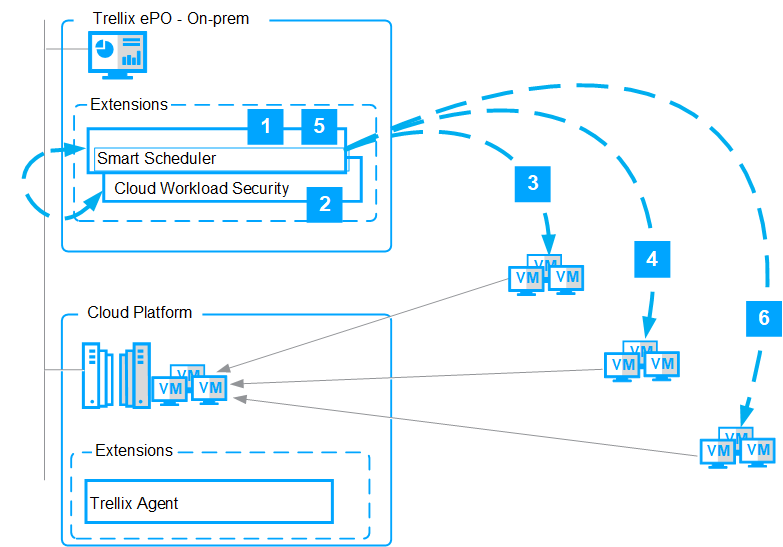
When an on-demand scan task is created and the Smart Scheduler settings are configured for the task:
Smart Scheduler instructs the agent to disable regular scheduling and enable smart scheduling for the on-demand scan task.
During the smart scheduling time slot, Smart Scheduler asks Cloud Workload Security for the CPU Utilization value of the cloud platform. Cloud Workload Security then sends the CPU Utilization value of the cloud platform to the Smart Scheduler from the database.
CAUTION
The threshold value for Auto Scaling Group and Virtual Machine Scale Set is defined in Amazon Web Services (AWS) and Microsoft Azure environment respectively. If the threshold value for scale-out in the auto scaling policy is not defined in the AWS or Microsoft Azure environment, then the threshold value defined in Smart Scheduler page is considered. For more information on threshold values of Auto Scaling Group and Virtual Machine Scale Set, refer to Threshold Value in AWS and Microsoft Azure (page 8).
Based on the difference in the configured threshold value and the current CPU Utilization value of the cloud platform, Smart Scheduler decides the number of systems that can run the on-demand scan within the configured threshold.
During the allocated time, Smart Scheduler gets the CPU Utilization value of the cloud platform every minute from Cloud Workload Security. Smart Scheduler then makes sure that the CPU Utilization value of the cloud platform is under the threshold value before instructing the agent to trigger the on-demand scans.
When the CPU Utilization value of the cloud platform meets or exceeds the threshold, Smart Scheduler waits until the load decreases, then instructs the agent to trigger on-demand scans.
At the end of the time slot assigned for smart scheduling, if any systems were not scanned, they have priority during the next smart scheduling time slot (daily, weekly, or monthly, as configured).
TIP
Best practice: Configure the time slot with enough time to run the on-demand scan on all your virtual machines. Otherwise, the scanning might be postponed for some VMs.
What is smart scheduling?
Smart Scheduler runs resource-intensive client tasks based on the priority and availability of resources on the cloud platform.
The cloud platform can be overloaded when resource-intensive tasks run on all virtual machines at the same time. This can cause the cloud platform to crash and all of its virtual machines to become unresponsive.
When the feature is configured, resource-intensive tasks are scheduled so that the CPU Utilization of the cloud platform does not significantly exceed the specified threshold limit.
How smart scheduling works
When you add tasks to the task list in the smart scheduling interface, Smart Scheduler sends information about the selected tasks to the agent.
Smart Scheduler — Allows you to configure the Smart Scheduler time slot on a day-to-day and time-to-time basis for the client tasks that are qualified for smart scheduling.
Smart Scheduler Catalog — Lists the number of client tasks that an administrator created and allows you to add tasks for smart scheduling.
Smart Scheduler client service (Trellix Agent service) — Gets the request from Smart Scheduler and executes the smart scheduling tasks.
Components of Trellix Endpoint Security for Servers
Each component performs specific functions to keep your environment protected.
ePolicy Orchestrator — A management platform that communicates with the agent, manages the Endpoint Security Threat Prevention and Trellix ENS for Servers configuration, and reports on malware discovered in your virtual environment.
Hypervisor — A virtual operating platform that runs multiple guest operating systems concurrently on a hosted system and manages the execution of those guest operating systems.
Trellix Agent — A client-side component that communicates with and applies policies to each VM.
Endpoint Security Threat Prevention — Software that checks for viruses, spyware, unwanted programs, and other threats by scanning items automatically when users access them or on demand at any time.
Cloud Workload Security — Data center security software that helps you discover, import, manage, and secure your VMware vCenter virtual infrastructure using .
VMware vCenter — Console that manages the ESXi servers, which host the guest VMs that require protection.
Smart Scheduler — Service that enables resource-intensive tasks to run based on the priority and availability of the resources on the hypervisor.
Auto Scaling Group — Comprises of EC2 instances that serve as a logical partitioning of Amazon Web Services cloud platform for numerous purposes such as instance scaling and management.
Virtual Machine Scale Set — Comprises of identical and load balanced virtual machines that provide high availability to the applications hosted in Microsoft Azure.
Citrix XenServer — A hypervisor developed by Citrix Systems, to create and manage virtualized server infrastructure.
Microsoft Hyper-V Server — A hypervisor developed by Microsoft Corporation, that can run virtual machines
System Central Virtual Machine Manager (SCVMM) — A management tool, developed by Microsoft to efficiently manage Microsoft Hyper‑V. It has two components, SCVMM server and SCVMM console, that you would require to register a Microsoft Hyper‑V cloud account.
How is CPU load calculated?
You can schedule resource-intensive tasks while maintaining the CPU Utilization value below the threshold value only when the CPU Utilization value of the cloud platform is calculated before triggering any task.
During the allocated time, Smart Scheduler gets the CPU Utilization value of the cloud platform every minute from Cloud Workload Security.
CAUTION
If the threshold value for Auto Scaling Group and Virtual Machine Scale Sets is not defined in the AWS or Microsoft Azure environment, then the threshold value defined in Smart Scheduler page is consumed. For more information, refer to Threshold Value in AWS and Microsoft Azure (page 8).
Based on the difference in the configured threshold value and the current CPU Utilization value of the cloud platform, the Smart Scheduler decides the number of systems that can run the resource-intensive tasks within the configured threshold.
About threshold value of Auto Scaling Group and Virtual Machine Scale Set
For Auto Scaling Groups and Virtual Machine Scale Sets, the Trellix CWS consumes the threshold value defined in the Amazon Web Services and Microsoft Azure environment.
Amazon Web Services
In Amazon Web Services (AWS) environment, each Auto Scaling Group has a different threshold value and the AWS administrator defines the threshold value. The Trellix CWS provides the CPU Utilization and the threshold value of the Auto Scaling Group to the Smart Scheduler. The values received from the Trellix CWS allow the Smart Scheduler to decide the number of instances that can run the on-demand scan while maintaining the CPU Utilization value below the threshold value.
CAUTION
If the threshold value for Auto Scaling Group is not defined in the AWS environment, then the threshold value defined in the Smart Scheduler page is consumed.
Microsoft Azure
In Microsoft Azure environment, each Virtual Machine Scale Set has a different threshold value and the Azure administrator defines the threshold value. The Trellix CWS provides the CPU Utilization and the threshold value of each Virtual Machine Scale Set to the Smart Scheduler to decide the number of instances that can run scans while keeping CPU Utilization below the threshold.
What is smart scheduling?
Set to the Smart Scheduler. The values received from the Trellix CWS allow the Smart Scheduler to decide the number of instances that can run the on-demand scan while maintaining the CPU Utilization value below the threshold value.
In Microsoft Azure, you can configure multiple profiles with different threshold value defined in each policy. The Trellix CWS considers the highest threshold value among all the profiles configured for the Virtual Machine Scale Set.
CAUTION
If the threshold value for Virtual Machine Scale Set is not defined in the Microsoft Azure environment, then the threshold value defined in the Smart Scheduler page is consumed.
The role of Trellix Agent
The agent triggers the resource-intensive tasks on the request from Smart Scheduler.
It performs these actions:
Gets the information about tasks that are enabled for smart scheduling.
Disables the regular schedule of the task and enables smart scheduling for the task.
Runs the task on the request from Smart Scheduler.
Updates the status of the task to Smart Scheduler.
The role of Trellix Cloud Workload Security
Trellix CWS sends critical information to Smart Scheduler at every sync of the registered cloud account, which enables Smart Scheduler to make intelligent decisions.
Trellix CWS sends this information to Smart Scheduler:
The list of VMs or instances that are available in the registered cloud account
Updates on addition or removal of VMs or instances
The CPU load of the cloud platform in percentage (maximum load value that was reported in the last minute)
Power status of the VMs or instances
Trellix CWS calculates the CPU utilization value and retrieves the threshold value of the Auto Scale Group and Virtual Machine Scale Set from the Amazon Web Services and Microsoft Azure cloud platform every minute. These values are stored in the database.
Examples of smart scheduling
Typical scenarios where smart scheduling is used to describe how smart scheduling functions.
Scenario 1
The number of managed client systems on the hypervisor is 100.
An on-demand scan task is assigned to these 100 client systems and is added to the Smart Scheduler Catalog.
The Smart Scheduler time slot is configured for the on-demand scan to run between 12:00 a.m. and 3:00 a.m. everyday.
On the Schedule page, Schedule type for the on-demand scan task is configured as Daily.
Specify threshold value for the hypervisors_____% is set as 80.
Every day at 12:00 a.m., if the CPU Utilization value of the hypervisor is below 80 percent, the on-demand scan task is triggered on a few client systems, depending on the availability of the hypervisor resources. The CPU Utilization value of the hypervisor is calculated every minute and Smart Scheduler triggers the on-demand scan task until the CPU Utilization of the hypervisor reaches 80 percent. Smart Scheduler then waits until the load goes down.
In this manner, Smart Scheduler makes sure that the CPU Utilization value of the hypervisor does not significantly exceed the specified threshold value. At 3:00 a.m., if the on-demand scan is completed on only 90 systems, the 10 unscanned systems have priority to run the on-demand scan at the next smart scheduling time slot.
Scenario 2
The number of managed client systems on the hypervisor is 1,000.
An on-demand scan task is assigned to these 1,000 client systems and is added to the Smart Scheduler Catalog.
The Smart Scheduler time slot is configured for the on-demand scan to run between 12:00 a.m. and 3:00 a.m. every Sunday.
On the Schedule page, Schedule type for the on-demand scan task is configured as Weekly.
Specify threshold value for the hypervisors_____% is set as 80.
Every Sunday at 12:00 a.m., if the CPU Utilization value of the hypervisor is below 80 percent, the on-demand scan task is triggered on a few client systems, depending on the availability of the hypervisor resources. The CPU Utilization value of the hypervisor is calculated every minute and Smart Scheduler triggers the on-demand scan task until the CPU Utilization of the hypervisor reaches 80 percent. Smart Scheduler then waits until the load goes down.
In this manner, Smart Scheduler makes sure that the CPU Utilization value of the hypervisor does not significantly exceed the specified threshold value. At 3:00 a.m., if the on-demand scan is completed on only 900 systems, the 100 unscanned systems have priority to run the on-demand scan at the next smart scheduling time slot.
Scenario 3
NOTE
The threshold value for the Auto Scaling Group or Virtual Machine Scale Set is defined in the Amazon Web Services or Microsoft Azure environment. If an auto scaling policy is not defined, then the threshold value defined in Smart Scheduler page is consumed.
Every Sunday at 12:00 a.m., if the CPU Utilization value of the cloud platform is below the threshold value, which is configured in the AWS or Microsoft Azure environment, the on-demand scan task is triggered on a few client systems, depending on the availability of the instances in the Auto Scaling Group or virtual machines in the Virtual Machine Scale Set. The CPU Utilization value of the cloud platform is calculated every minute and the Smart Scheduler triggers the on-demand scan task until the CPU Utilization of the cloud platform reaches the threshold value defined in the AWS or Microsoft Azure environment. Smart Scheduler then waits until the load goes down.
In this manner, Smart Scheduler makes sure that the CPU Utilization value of the cloud platform does not significantly exceed the specified threshold value. At 3:00 a.m., if the on-demand scan is completed on only 900 systems, the 100 unscanned systems have priority to run the on-demand scan at the next smart scheduling time slot.
Trellix ENS for Servers vs. Endpoint Security Threat Prevention
Trellix ENS for Servers works with Endpoint Security Threat Prevention to minimize the performance impact of resource-intensive tasks.
Here is the difference between Endpoint Security for Servers and Endpoint Security Threat Prevention.
Endpoint Security for Servers | Endpoint Security Threat Prevention |
|---|---|
When Smart Scheduler is configured for resource-intensive tasks, it checks the CPU Utilization value of the cloud platform before the task is triggered on virtual machines. Later, it schedules the client tasks so that the CPU Utilization value of the cloud platform does not significantly exceed the specified threshold limit. In this way, the CPU Utilization value of the cloud platform is controlled. | When resource-intensive tasks are scheduled on virtual machines, the agent triggers the tasks on all client systems at the specified time period. It does not check the load on the cloud platform to prevent overloading.
|
Configure smart scheduling settings
Add scan task to the Smart Scheduler task list
Configure your on-demand scan task on the Smart Scheduler Catalog page, so that it is added to the Smart Scheduler task list for smart scheduling.
The Smart Scheduler extension is installed on the server.
An on-demand scan task is created on the server.
Log on to as an administrator.
Select Menu → Policy → Smart Scheduler Catalog, select Endpoint Security Threat Prevention from the Products drop-down list, then select a scan task from the Task Type drop-down list.
Select an on-demand scan task to add it to the Smart Scheduler task list.
From Actions, select Save.
The selected task is added to the Smart Scheduler task list.
Configure the Smart Scheduler time slot
Set your Smart Scheduler time slot on a day-to-day and time-to-time basis, so that the resource-intensive tasks are scheduled according to the Smart Scheduler time slot.
The Smart Scheduler extension is installed on the server.
Log on to as an administrator.
Select Menu → Configuration → Smart Scheduler.
Select a day and time to run Smart Scheduler.
NOTE
Smart Scheduler always considers the local system time for scheduling the tasks and not the server time.
Next to Specify the CPU threshold value for hypervisor_____%, configure the CPU threshold value for smart scheduling. The default value is 80 percent.
NOTE
The threshold value is inversely proportional to the time required to execute the tasks. The higher the threshold value, the quicker the tasks complete.
This value is considered by default for VMware virtual environment. In Amazon Web Services and Microsoft Azure environment, this value is considered only when no auto scaling policy is configured for the Auto Scaling Group and Virtual Machine Scale Set.
Assign the on-demand scan client task
To enable smart scheduling for the task, you must assign the on-demand scan task to your virtual machines.
The Trellix Agent and Endpoint Security Threat Prevention are installed on the target virtual system.
The Smart Scheduler settings for the task have been configured.
Log on to as an administrator.
Select Menu → Policy → Client Task Assignments, then click the Assigned Client Tasks tab.
From System Tree, select a group, then click Actions → New Client Task Assignment.
Configure these settings, then click Next.
Product — Select Endpoint Security Threat Prevention.
Task Type — Select Custom On-demand Scan or Policy Based On-Demand Scan.
Task Name — If you selected Custom On-demand Scan, select the name of the task you used when you created the on-demand scan client task. If you selected Policy Based On-Demand Scan, select On-Demand Scan - Full Scan or On-Demand Scan - Quick Scan.
On the Schedule tab, specify the schedule for running the client task (Schedule type, Effective period, and Start time), then click Next.
Under Schedule type, select Daily, Weekly, or Monthly:
Daily — Define the interval Every__Days.
Weekly — Define the interval Every__weeks.
Monthly — Select the months.
Depending on the number of months you select, the task is triggered on all VMs for that many times in a year. Smart Scheduler might not run the task only during the selected months. For example, if you select January and March, the Smart Scheduler makes sure that the task is triggered twice in a year on all VMs. But it does not guarantee that the task is triggered only in January and March.
TIP
Best practice: Configure schedule type as Daily or Weekly for best results.
Review the settings on the Summary tab, then click Save to assign the task.
To assign the task immediately, send an agent wake-up call to the client systems.
The on-demand scan client task is assigned to systems in the selected group in the System Tree.
Best practices for improved performance
Best practices for configuring Smart Scheduler Catalog list
Improve the performance of your enterprise systems once the Smart Scheduler Catalog list is configured.
When adding an on-demand scan task to the Smart Scheduler Catalog list, add only one on-demand scan task for a group of VMs, so that no multiple scans are running on the VMs at the same time.
Best practices for configuring Smart Scheduler time slot
Improve the performance of your enterprise systems once the Smart Scheduler time slot is configured.
When configuring the Smart Scheduler time slot:
Make sure to configure enough time slot to run the on-demand scan on all your virtual machines. Otherwise, the scanning might be postponed for some VMs.
Make sure that there are no other resource-intensive tasks configured to run during the same time slot. Running multiple resource-intensive tasks impacts the performance of the virtual machines.
We recommend that you configure the time slot in such a way that the hypervisor/hypervisors is not busy handling resource-intensive tasks during the Smart Scheduler time slot.
Best practices for configuring CPU threshold value
Improve the performance of your enterprise systems once the CPU threshold value is configured.
We recommend that you configure the CPU threshold to be an approximate value of 30% higher from the current CPU Utilization value for smart scheduling resource-intensive tasks. However, the threshold value should not exceed 80%.
Best practices for configuring scheduling intervals
Improve the performance of your enterprise systems once the scheduling interval is configured for a task.
When configuring the smart scheduling intervals for a task, configure schedule type as Daily or Weekly for best results.
Best practice for monitoring CPU load in AWS environment
Improve the performance of your enterprise systems by introducing detailed monitoring in the AWS environment.
The AWS CloudWatch service retrieves CPU Utilization metrics from the AWS environment. By default, the basic monitoring option is enabled that allows the CloudWatch to retrieve data from the AWS environment every 300 seconds.
As a best practice, you can enable CloudWatch detailed monitoring in the AWS environment to ensure that the Smart Scheduler receives detailed information about the CPU Utilization of an Auto Scaling Group. When detailed monitoring is enabled, the CloudWatch retrieves the data in every 60 seconds.
Frequently asked questions
Here are the answers to some of the most frequently asked questions relating to the security implications of using Trellix ENS for Servers.
What are the supported client tasks for smart scheduling?
Smart Scheduler enables you to set periodic resource-intensive tasks for smart scheduling like on-demand scan.
Smart Scheduler supports these types of on-demand scans for smart scheduling:
Endpoint Security Threat Prevention On-demand scan — Full Scan
Endpoint Security Threat Prevention On-demand scan — Quick Scan
Endpoint Security Threat Prevention Custom on-demand scan
Trellix Agent AMCore Content Package
What are the supported scheduling intervals for scheduling the resource-intensive tasks?
Smart Scheduler supports these intervals for scheduling the resource-intensive tasks:
Daily
Weekly
Monthly
TIP
Best practice: Configure schedule type as Daily or Weekly for best results.
I configured an on-demand scan task for smart scheduling. How does smart scheduling work during vMotion?
During an on-demand scan, if a VM moves from one hypervisor to another hypervisor of the same vCenter account, the same scan continues. In this case, Smart Scheduler does not consider the CPU Utilization of the hypervisor, where the VM is moved.
Does Smart Scheduler use the server time or local system time to schedule resource-intensive tasks?
Smart Scheduler always uses the local system time for scheduling the tasks and not the server time.
What are the minimum and maximum CPU threshold value that I should configure for resource-intensive tasks?
We recommend that you configure the CPU threshold to be an approximate value of 30% higher from the current CPU Utilization value for smart scheduling resource-intensive tasks. However, the threshold value should not exceed 80%.
I moved a few VMs from one group to another in the System Tree. I deployed Trellix Agent on a few unmanaged VMs. If I add a resource-intensive task for smart scheduling, how quickly does Smart Scheduler implement the task?
Smart Scheduler considers the resource-intensive task for smart scheduling within 30 minutes after configuring the Smart Scheduler settings.
I configured an on-demand scan task for smart scheduling. How do I disable Smart Scheduler for the task and how does the existing task behave after disabling the feature?
You can disable smart scheduling for the task by deselecting the task from the Smart Scheduler Catalog page in . Once the feature is disabled, the regular scheduling happens for the task based on the settings you configured for that task.
How do I check if an on-demand scan task was missed for any systems and how do I fix this?
You can run these reports from Queries & Reports on to find the systems on which the on-demand scan was missed.
Endpoint Security Threat Prevention: Systems Not Completed a Full Scan in the Last 7 Days
Endpoint Security Threat Prevention: Systems Not Completed a Full Scan in the Last Month
To run an on-demand scan immediately on the unscanned systems:
Select the unscanned systems from the System Tree.
From Actions, select Agent → Run Client Task Now.
Select the on-demand scan task and click Run Task Now.
NOTE
The task is immediately triggered on the systems ignoring the Smart Scheduler time slot.
Which features are provided by Endpoint Security Threat Prevention and Trellix ENS for Servers?
Here is the list of features that are supported by Endpoint Security Threat Prevention and Trellix ENS for Servers to protect the virtual and physical systems.
Support for... | Endpoint Security | Trellix ENS for |
|---|---|---|
On-access scanning | ✓ | ✓ |
On-demand scanning | ✓ | ✓ |
Clean infected file | ✓ | ✓ |
Delete and quarantine infected files | ✓ | ✓ |
Access protection | ✓ | ✓ |
Exploit prevention | ✓ | ✓ |
Dynamic Application Containment (DAC) | ✓ | ✓ |
Real Protect — behavioral detection | ✓ | ✓ |
Prevent on-demand scanning storm | X | ✓ |
Prevent DAT update storm | X | ✓ |
Low impact to VM density with on-demand scanning | X | ✓ |
Execution of resource-intensive tasks based on the CPU load of the cloud platform | X | ✓ |
Time period-based task execution | X | ✓ |
Physical servers | ✓ | X |
Virtual servers | ✓ | ✓ |
Public Cloud | ✓ | ✓ |
Do we need the configured user to have vCenter admin privileges to use Trellix ENS for Servers?
No, but the configured user should have the read access and should be able to collect all the details from Vcenter.
Can Cloud Workload Security fetch the threshold value for CPU Utilization in different vendor environments?
Yes. The Cloud Workload Security can fetch the threshold value in Microsoft Azure and Amazon Web Services environments.
Does the Cloud Workload Security fetch the threshold value for CPU Utilization of the Auto Scaling Group in ePolicy Orchestrator?
No. The threshold value is picked from the Amazon Web Services (AWS) environment, where the AWS administrator defines the threshold value. If no auto scaling policy is defined in the AWS environment, then the threshold value defined in the Smart Scheduler page is consumed.
Does the Cloud Workload Security fetch the threshold value for CPU Utilization of the Virtual Machine Scale Sets in ePolicy Orchestrator?
No. The threshold value is picked from the Microsoft Azure environment, where the Microsoft Azure administrator defines the threshold value. If no auto scaling policy is defined in the Microsoft Azure environment, then the threshold value defined in the Smart Scheduler page is consumed.
How do I register a Citrix XenServer or Microsoft Hyper-V cloud account?
You can register a Citrix XenServer or Microsoft Hyper-V cloud account only through the Registered Cloud Account page on .