To improve performance and avoid generating false positive alerts, add the script or application to the exclusion list.
To configure exclusions:
Log in to the Endpoint Security Web UI.
From the Admin menu, select Polices.
On the Policies page, select the policy you want.
On the Edit Policy page, in the Configurations section, select the AMSI tab.
On the AMSI details panel, in the Policy Exclusion section, enter the appropriate values to complete the exclusion.
In the Parameter Name field, select the appropriate endpoint.
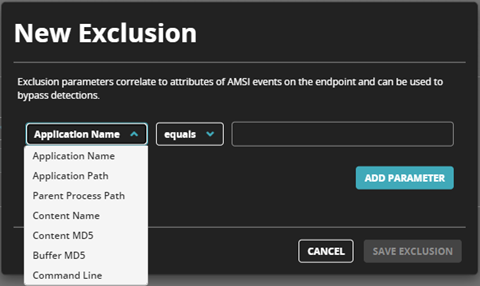
In the Match Criteria field, select the appropriate operator.
In the Parameter Value field, enter the value.
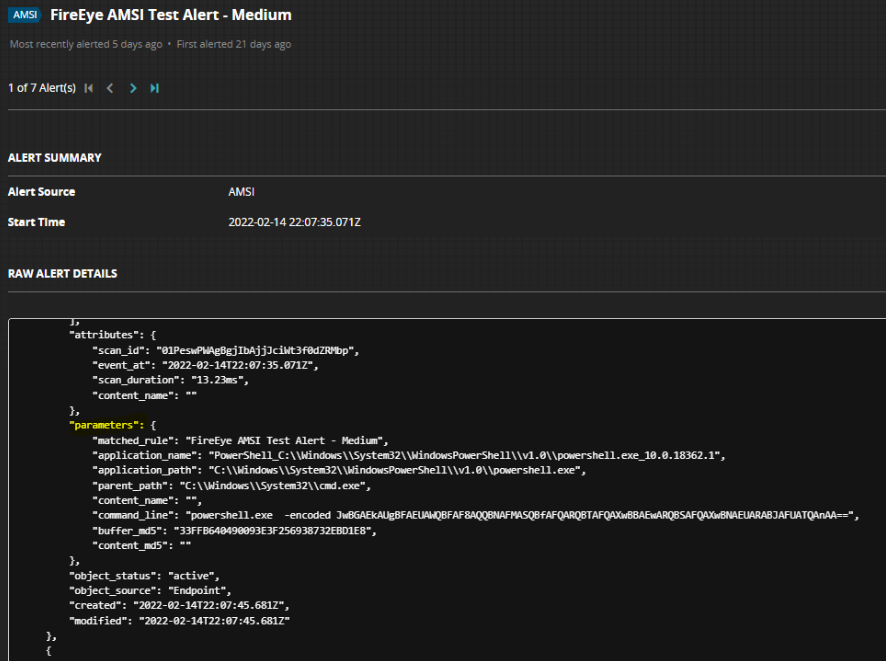
To find the parameter value, click the Alerts tab, select an AMSI alert from the grid, and click Alert Summary. For more information, see Alert details.
Click Save Exclusion.
Note
DTI intel updates may add exclusions to disable detections that generate excessive false positive alerts.