Endpoint Security Anti-Malware Scan Reports Module User Guide Release 1.0.0
Last Updated: September 17, 2023

Contents
Module Overview .............................................................. 3
Supported Platforms .......................................................... 3
Installing the Anti-Malware Scan Reports Module ..................................... 4
Installing the Anti-Malware Scan Reports Server Module .............................. 4
Uninstalling the Anti-Malware Scan Reports Module ................................. 5
Uninstalling the Anti-Malware Scan Reports Module Completely ........................ 5
Configuring the Anti-Malware Scan Reports Module ................................. 6
Enabling the Anti-Malware Scan Reports Module .................................. 6
Verifying Installation ..................................................... 6
Disabling the Anti-Malware Scan Reports Module .................................. 6
Anti-Malware Scan Reports Home Page .......................................... 7
Reports ..................................................................... 7
Generating Reports ........................................................ 7
Module Overview
The Anti-Malware Scan Reports Module for Trellix Endpoint Security generates scan summary reports for Malware Protection. Use of the Anti-Malware Scan Reports Module is restricted to Endpoint Security administrators and investigator roles.
The Anti-Malware Scan Reports is a server-only feature and does not require any agent functionality to be installed.
Supported Platforms
This release of Anti-Malware Scan Reports 1.0.0 is supported on Endpoint Security 5.1 with Endpoint Security Agent 30.x running on Windows 7 and Windows Server 2012 or later.
For macOS X 10.12 and later, Endpoint Security Agent 32.x is required.
Note
Installing the Anti-Malware Scan Reports Module 1.0.0 on Endpoint Security 5.0.4 or earlier, is not supported.
2 | Module Overview
Installing the Anti-Malware Scan Reports Module
You can install the Anti-Malware Scan Reports Module using the Endpoint Security Web UI or download the CMS package from the FireEye Market.
The Anti-Malware Scan Reports Module is a server-only module.
Installing the Anti-Malware Scan Reports Server Module
Select one of the following options to install the module:
- To install the Anti-Malware Scan Reports Module using the Endpoint Security Web UI:
- Log in to the Endpoint Security Web UI as an administrator.
- From the Modules menu, select Endpoint Module Administration.
- Click the Available Modules tab and locate Anti-Malware Scan Reports in the Module list.
- In the Actions column, click the gear icon, and click Install.
- Click Install on the dialog box.
- To download the module installer CMS package, go to the FireEye Market, then upload the module CMS file to your Endpoint Security Web UI. The module is disabled by default. When the module is installed successfully, it appears on the Modules menu tab.
Note
You may need to refresh the Endpoint Security Web UI before the new module appears on the Modules page.
To enable the Anti-Malware Scan Reports, see Enabling the Anti-Malware Scan Reports Module.
3 | Module Overview
Uninstalling the Anti-Malware Scan Reports Module
Uninstalling the Anti-Malware Scan Reports Module removes the server module from the management server. You do not need to disable Anti-Malware Scan Reports before you uninstall it.
Uninstalling the Anti-Malware Scan Reports Module Completely
To uninstall the Anti-Malware Scan Reports Module using the Endpoint Security Web UI, complete the following steps:
- Log in to the Endpoint Security Web UI as an administrator.
- From the Modules menu, select Endpoint Module Administration.
- Click the Installed Modules tab and locate Anti-Malware Scan Reports in the Module list.
- On the Modules page, locate the Anti-Malware Scan Reports module and click the Actions icon.
- Select Uninstall and click Uninstall in the confirmation window.
A message at the top of the page tells you that module uninstallation succeeded.
Endpoint Security Anti-Malware Scan Reports Module User Guide Release 1.0.05
4 | Module Overview
Configuring the Anti-Malware Scan Reports Module
The Anti-Malware Scan Reports Module consists of a server-only module.
Enabling the Anti-Malware Scan Reports Module
- Log in to the Endpoint Security Web UI.
- From the Modules menu, select Endpoint Module Administration.
- On the Modules page, click Installed Modules.
- Locate the Anti-Malware Scan Reports module in the list.
- In the Actions column, click the gear icon, and select Enable.
Verifying Installation
After you install and enable the Anti-Malware Scan Reports Module, it will appear on the Installed Modules tab in the Endpoint Module Administration Home Page.
The log file for the server module installation is stored on the server in /var/log/supervisor/anti-malware-scan-reports-server_0.7.0_<random_id>.log
Disabling the Anti-Malware Scan Reports Module
- Log in to the Endpoint Security Web UI as an administrator.
- From the Modules tab, select Endpoint Module Administration.
- On the Modules page, click Installed Modules.
- Locate the Anti-Malware Scan Reports module in the list.
- In the Actions column, click the gear icon, and select Disable.
5 | Module Overview
Anti-Malware Scan Reports Home Page
The Anti-Malware Scan Reports Module uses scan summaries generated by a scheduled scan to generate custom reports. The Endpoint Security Agents automatically send the scan summaries to the Endpoint Security Server.
To access the Anti-Malware Scan Reports home page:
- Log in to the Endpoint Security Web UI.
- From the Modules menu, select Anti-Malware Scan Reports.
Reports
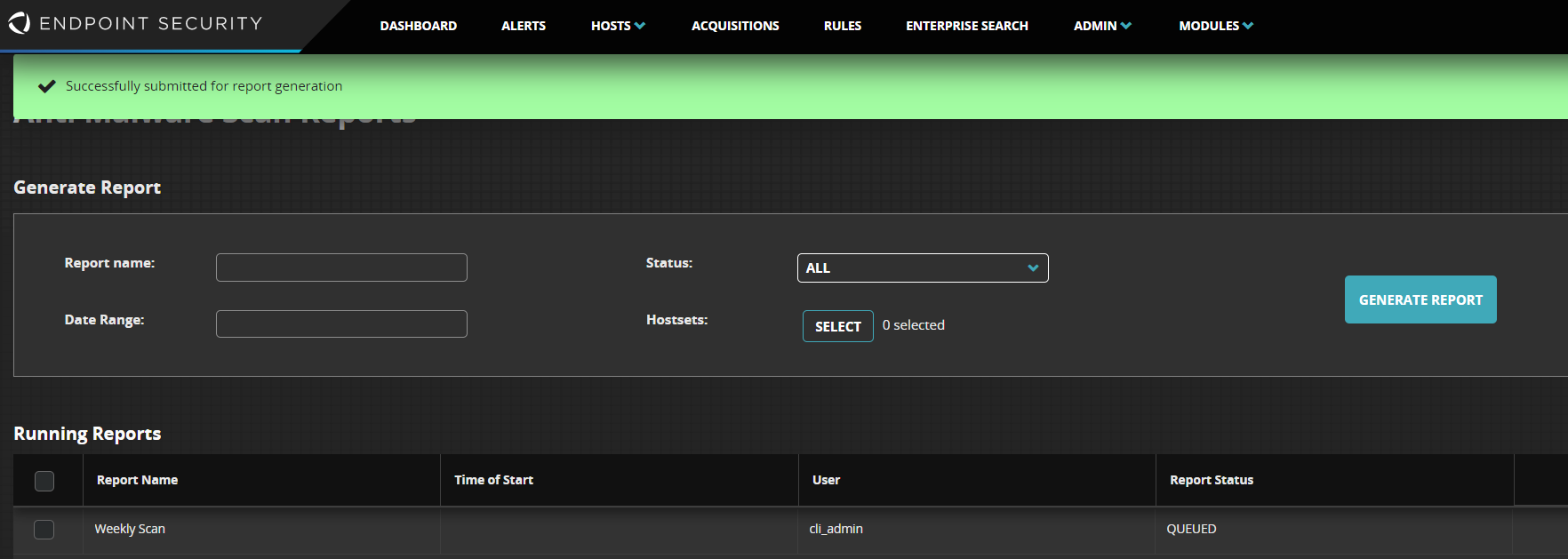
The Anti-Malware Scan Reports has three functional areas:
- Generate Report
- Running Reports
- Available Reports
Generating Reports
- In the Report name field, type a name for the report.
- In the Date Range field, select an appropriate time range. Choose one of the preset options or use the custom option to define the start time and end time.
- In the Status field, choose one of the following options: All, Completed, or Stopped.
- In the Hostsets field, select a host from the list.
- Click Generate Report. When the report is being generated it appears in the Running Reports section. When it has been processed, it appears in the Available Reports section.
5 | Module Overview
6. To download the report package, in the Available Reports area, click the Download Report icon. The zipped package contains three CSV files.
| Files | Description |
|---|---|
| scan_summary.csv |
Contains over twenty columns of the scan data, including some of the following:
|
| correlated_malware.csv | Contains details of detected files, detection names, file paths, and file hashes. |
| missing_agents.csv | Identifies the endpoint agents that did not produce scan summaries based on the scan summary report filters. |
7. To delete older reports, select the scan reports and click the Delete icon.
COPYRIGHT
Copyright © 2026 Musarubra US LLC.
Trellix and FireEye are the trademarks or registered trademarks of Musarubra US LLC, FireEye Security Holdings US LLC, and their affiliates in the US and /or other countries. Other names and brands are the property of these companies or may be claimed as the property of others.