Administrators can enable or disable features available to end users through the Quarantine Report Setting page of a quarantine report. Quarantine digest preview is available for Email Security - Cloud hygiene mode users only.
To configure on-demand end user features:
In the Quarantine Report Setting page, click on the name of a quarantine report from the list.
Select Manage next to End User Features.
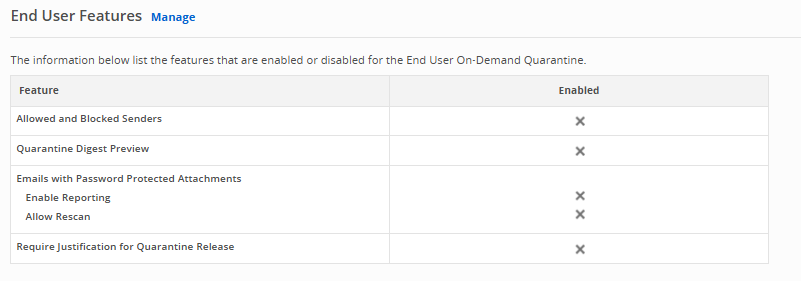
Allowed and blocked senders
End users can create lists of allowed and blocked email addresses and domains. (Only applicable to domains with anti-spam and anti-virus scanning enabled). Incoming messages are evaluated against user allowlists and denylists after AS/AV scans are completed. If the Header from field of that message matches against a domain in the user's blocked senders list, the message is blocked and quarantined. Blocked messages are quarantined as Policy Action - Fail and the quarantine event will be Custom rule verdict: Fail. scope end_user. If the Header from field of a message matches a domain in the user's allowed senders list, the message is allowed. MTAs ignore the anti-spam verdict of allowed messages, but anti-virus and advanced threat scan verdicts still apply to the message.
If a custom or connect rule created by an administrator matches the same email as an end user's allowed senders list, the admin-defined rules supersede that of the end user.
If an email has multiple recipients who list the sender domain on different lists, message splitting occurs. For example, if User 1 lists a domain on their allowed senders list and User 2 lists the same domain on their blocked senders list, the message is split into different messages with unique message IDs. Each message is scanned differently based on each recipient's allowed and blocked senders lists. The original message appears in Email Trace with the status "Split", followed by the split versions of the original message with their respective message IDs and verdicts.
For end users to create their own allowed and blocked senders lists, administrators must enable the feature and each user must have a unique On-Demand Quarantine access link.
To enable the allowed and blocked senders feature:
Select the Yes radio button to enable the Allowed and Blocked Senders feature.
Click Save.
End users in your organization can create their own allowed and blocked senders lists through an On-Demand Quarantine access link. For end-user instructions on how to use the Allowed and Blocked Senders feature of Email Security — Cloud, see the Email Security - Cloud User Guide.
Quarantine digest preview
The Quarantine Digest Preview feature allows end users to preview quarantined emails in Email Digest and the On-Demand Quarantine page. When this feature is enabled, a preview link is displayed. The preview display name can be changed in the digest template.
Note
The Quarantine Digest Preview feature is available for Email Security - Cloud hygiene mode users only.
Emails can be previewed as HTML, text, attachments, and headers. This feature is disabled by default. In End User Feature, select Yes to enable Quarantine Digest Preview and save the changes.
Users receive a unique On-Demand Quarantine access link when they are first added to the organization. You can resend or reset the access link of one or multiple users. For more information, see Managing on-demand quarantine access keys .
Emails with Password Protected Attachments
End users can report emails containing password protected attachments with this setting. They can also rescan such emails. In End User Feature, enable or disable Enable Reporting and Allow Rescan and save the changes.
Outbound emails with Data Loss Prevention (DLP) violation
Manage reporting of outbound emails that violate Data Loss Prevention (DLP) policies. In End User Feature, enable or disable the setting and save the changes.
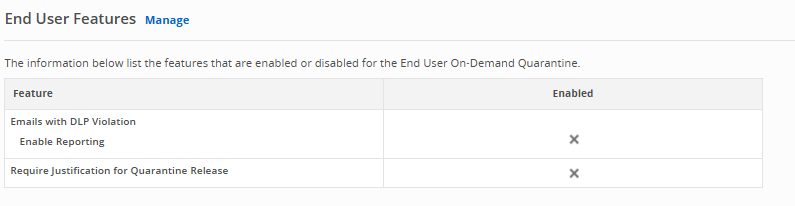
You can create a DLP Violation Notification Template from the Notification Templates page.
Justification for quarantine release
Enable this option to require end users to provide a justification before releasing quarantined emails. If disabled, providing a reason is optional. This is applicable for both inbound and outbound emails.