Endpoint Security API Documentation Module User Guide Release 1.0.0
Last Updated: September 17, 2023

Contents
Module Overview .................................................... 3
Supported Platforms .................................................... 3
Installing the API Documentation Module .................................................... 4
Installing the API Documentation Server Module .................................................... 4
Uninstalling the API Documentation Module .................................................... 5
Uninstalling the API Documentation Module Completely .................................................... 5
Configuring the API Documentation Module .................................................... 6
Enabling the API Documentation Module .................................................... 6
Disabling the API Documentation Module .................................................... 6
API Authorization and Authentication .................................................... 6
API User Account .................................................... 7
Access Token .................................................... 7
API Documentation Module Home Page .................................................... 10
Lighthouse .................................................... 10
Plugin_Manager .................................................... 10
Platform_Service .................................................... 10
Messagebus .................................................... 10
Using the Endpoint Security APIs .................................................... 11
1 | Module Overview
Module Overview
The Trellix Endpoint Security application programming interface (API) allows users to automate certain actions and integrate security information and event management (SIEM) solutions with Trellix. The Endpoint Security API Documentation provides access to information about endpoints, acquisitions, alerts, source alerts, conditions, indicators, and containment. The API Documentation uses role-based access control (RBAC) and representational state transfer (REST) architecture.
The API Documentation Module enables users to find and try the various API routes that exist within the Endpoint Security Server. Using the UI in the API Documentation, you can quickly search for specific API routes, see examples of the request and possible responses before you try the request and get your response.
Supported Platforms
The release of the API Documentation Module 1.0.0 is supported on Endpoint Security 5.0.2.
Note
Installing the API Documentation Module 1.0.0 on Endpoint Security 5.0 or earlier is not supported.
2 | Module Overview
Installing the API Documentation Module
You can install the API Documentation Module using the Endpoint Security Web UI or download the CMS package from the FireEye Market.
The API Documentation Module is a server-only module.
Installing the API Documentation Server Module
Select one of the following options to install the module.
- To install the API Documentation Module using the Endpoint Security Web UI:
- Log in to the Endpoint Security Web UI as an administrator.
- From the Modules menu, select Endpoint Module Administration.
- Click the Available Modules tab and locate API Documentation in the Module list.
- In the Actions column, click the gear icon, and click Install.
- Click Install on the dialog box.
- To download the module installer CMS package, go to the FireEye Market, then upload the module CMS file to your Endpoint Security Web UI. The module is disabled by default. When the module is installed successfully, it appears on the Modules menu tab.
Note
You may need to refresh the Endpoint Security Web UI before the new module appears on the Modules page.
To enable the API Documentation, see Enabling the API Documentation Module.
3 | Module Overview
Uninstalling the API Documentation Module
Uninstalling the API Documentation Module removes the server module from the management server. You do not need to disable the API Documentation before you uninstall it.
Uninstalling the API Documentation Module Completely
To uninstall the API Documentation Module using the Endpoint Security Web UI, complete the following steps:
- Log in to the Endpoint Security Web UI as an administrator.
- From the Modules menu, select Endpoint Module Administration.
- Click the Installed Modules tab and locate API Documentation in the Module list.
- On the Modules page, locate the API Documentation module and click the Actions icon.
- Select Uninstall and click Uninstall in the confirmation window.
A message at the top of the page tells you that module uninstallation succeeded.
4 | Module Overview
Configuring the API Documentation Module
The API Documentation Module consists of a server-only module.
Enabling the API Documentation Module
-
Log in to the Endpoint Security Web UI.
-
From the Modules menu, select Endpoint Module Administration.
-
On the Modules page, click Installed Modules.
-
Locate the API Documentation module in the list.
-
In the Actions column, click the gear icon, and select Enable.
Disabling the API Documentation Module
-
Log in to the Endpoint Security Web UI as an administrator.
-
From the Modules tab, select Endpoint Module Administration.
-
On the Modules page, click Installed Modules.
-
Locate the API Documentation module in the list.
-
In the Actions column, click the gear icon, and select Disable.
API Authorization and Authentication
To submit an API request to the API Documentation server, you must have an API user account or an API access token. You can create an API user account with the assistance of your Endpoint Security Administrator. You can create an access token by using cURL or the Endpoint Security API Documentation Module.
Method 1: API User Account
Method 2: API access token
To obtain an access token, use one of the following options:
4 | Module Overview
API User Account
To get an API user account, contact your Endpoint Security Administrator, provide your credentials, and request an api_admin account or an api_analyst account.
The following table lists the remote access privileges on the Endpoint Security server for each role.
Privileges | api_admin | api_analyst |
|---|---|---|
View acquisitions | Yes | Yes |
Configure policy | Yes | No |
Manage and view alerts | Yes | Yes |
Approve and cancel containment | Yes | No |
View audits | Yes | Yes |
Create data acquisitions | Yes | Yes |
Run enterprise searches | Yes | Yes |
Create file acquisitions | Yes | Yes |
Create, update, delete host sets | Yes | No |
Create and view indicators | Yes | Yes |
For more information about setting up user accounts on the Endpoint Security server, see the Endpoint Security System Administration Guide.
Access Token
Choose from one of the following options to request your API access token:
- cURL command line tool
- API Documentation Module
Endpoint Security API Documentation Module User Guide Release 1.0.0
4 | Module Overview
Using cURL to request an Access Token
To access the command-line interface (CLI) of an API Documentation appliance, use SSH for remote access or the console for direct access. For more information, see the FireEye CLI Command Reference.
Request
curl -k -X GET "https://10.61.152.48:3000/hx/api/v3/token" -H "Accept: application/json -uSample X-FeApi-Token Response
IP68FGsyQVIBfHLyh+/nqwbDXiEHOIm1nkoRin0gRjiqAE8=Using the API Documentation Module to Generate an Access Token
Log in to the Endpoint Security Web UI as an administrator.
From the Modules menu, select API Documentation .
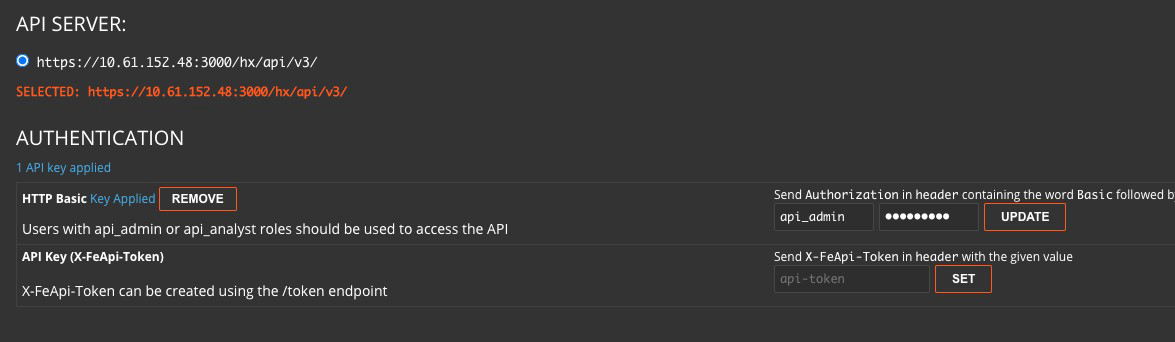
In the APIs field, select a category, for example lighthouse from the list. For more information, see Lighthouse.
In the AUTHENTICATION section, in the HTTP Basic username and password fields, enter your credentials, and click Set.
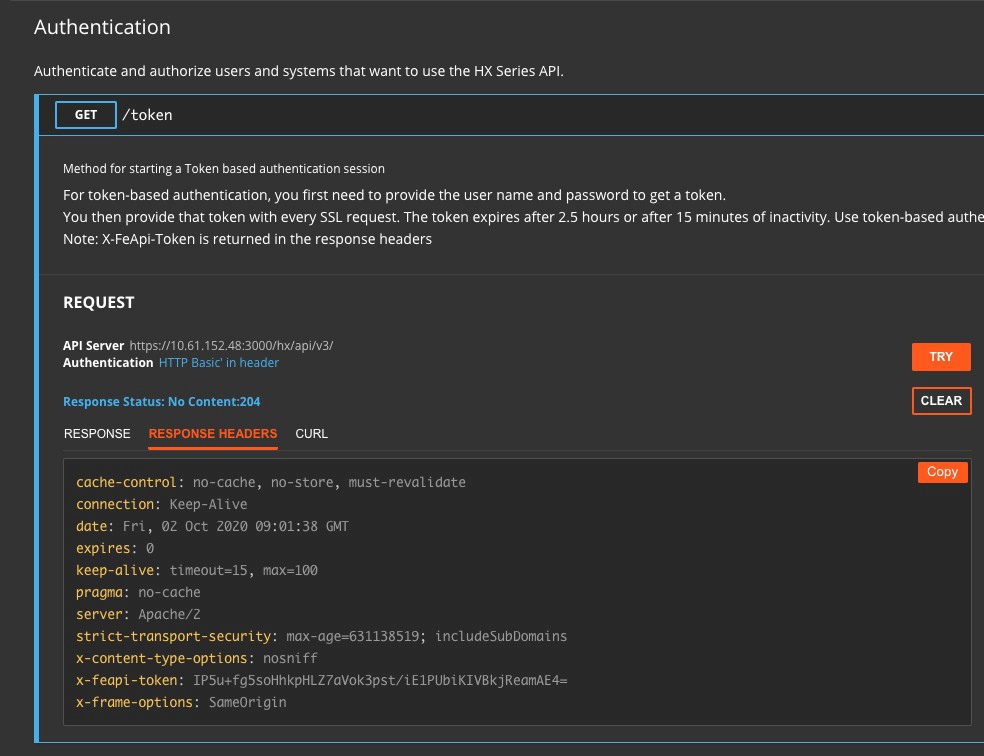
In the API list, click Authentication to expand and show the API endpoints.
Click Get to expand the method. Click Try. The UI will indicate if the request was successful.
4 | Module Overview
-
Click Response Headers to view the response.
-
See the
x-feapi-tokenline for your token. -
Click Copy to obtain the data.
The following is an example response.
HTTP/1.1 204 No Content cache-control: no-cache, no-store, must-revalidate connection: Keep-Alive content-security-policy: default-src 'self' https://vochat.fireeye.com/EndPoint_EOD_Chat/ https://vochat.glb.fireeye.com/EndPoint_EOD_Chat/ https://vochat.glb.fireeye.com/EndPoint_Chat/ https://srv-usmi-vowebt.fireeye.com/Endpoint_EOD_chat/ https://srv-usmi-vowebt.fireeye.com/EndPoint_Chat/ 'unsafe-eval' 'unsafe-inline'; img-src 'self' data:; font-src 'self' data:; style-src 'self' https://vochat.fireeye.com/EndPoint_EOD_Chat/ https://vochat.glb.fireeye.com/EndPoint_EOD_Chat/ https://vochat.glb.fireeye.com/EndPoint_Chat/ https://srv-usmi-vowebt.fireeye.com/Endpoint_EOD_Chat/ https://srv-usmi-vowebt.fireeye.com/EndPoint_Chat/ 'unsafe-inline'; script-src 'self' https://vochat.fireeye.com/EndPoint_EOD_Chat/ https://vochat.glb.fireeye.com/EndPoint_EOD_Chat/ https://vochat.glb.fireeye.com/EndPoint_Chat/ https://srv-usmi-vowebt.fireeye.com/Endpoint_EOD_Chat/ https://srv-usmi-vowebt.fireeye.com/EndPoint_Chat/ 'unsafe-eval'; frame-ancestors 'self' https://vochat.fireeye.com/EndPoint_EOD_Chat/ https://vochat.glb.fireeye.com/EndPoint_Chat/ https://srv-usmi-vowebt.fireeye.com/EndPoint_EOD_Chat/ https://srv-usmi-vowebt.fireeye.com/EndPoint_Chat/; date: Tue, 05 Apr 2022 14:40:30 GMT expires: 0 keep-alive: timeout=15, max=100 pragma: no-cache server: Apache strict-transport-security: max-age=631138519; includeSubDomains x-content-type-options: nosniff x-feapi-token: IEkC/h1tCXhIPIgk2eyV6FNjnml5w/JDsUSnThrDHuOkAEE= x-frame-options: SameOrigin
Endpoint Security API Documentation Module User Guide Release 1.0.0
5 | Module Overview
API Documentation Module Home Page
The API requests are grouped into service categories and modules. If additional modules are installed on your server that have API documentation, an entry will appear in the API list on the home page.
To access the API Documentation home page:
- Log in to the Endpoint Security Server Web UI.
- From the Modules menu, select API Documentation.
In the upper left corner of the API Documentation home page, you can select a service or module from the API list.
In the upper right corner, use the Expanded View or the Collapsed View to suit your requirements. The Collapsed view is the default view. The Expanded view has a search bar and automatically expands every route in a selected category.
If you use an API development environment you can use the Export Spec functionality to export a JSON file for a selected category and then import it into your tool.
The following APIs are standard and are available to all users.
Lighthouse
Use this API to gain access to information about endpoints, policy, acquisitions, alerts, source alerts, conditions, indicators and containment.
Plugin_Manager
Use this API to manage modules on the Endpoint Security Server. An api_admin user can install, uninstall, upgrade, enable and disable a module.
Platform_Service
Use this API to perform create, read, update, and delete (CRUD) actions on module configurations.
Messagebus
Use this API to obtain read access to the Endpoint Security messagebus. Endpoint Security uses messagebus for event communication between Endpoint Security services and the Endpoint Security modules.
10 Endpoint Security API Documentation Module User Guide Release 1.0.0
5 | Module Overview
Using the Endpoint Security APIs
Before you begin to use your APIs, you must have an API user account or an API access token. For more information, see API Authorization and Authentication.
-
Log in to the Endpoint Security Web UI as an administrator.
-
From the Modules menu, select API Documentation .
-
In the APIs field, select the category you want to use from the list.
-
In the Authentication section, enter your API user account credentials, or your API access token.
-
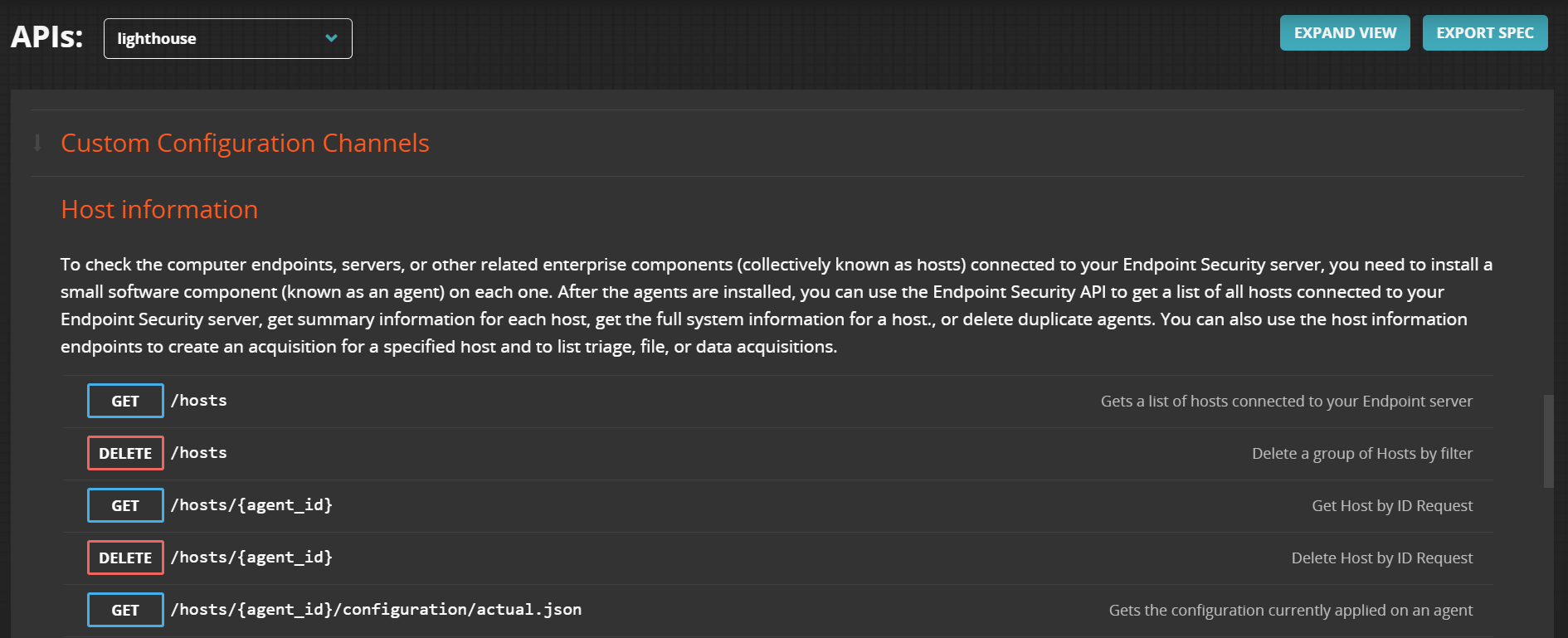
Scroll down to see the available APIs in that category. For a description of its intended use and the API endpoints, click the API your want.
-
Click the API endpoint that you want to use. A description of its intended use, required and optional body parameters, and expected response examples are displayed.
-
Depending on the API endpoint and your requirements, enter the required and optional parameters and click Try.
-
To see the response, click Response.
Endpoint Security API Documentation Module User Guide Release 1.0.011
COPYRIGHT
Copyright © 2026 Musarubra US LLC.
Trellix and FireEye are the trademarks or registered trademarks of Musarubra US LLC, FireEye Security Holdings US LLC, and their affiliates in the US and /or other countries. Other names and brands are the property of these companies or may be claimed as the property of others.