Endpoint Security Host Remediation Module User Guide Release 2.0.0
Last Updated: September 17, 2023

Contents
Module Overview ............................................................... 3
Supported Platforms .......................................................... 3
Installing the Host Remediation Module ...................................... 4
Installing the Host Remediation Server Module ................................ 4
Installing the Host Remediation Agent Module ................................ 4
Uninstalling the Host Remediation Module ................................... 6
Uninstalling the Host Remediation Module Completely ........................ 6
Uninstalling the Host Remediation Agent Module ............................ 6
Configuring the Host Remediation Module ................................... 7
Enabling the Host Remediation Module ...................................... 7
Enabling the Host Remediation Server Module ................................ 7
Enabling the Host Remediation Agent Module ................................ 7
Verifying Installation .................................................... 8
Disabling the Host Remediation Module .................................... 10
Disabling the Host Remediation Server Module ................................ 10
Disabling the Host Remediation Agent Module ............................... 10
Host Remediation Ports ................................................... 11
Host Remediation Home Page ............................................... 12
Adding an Endpoint Agent Host for Remediation ............................ 12
Viewing the Host Remediation Status ...................................... 14
Deleting a Remediation Transcript ........................................ 14
Troubleshooting .......................................................... 16
1 | Module Overview
Module Overview
Endpoint Security administrators and investigators can use the Trellix Endpoint Security Host Remediation Module to remotely connect to endpoints and execute commands.
Use the Host Remediation Module to securely connect an existing Endpoint Security Server to agent endpoints using mutual TLS v1.2 and AEAD mode cipher. No additional firewall rules or ports are required for the module to be able to perform normal operations.
The Endpoint Security Module requires the Trellix Endpoint Power Edition license or the Managed Defense license. It will not work on a Trellix Endpoint Essentials edition license.
Supported Platforms
This release of the Host Remediation Module 2.0.0 is supported on Endpoint Security 5.1.0 with Endpoint Agent 31.28.0 running on Windows 7, Windows Server 2012 or later, macOS 10.10.5 or later. For Linux, the Host Remediation supports the same operating systems supported by the Agent.
Note
Installing the Host Remediation Module 2.0.0 on Endpoint Security 5.0.1 or earlier, or with Endpoint Agent 30.x or earlier, is not supported.
Connections to Endpoint Agents using HXD are not supported.
2 | Module Overview
Installing the Host Remediation Module
You can install the Host Remediation Module using the Endpoint Security Web UI or download the CMS package from the FireEye Market.
The module is disabled by default. To configure Trellix appliances using the command-line interface (CLI), you must install and enable the Host Remediation Module. After the module is installed successfully, it appears on the Modules menu tab.
Installing the Host Remediation Server Module
Select one of the following options to install the module:
- To install the Host Remediation Module using the Endpoint Security Web UI:
- Log in to the Endpoint Security Web UI as an administrator.
- From the Modules menu, select Endpoint Module Administration.
- Click the Available Modules tab and locate Host Remediation in the Module list.
- In the Actions column, click the gear icon, and click Install.
- Click Install on the dialog box.
- To install the module using the installer CMS package, download the package from the FireEye Market, then upload the module CMS file to your Web UI. The module is disabled by default. When the module is installed successfully, it appears on the Modules menu tab.
The log file is created in the following location: /var/log/supervisor/host-remediation-server_<version_no>_<id>.log
Installing the Host Remediation Agent Module
- Log in to the Endpoint Security Web UI as an administrator.
- From the Admin menu, select Policies to access the Policies page.
- On the Policies page, in the Actions column, click the gear icon for the appropriate policy assigned to the host that you want to deploy Host Remediation to, and select Edit Policy.
- On the Edit Policy page, click Categories, and select Host Remediation. Click Apply.
- Click Save.
These steps inform the endpoints on the local systems to download the agent module and install it during a configuration update. To enable the module, see Enabling the Host Remediation Module.
2 | Module Overview
 Note
Note
To add a host in the Host Remediation Module view, you must first apply the host policy. The absence of a policy will result in a "Host Remediation is not enabled for the given host" error. For more information, see Adding an Endpoint Agent host for Remediation.
3 | Module Overview
Uninstalling the Host Remediation Module
Uninstalling the Host Remediation Module removes Host Remediation policy settings from all policies, removes the server module from the management server, and removes the agent modules from endpoints on host systems. You do not need to disable Host Remediation before you uninstall it. You can also remove the agent module from a host set without removing the module from the server.
Uninstalling the Host Remediation Module Completely
To uninstall the Host Remediation Module using the Endpoint Security Web UI, complete the following steps:
Log in to the Endpoint Security Web UI as an administrator.
From the Modules menu, select Endpoint Module Administration.
Click the Installed Modules tab and locate Host Remediation in the Module list.
On the Modules page, locate the Host Remediation module and click the Actions icon.
Select Uninstall and click Uninstall in the confirmation window.
Click Save.
A message at the top of the page tells you that module uninstallation succeeded.
Uninstalling the Host Remediation Agent Module
Log in to the Endpoint Security Web UI as an administrator.
From the Admin menu, select Policies to access the Policies page.
On the Policies page, in the Action column, click the gear icon for the policy that you want to remove the Host Remediation from, and select Edit Policy.
On the Edit Policy page, click Categories.
Clear the Host Remediation checkbox and click Apply.
Click Save.
6
Endpoint Security Host Remediation Module User Guide Release 2.0.0
4 | Module Overview
Configuring the Host Remediation Module
The Host Remediation Module consists of a server module and an agent module. The agent module is installed and enabled on agents using the Host Remediation policy. If you disable the server module, this will automatically disable the agent module for all policies.
Enabling the Host Remediation Module
Before you enable the Host Remediation Module, ensure that you understand the concepts of host sets and assigning a policy. For more information, see the Endpoint Security Server User Guide.
Enabling the Host Remediation Server Module
- Log in to the Endpoint Security Web UI.
- From the Modules menu, select Endpoint Module Administration.
- On the Modules page, click Installed Modules.
- Locate the Host Remediation module in the list.
- In the Actions column, click the gear icon, and select Enable.

Note
Enabling the server module does not automatically enable the Host Remediation on the agents.
Enabling the Host Remediation Agent Module
To enable Host Remediation on a host set, complete the following steps:
- Log in to the Endpoint Security Web UI as an administrator.
- From the Admin tab, select Policies.
- On the Policies page, click the appropriate policy.
- Select Host Remediation in the Configurations list.
- In the Host Remediation details panel, move the Host Remediation toggle to On, and click Save.
The Host Remediation Module will be enabled the next time the configuration is updated on the agent.
4 | Module Overview
Verifying Installation
When the Host Remediation Module is successfully installed on the endpoint, the following files are created on the endpoint:
Windows
Under C:\ProgramData\FireEye\xagt\exts\plugin\HostRemediation
- HostRemediation.dll
- HostRemediationProxy.dll
- NetPowerShell.dll
- manifest.json
Linux
Under /var/lib/fireeye/xagt/exts/plugin/HostRemediation
- HostRemediation.so
- HostRemediationProxy.so
- PlatformShell.so
- manifest.json
macOS
Under /Library/Application\ Support/FireEye/xagt/exts/plugin/HostRemediation
- HostRemediation.dylib
- HostRemediationProxy.dylib
- PlatformShell.dylib
- manifest.json
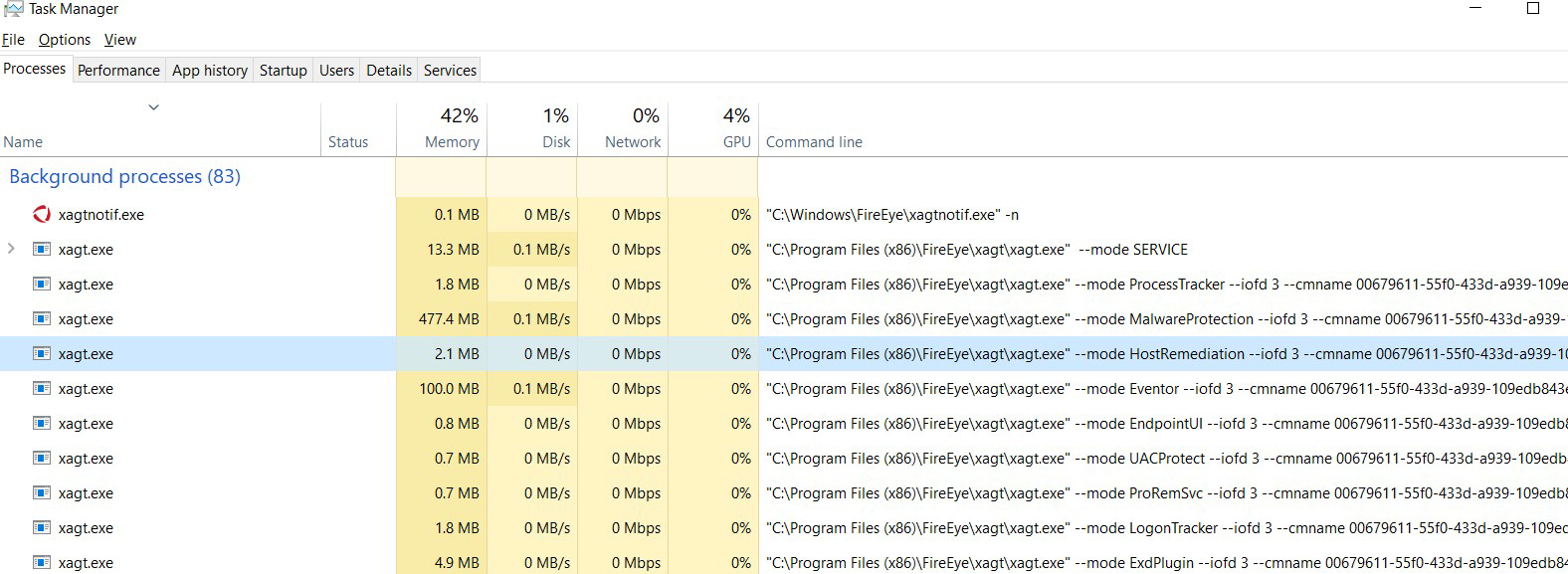
An instance of the xagt.exe process is also created. It has -mode HostRemediation in the command-line argument. This is a container application that interacts with Endpoint agent services and runs under the SYSTEM account.
See the following screenshot for a Host Remediation instance in Windows Task Manger.
[IMAGE PLACEHOLDER: Screenshot of a Host Remediation instance in Windows Task Manager showing the xagt.exe process with -mode HostRemediation command-line parameter]
Note
The Agent Tamper Protection needs to be temporarily disabled for the command-line parameters to appear in the Windows Task Manager.
8 Endpoint Security Host Remediation Module User Guide Release 2.0.0
4 | Module Overview
See the following screenshot for a Host Remediation instance in a macOS terminal:

See the following screenshot for a Host Remediation instance in a Linux terminal:

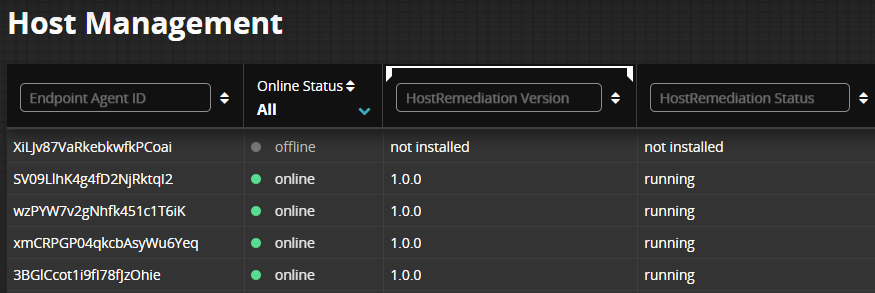
You can also verify the Online Status and Host Remediation version on the Host Management Module home page. The Online Status is updated on the next agent poll Request Sysinfo job interval.
Endpoint Security Host Remediation Module User Guide Release 2.0.0
9
4 | Module Overview
Disabling the Host Remediation Module
Disabling the server module automatically disables Host Remediation in all existing policies.
Disabling the Host Remediation Server Module
- Log in to the Endpoint Security Web UI as an administrator.
- From the Modules tab, select Endpoint Module Administration.
- On the Modules page, click Installed Modules.
- Locate the Host Remediation module in the list.
- In the Actions column, click the gear icon, and select Disable.
Disabling the Host Remediation Agent Module
- Log in to the Endpoint Security Web UI as an administrator.
- From the Admin menu, select Policies.
- On the Policies page, locate the appropriate policy for the agent on which you want to disable Host Remediation.
- In the Actions column, click the gear icon and click Edit Policy.
- In the Edit Policy page, in the Configurations panel, click Host Remediation.
- In the details panel, move the Enable Host Remediation on the host toggle to Off.
- On the Edit Policy page, click Save.
10
Endpoint Security Host Remediation Module User Guide Release 2.0.0
4 | Module Overview
Host Remediation Ports
Use the following ports to connect the Host Remediation Module to an endpoint.
|
Module |
Source Device |
Destination Device |
Destination Port |
User Configurable |
Notes |
|---|---|---|---|---|---|
|
Host Remediation |
Admin Endpoint |
Endpoint Security Server |
TCP 3000 |
No |
WebSocket/ HTTPS fallback over TLS connection |
|
Host Remediation |
User Endpoint |
Endpoint Security Server |
TCP 443 |
No |
WebSocket/ HTTPS fallback over MTLS connection |
5 | Module Overview
Host Remediation Home Page
- Log in to the Endpoint Security Web UI.
- From the Modules menu, select Host Remediation.
Adding an Endpoint Agent Host for Remediation
-
In the Host Remediation home page, in the Search field, enter one of the following parameters for the endpoint that you want to add:
- Agent ID
- IP Address
- Hostname
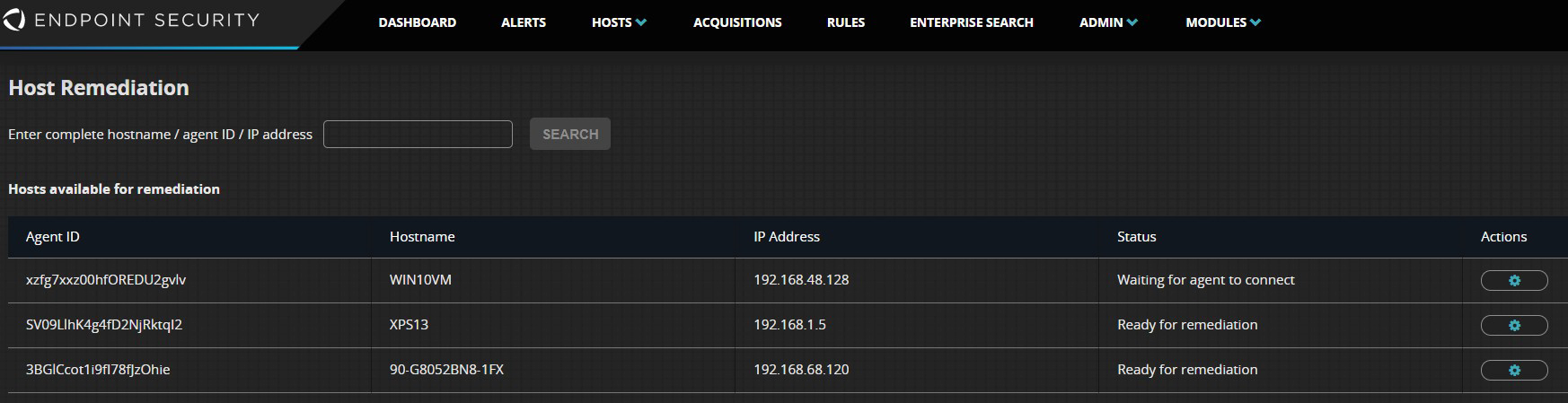
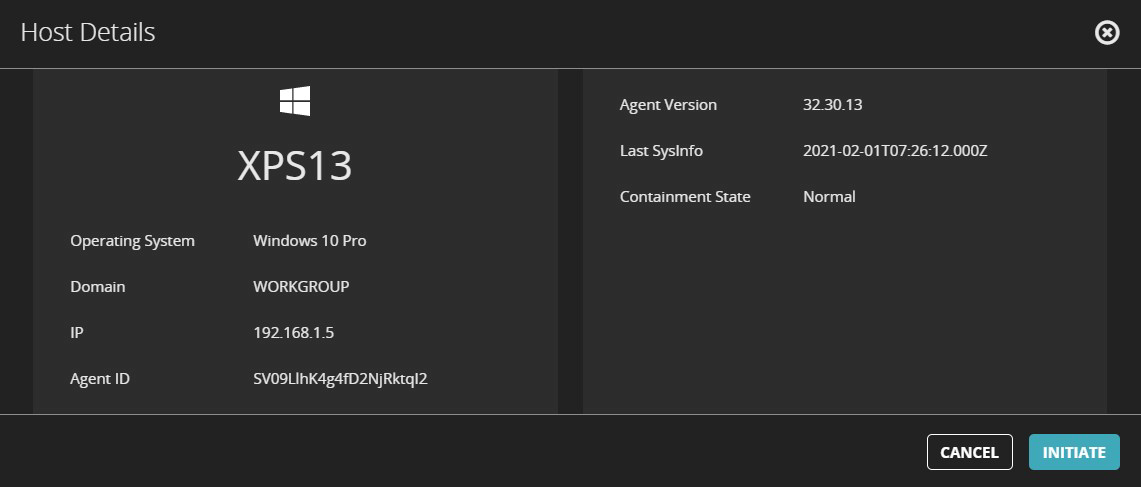
- Click Search. The host details are displayed.
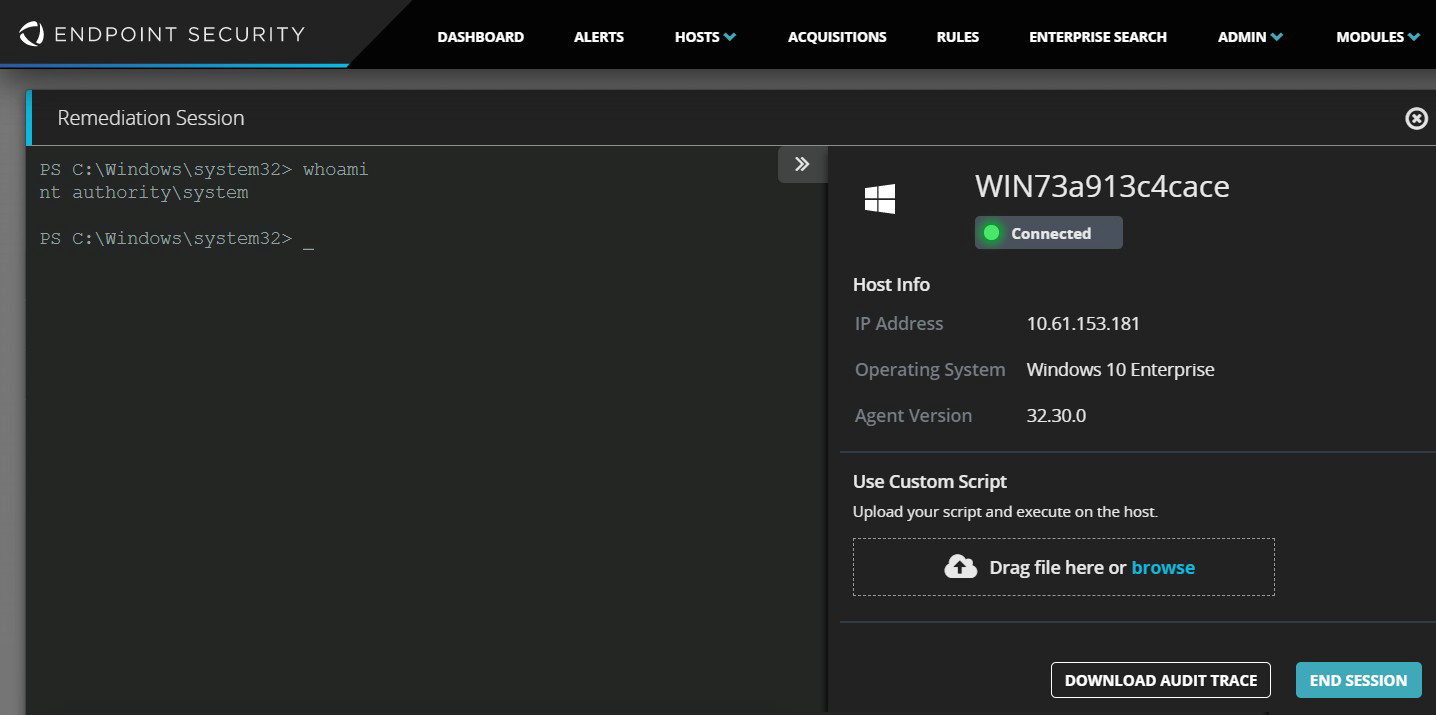
- Click Initiate to add the endpoint for remediation. When the endpoint is connected, a PowerShell terminal window opens in the Endpoint Security Web UI.
Note
The remote connection time depends on the Fast Poll setting for the agent in the policy.
5 | Module Overview
-
Use the terminal window to execute native operating system commands or execute batch scripts on the endpoint. Or use the "Drag file here or browse" option to upload a custom batch script or PowerShell format.
Note
Interactive commands and scripts that require user input for execution are not supported, for example, vi/vim and edit.
-
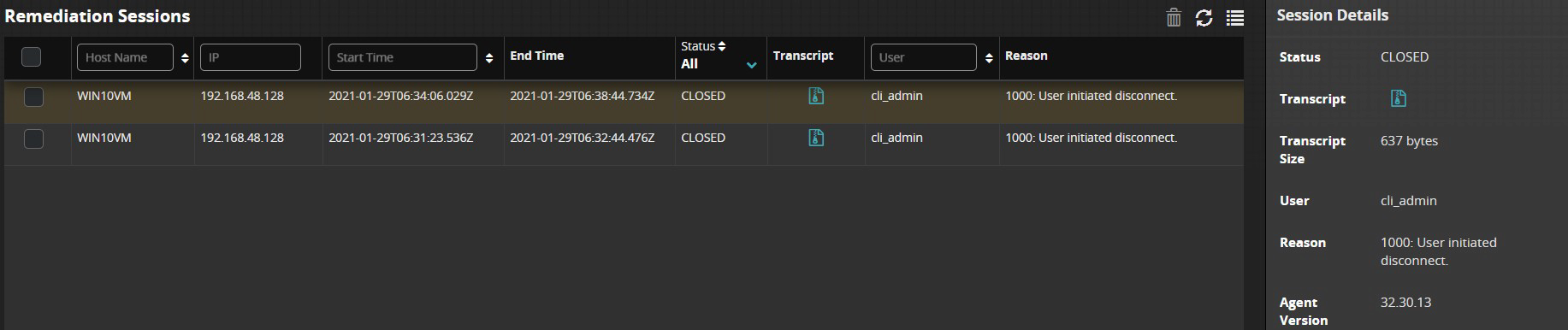
When the Host Remediation session is complete, click the Transcript icon to download the transcript logs. The transcript includes executed commands, their output, session initiation, the end time, and the user who initiated the remote session.
Endpoint Security Host Remediation Module User Guide Release 2.0.0 13
5 | Module Overview
Note
You can only remediate one host at a time and a maximum of 10 hosts can be added to the Host Remediation list. From the time the host is added for remediation, there is a maximum timeout of 24 hours. When this timeout is reached, the host state changes to "Time to initiate remediation expired". For more information, see Viewing the Host Remediation Status.
Viewing the Host Remediation Status
You can view the status of remediation in the Remediation Sessions grid. The following states are possible:
- Waiting for agent policy to be applied
- Ready to remediate
Note
The time it takes for a host to change state to Ready to remediate depends on the Fastpoll value set by the administrator in the agent polling policy.
- Remediation in progress
- Time to initiate remediation expired
Deleting a Remediation Transcript
- In the Remediation Sessions grid, select the session that you want to delete.
- Click the Delete icon. The deletion is logged in the following location:
/var/log/supervisor/host-remediation-server_1.0.0_<id>.log - Use the following CLI Endpoint Security command to view the log:
show log matching "/supervisord: hostremediation- server_"
5 | Module Overview
Note
The log location is protected, you need an Endpoint Power Edition License or a Managed Defense license to access the log.
 NOTICE: 3 session(s) deleted by user admin” followed by a JSON array of objects with fields like "browser_socket_id", "agent_id", and "initiated_at" timestamps (examples: "2021-02-05T07:01:10.155Z", "2021-02-05T06:59:45.969Z"). The text is white on black with portions in red and other colors as seen in a typical log output image.]
Note
You can use the Endpoint Security Event Streamer Module to stream all Windows PowerShell logs to Trellix Helix or a Security Information and Event Management (SIEM) system. For more information, see the FireEye Market.
6 | Module Overview
Troubleshooting
There are no new log files on the Endpoint Security Server
Installing the Host Remediation Module does not produce any new log files on the Endpoint Security Server. Refer to the Endpoint Agent log files to check for any installer messages or additional Host Remediation logs. For more information, see Verifying Installation.
COPYRIGHT
Copyright © 2026 Musarubra US LLC.
Trellix and FireEye are the trademarks or registered trademarks of Musarubra US LLC, FireEye Security Holdings US LLC, and their affiliates in the US and /or other countries. Other names and brands are the property of these companies or may be claimed as the property of others.