EDRF has triggered an alert based on the following indicator of compromise (IOC) rule. Investigate the alert to determine if it's a false positive or malicious activity. For a quick overview, see the following workflow.
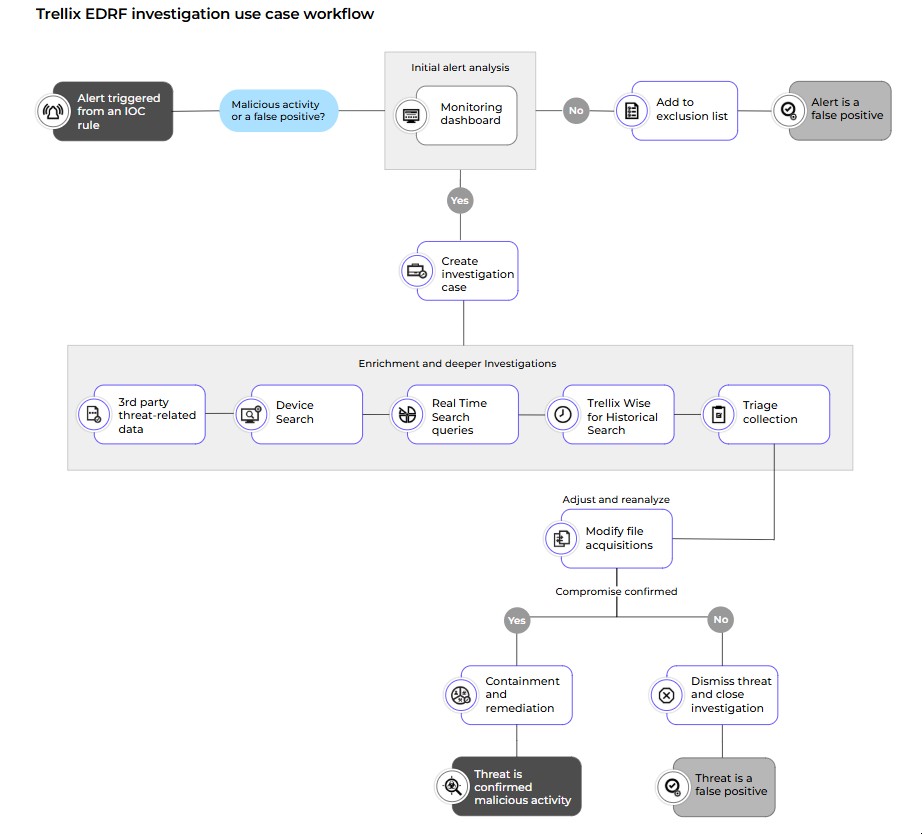
Prerequisite: for data collection and reporting, ensure that triage, data, and file acquisition settings are configured. Acquisition settings control how EDRF Client collect and report data for automatic triage, and static and dynamic analysis, which are key to analysis and response.
Initial alert analysis:
Review alert details in the EDR workspace > Monitoring dashboard.
For specific details about the alert, review the Alerting dashboard:
The name, data, and time of the impacted endpoint.
The process name, which is, the command or script that triggered the alert.
The technique ID, if available, which will correspond to a MITRE ATT&CK™ Matrix knowledge base article. See the section "Threat behavior" in Analyze threats.
Review tactics and behaviors of adversaries that prompted EDRF to identify it as a suspicious indicator. See the section "Mapping of techniques observed and suspicious indicators" in Analyze threats.
Use Trellix Wise to generate a Knowledge graph, which depicts the sequence of events and processes involved in the potential attack. See Search for historical data on a single endpoint.
Review files in quarantine, as quarantine is automatic if a threat is detected. See the Viewing quarantined files.
Collect forensic data to validate suspicious activity and understand its impact. See Collect forensic data.
If the alert is still a potential threat, proceed to Step 2 Enrichment and deeper investigation.
Enrichment and deeper investigation:
Create an investigation for this potential threat. EDRF automatically gathers evidence based on the activity details and uses the artifacts to create an investigation guide that contains key findings. Evidence is tracked against the MITRE ATT&CK framework.
Expand the investigation and Import threat-related data into an existing investigation from other sources.
The operating system assigns a unique process ID (PID) to all processes. EDRF uses PID in its system monitoring, forensic investigation and threat remediation. Use a device search, which uses PID to follow all actions related to a specific threat, including network and DNS connections.
Run a real-time search query to obtain the latest information from your endpoints.
Use Historical Search on an endpoint to gather suspicious activity such as IOC hashes, trace time, and loaded DLLs over a defined timeframe.
Manage acquisitions and access triage summaries using the Collections dashboard.
Adjust and reanalyse:
Review the Investigation Guides and investigation regularly to run additional tasks, update the status, add a note, or link to another investigation.
If the threat is non-malicious, dismiss or exclude the threat from the potential threat list.
If malicious activity or a threat is confirmed, and a true compromise has occurred, see the Containment and remediation use case .