After Outbound is enabled for your organization, you can switch between an Inbound and Outbound view of the Email Security — Cloud Web UI. By default, your web portal shows Inbound data and configurations. Inbound mode shows the defense of your organization from outside email threat actors. Outbound mode shows the protection of email sent by internal users in your organization.
Important
Outbound support is available for all Email Security — Cloud service regions.
Before you can switch between Inbound and Outbound view, you must configure a message analysis and email routing configuration policy. For more information, see Configuring outbound mail flow.
To toggle between Inbound and Outbound mode:
In the top left corner of the Email Security — Cloud portal, click on the gray drop-down menu.
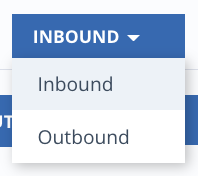
Select Inbound or Outbound.
After you select Inbound or Outbound view, you see the data collected from your organization's Inbound or Outbound defense in the Email Security — Cloud portal. After selecting a view, you will see the Email Security — Cloud Web portal in that mode even when clicking between pages in the portal. For example, if you select the Outbound view of the Dashboard, you continue to see the portal in Outbound view if you click on Alert Notifications.
The following pages of the Email Security — Cloud Web UI can be accessed in either Inbound or Outbound view:
Important
The connect and custom rules and the email campaign features of Email Security — Cloud are not enabled for outbound domains.